
What this does for you
- Every client's notes in one place, in order, instead of spread across notebooks and files.
- A consistent structure for every note, so nothing important gets missed.
- Notes save automatically as you type, so you do not lose work if you close the tab.
Before you start
- The client exists in PsychDesk. Notes are saved into a client's folder, so add the client first. See the Bookings guide for registering a client.
- Pick the note format you normally use. PsychDesk offers seven; see the table below.
The Therapy Writing page
Click Therapy Writing in the left-hand menu.
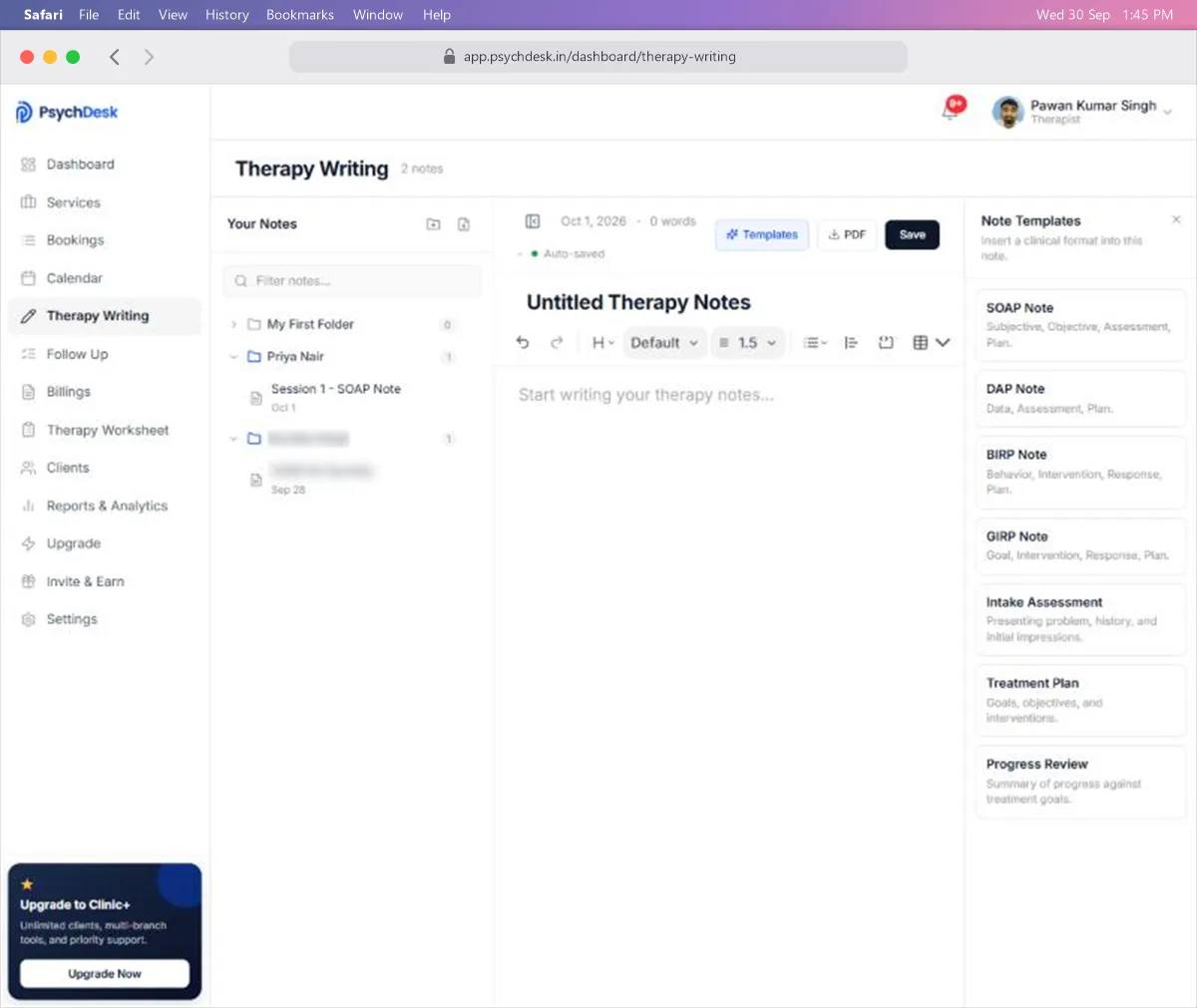
The page has three parts.
Your Notes (left)
- A list of folders. Click the arrow beside a folder to open it and see its notes.
- The number beside each folder is how many notes it holds.
- Filter notes finds a note by its name.
- The two icons at the top create a New Folder and a New Note.
The editor (middle)
- The note title at the top. Click it to rename the note.
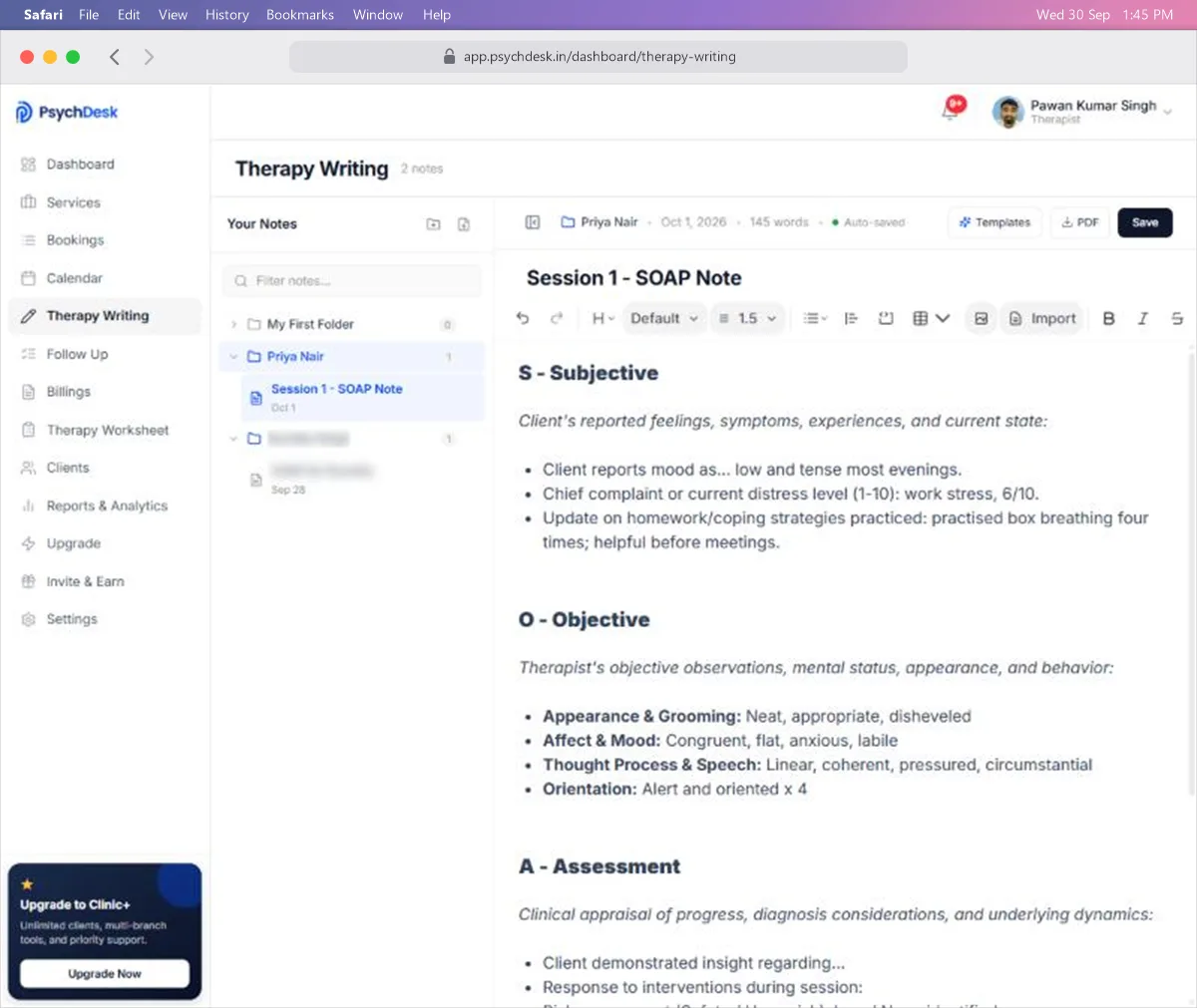
- A line showing the folder, the date, the word count, and Auto-saved once your changes are stored.
- A formatting toolbar: undo and redo, headings, font, line spacing, lists, quote, tables, images, Import, bold, italic and more.
- Templates, PDF and Save buttons.
Note Templates (right)
Opens when you click Templates. Close it with × to give the editor more room.
Note templates
Click a template to insert its headings and prompts into the current note.
| Template | Sections | Commonly used for |
|---|---|---|
| SOAP Note | Subjective, Objective, Assessment, Plan | Routine session notes |
| DAP Note | Data, Assessment, Plan | Shorter session notes |
| BIRP Note | Behavior, Intervention, Response, Plan | Behaviour-focused work |
| GIRP Note | Goal, Intervention, Response, Plan | Goal-focused work |
| Intake Assessment | Presenting problem, history, initial impressions | A client's first session |
| Treatment Plan | Goals, objectives, interventions | Planning a course of therapy |
| Progress Review | Progress against treatment goals | Periodic reviews |
Things to know:
- Inserting a template replaces the note's title with the template name. Rename the note afterwards.
- Insert the template before you start writing, since it is added to the note body.
- The prompts, such as "Client reports mood as...", are there to guide you. Write your notes after them, or delete them.
Write a note for a client
1. Create a folder for the client (once per client)
- 1Click the New Folder icon at the top of Your Notes. A folder called "Untitled Folder" appears.
- 2Right-click the folder and choose Rename.
- 3Type the client's name and press Enter.
2. Start a note in their folder
- 1Right-click the client's folder.
- 2Choose New Note.
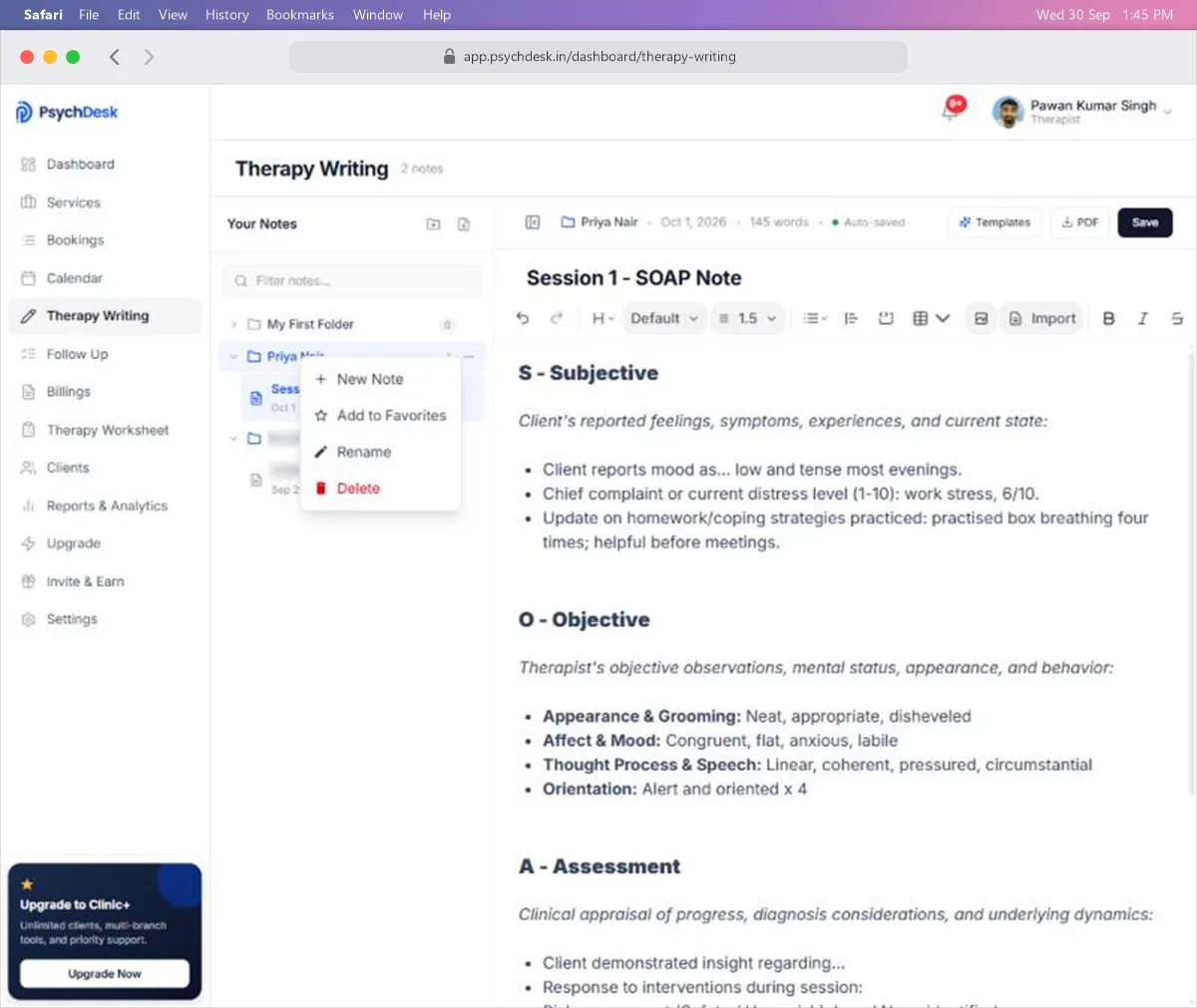
The editor opens with the folder name shown above the title.
3. Add a template and write
- 1Click Templates and choose a format, for example SOAP Note.
- 2Click the title and rename the note, for example "Session 1 - SOAP Note".
- 3Write your notes under each heading.
4. Save it to the client's folder
- 1Click Save.
- 2Choose Save for Client. Choose Save for Self instead for personal notes that do not belong to a client.
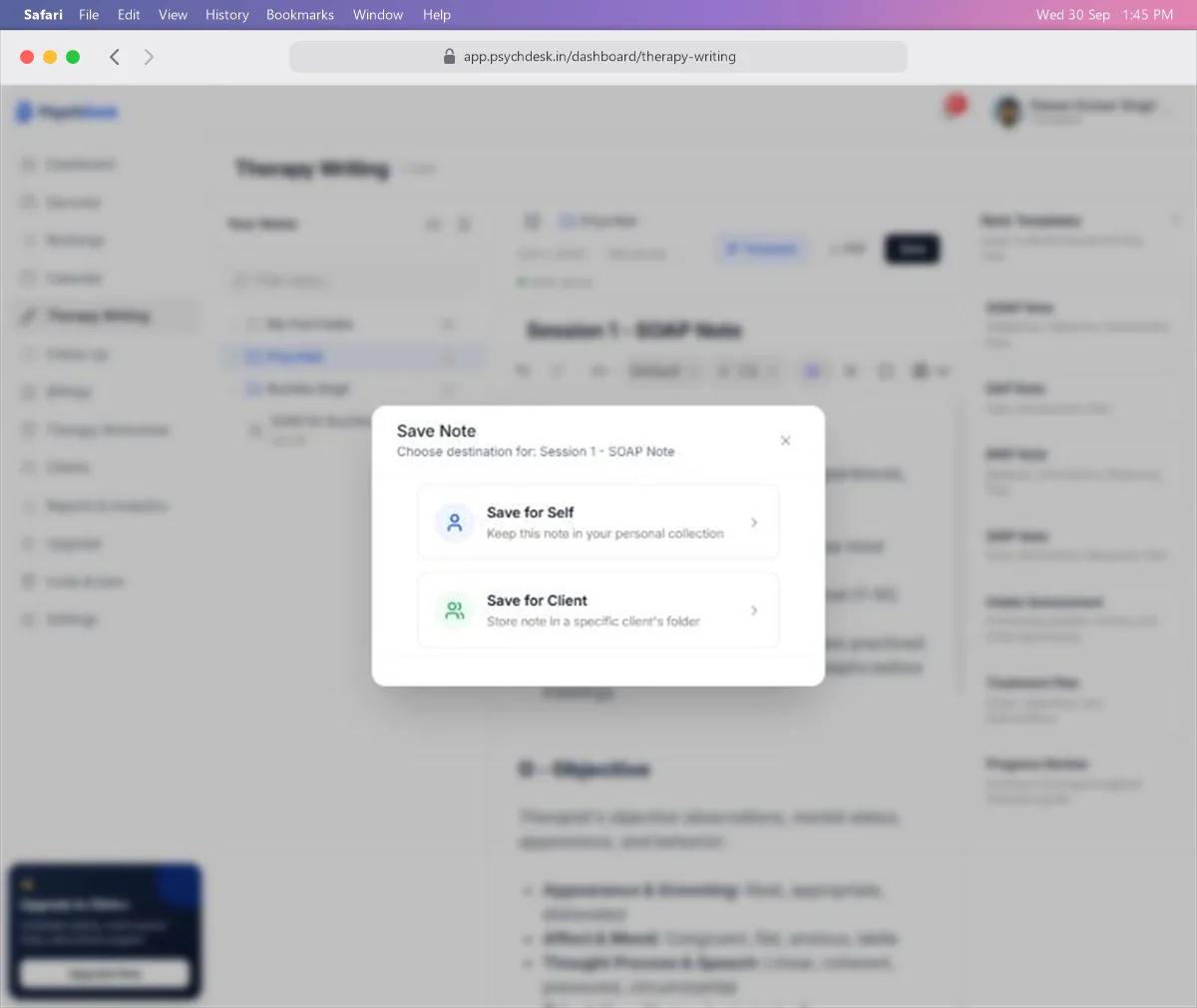
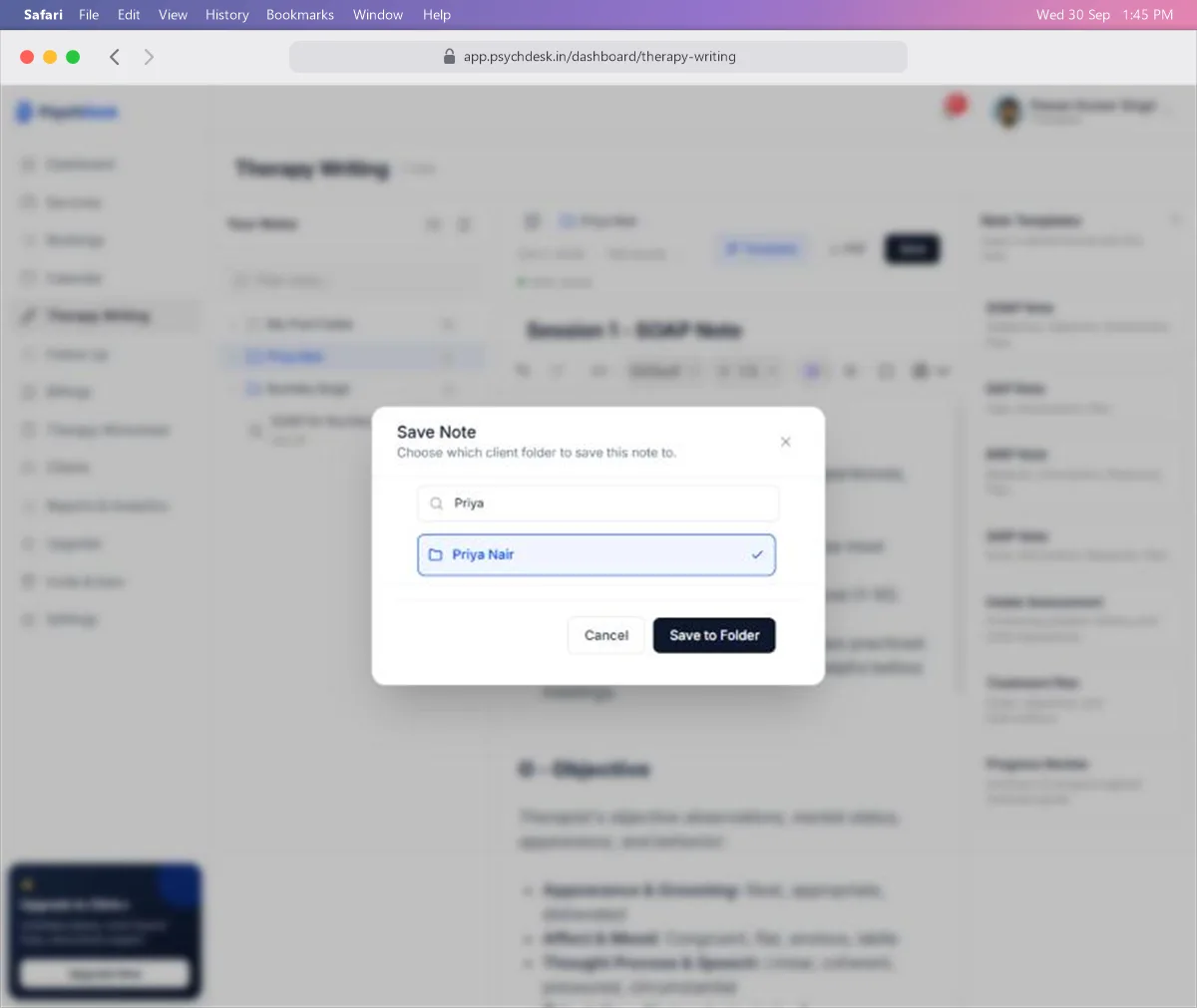
- 3Search for the client, click their name so it shows a tick, and click Save to Folder.
The note now appears under the client's folder with its date, and the folder count goes up by one.
Work with folders
Right-click any folder to:
- New Note: start a note inside it.
- Add to Favorites: keep it easy to find.
- Rename: change the folder name.
- Delete: remove the folder. Check what is inside first.
A My First Folder is created for you. You can rename it or use it for your own notes.
Other tools in the editor
- PDF: download the note as a PDF, for example to share with a supervisor.
- Import: bring in text from an existing document.
- Insert Image and Table options: add a diagram or a table, such as a mood tracker.
- Hide Notes Panel (the icon left of the folder name): hides the folder list to give you a larger writing space.
Keeping notes private
- Notes contain some of the most sensitive information you hold. Do not leave a note open on a shared screen.
- Only download a PDF when you need one, and delete the downloaded copy once it has been shared.
- Keep to the minimum needed for clinical care. Clients may be able to request access to their records.
Check it worked
- 1Open the client's folder in Your Notes.
- 2Confirm the note is listed with today's date.
- 3Click it and check the content is all there.
Common problems
| Problem | Likely cause | Fix |
|---|---|---|
| The note title changed on its own | A template was inserted after naming the note | Rename the note again after inserting the template |
| Save to Folder stays grey | No client is selected | Click the client's name so a tick appears |
| The client is not in the save list | They are not registered yet | Add them first through Bookings > Book Session > Register New Client |
| A note is hard to find | Folder is collapsed or the name is unclear | Use Filter notes, and give every note a date or session number in its name |
What to set up next
- Share worksheets and exercises with clients: see the Therapy Worksheet guide.
- Track follow-up tasks after a session: see the Follow Up guide.