

What this does for you
- An invoice is created for every booking automatically, so you do not have to remember to raise one.
- Paid and unpaid invoices are separated at a glance, so chasing payments takes minutes.
- Each invoice is a proper tax invoice with your details, ready to download and send.
Before you start
- Your bank details are saved, so online payments can be paid out to you. See Quick Setup, step 5.
- Add your GSTIN in Bank Details if you are GST-registered, so it appears on your invoices.
- Your services have the right prices. Invoices use the price of the service booked. See the Services guide.
The Billings page
Click Billings in the left-hand menu.
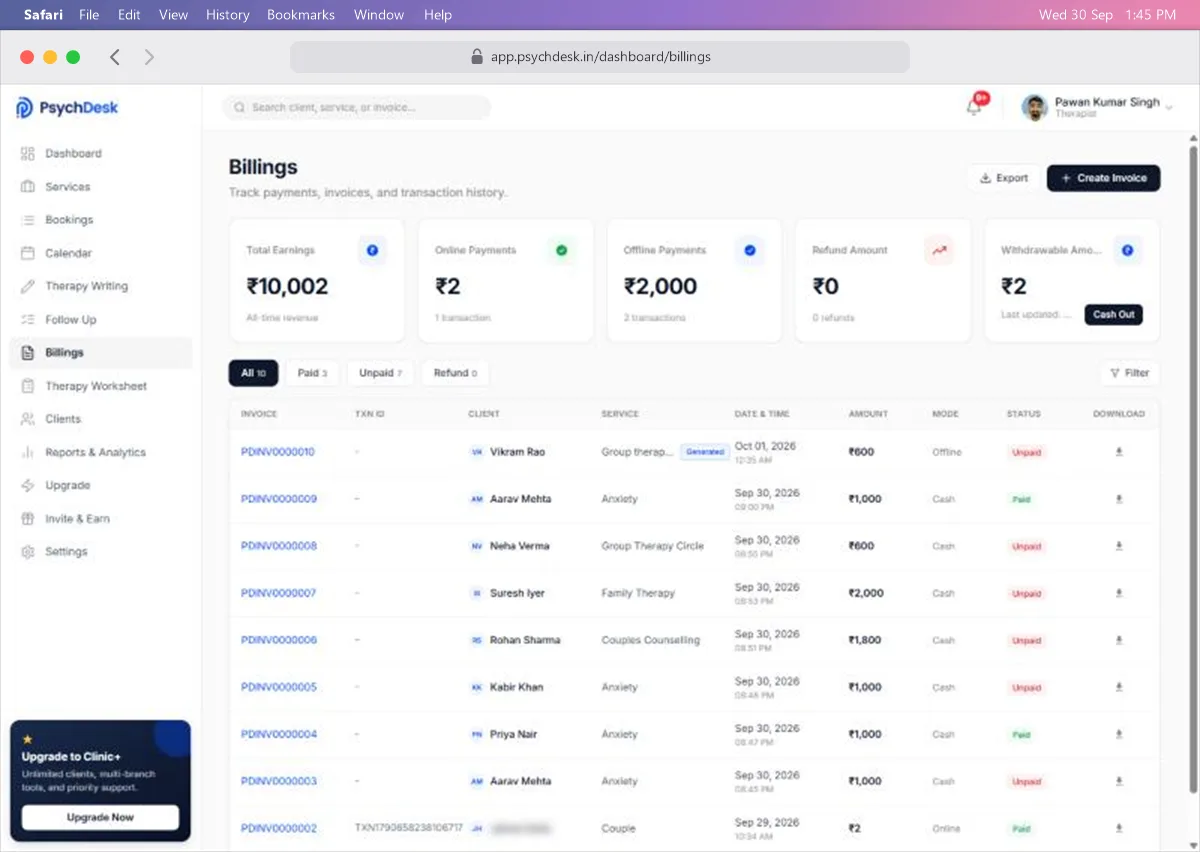
The five cards at the top:
| Card | What it shows |
|---|---|
| Total Earnings | All invoice amounts added together |
| Online Payments | Money clients paid online, and how many payments |
| Offline Payments | Money recorded as paid in cash or another offline method |
| Refund Amount | Money refunded to clients |
| Withdrawable Amount | Online payments you can move to your bank. Click Cash Out to withdraw |
Below the cards:
- The tabs All, Paid, Unpaid and Refund narrow the list by status.
- Filter narrows it further; see below.
- Search client, service, or invoice at the very top finds a specific invoice.
Each row shows:
- Invoice: the invoice number, starting PDINV.
- TXN ID: the payment reference for online payments.
- Client, Service, and the Date & Time the invoice was created.
- Amount, the payment Mode (Cash, Online or Offline), and the Status (Paid or Unpaid).
- Download: the invoice as a PDF.
Invoices you create by hand are marked Generated.
Where invoices come from
Automatically, from bookings. Every time a session is booked, from your booking page or by you, an invoice is created for the service price. Its status follows the Payment Type chosen at booking: Paid shows as Paid; Unpaid or Yet to Be Paid shows as Unpaid.
By hand, with Create Invoice. Use this for anything outside a normal booking, such as a report fee or a session booked before you joined PsychDesk.
Create an invoice by hand
- 1Click Create Invoice at the top right.
- 2Fill in the form on the left. The Invoice Preview on the right shows exactly what the client will receive.
- 3Click Save Invoice.
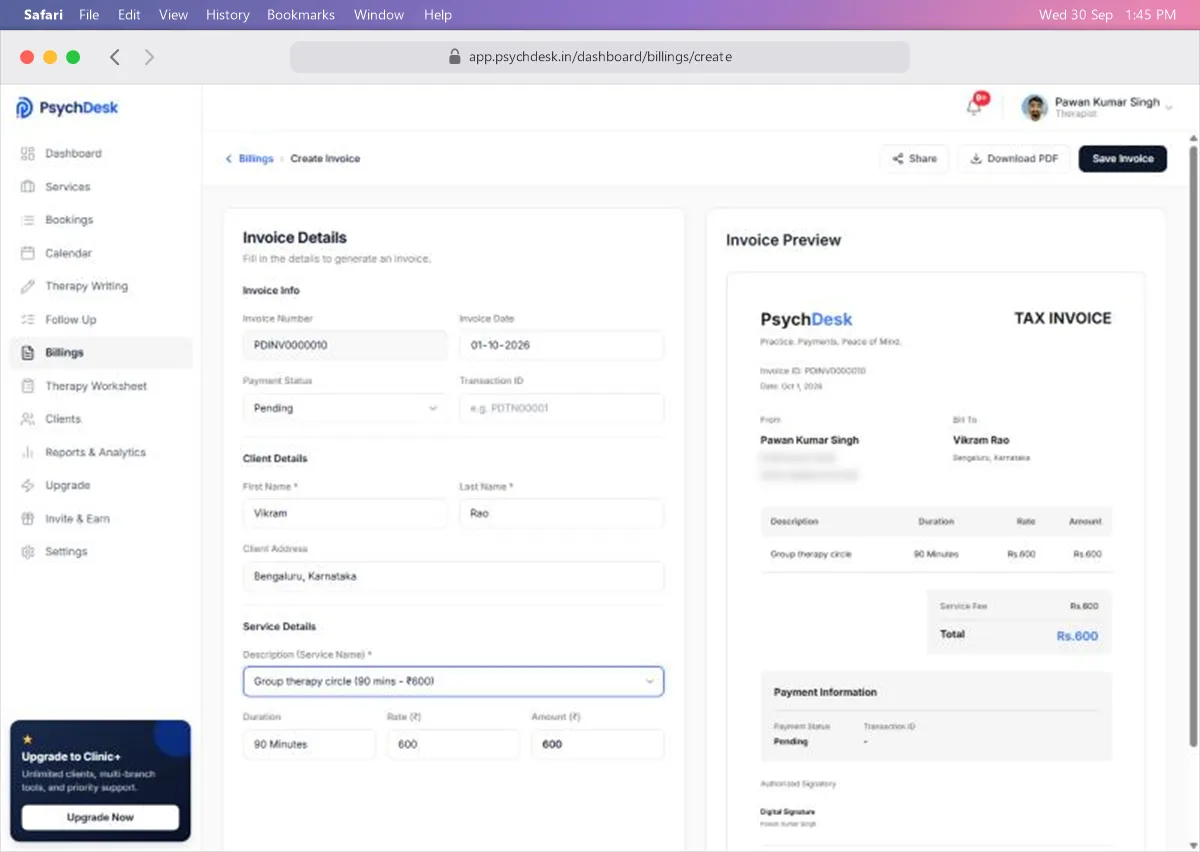
| Field | What to enter | Rules |
|---|---|---|
| Invoice Number | Filled in for you | Cannot be changed |
| Invoice Date | The date of the invoice | Today by default |
| Payment Status | Paid or Pending | Pending shows as Unpaid in the list |
| Transaction ID | The payment reference, if the client paid online | Optional |
| First Name, Last Name | The client's name as it should appear | Both required |
| Client Address | Their city or address | Optional |
| Description (Service Name) | Pick the service | Required. Fills in duration, rate and amount |
| Duration, Rate (₹), Amount (₹) | Adjust if this invoice differs from the usual | Filled in from the service |
Things to know:
- The invoice is titled Tax Invoice and shows your name, address and GSTIN from your settings.
- The client's name is typed in, not picked from your client list, so check the spelling.
- Download PDF and Share at the top let you send the invoice as soon as it is ready.
Find an invoice
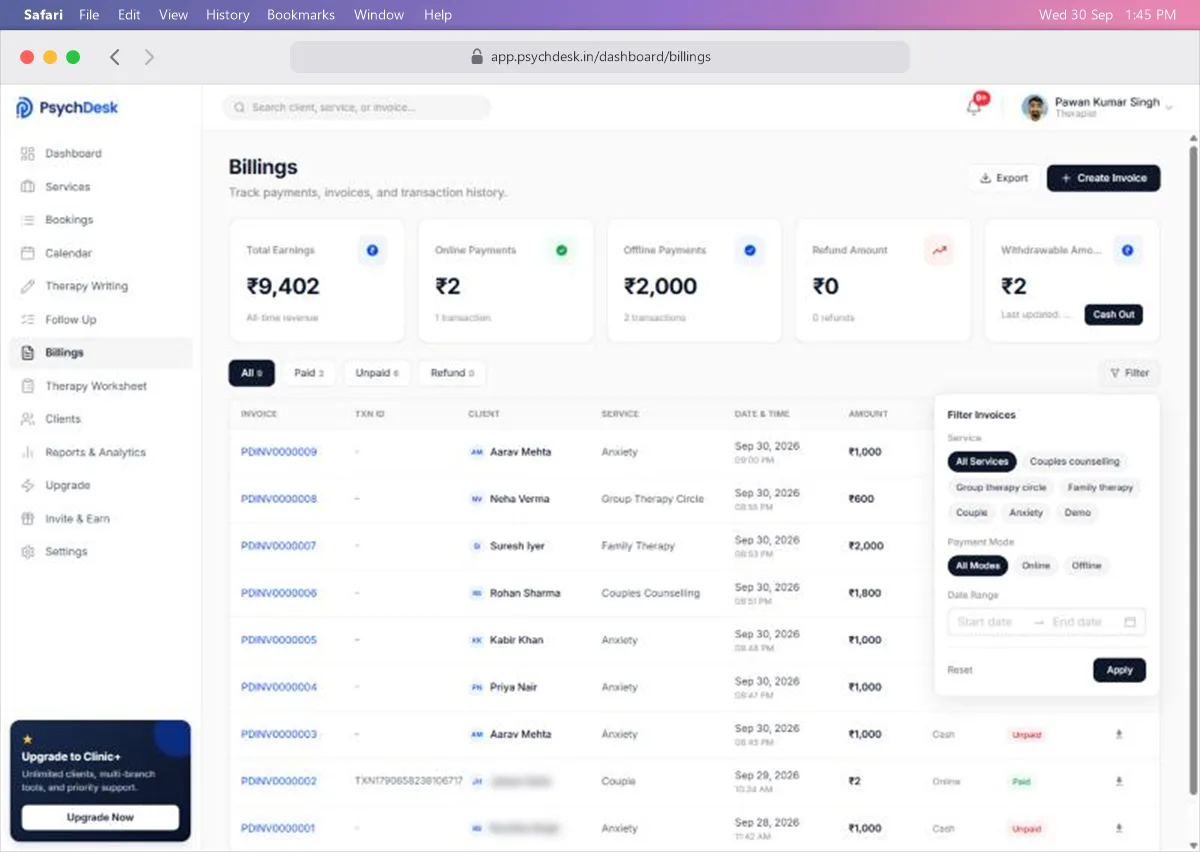
Click Filter to narrow the list by:
- Service: one or more of your services.
- Payment Mode: All Modes, Online or Offline.
- Date Range: a start and end date.
Click Apply. Click Reset to clear the filter.
Chase unpaid invoices
- 1Click the Unpaid tab.
- 2Check which clients owe money and for which sessions.
- 3Click the download icon on an invoice to get its PDF, and send it with a polite reminder.
A weekly check of the Unpaid tab keeps outstanding amounts small.
Withdraw online payments
Money clients pay online collects in your Withdrawable Amount.
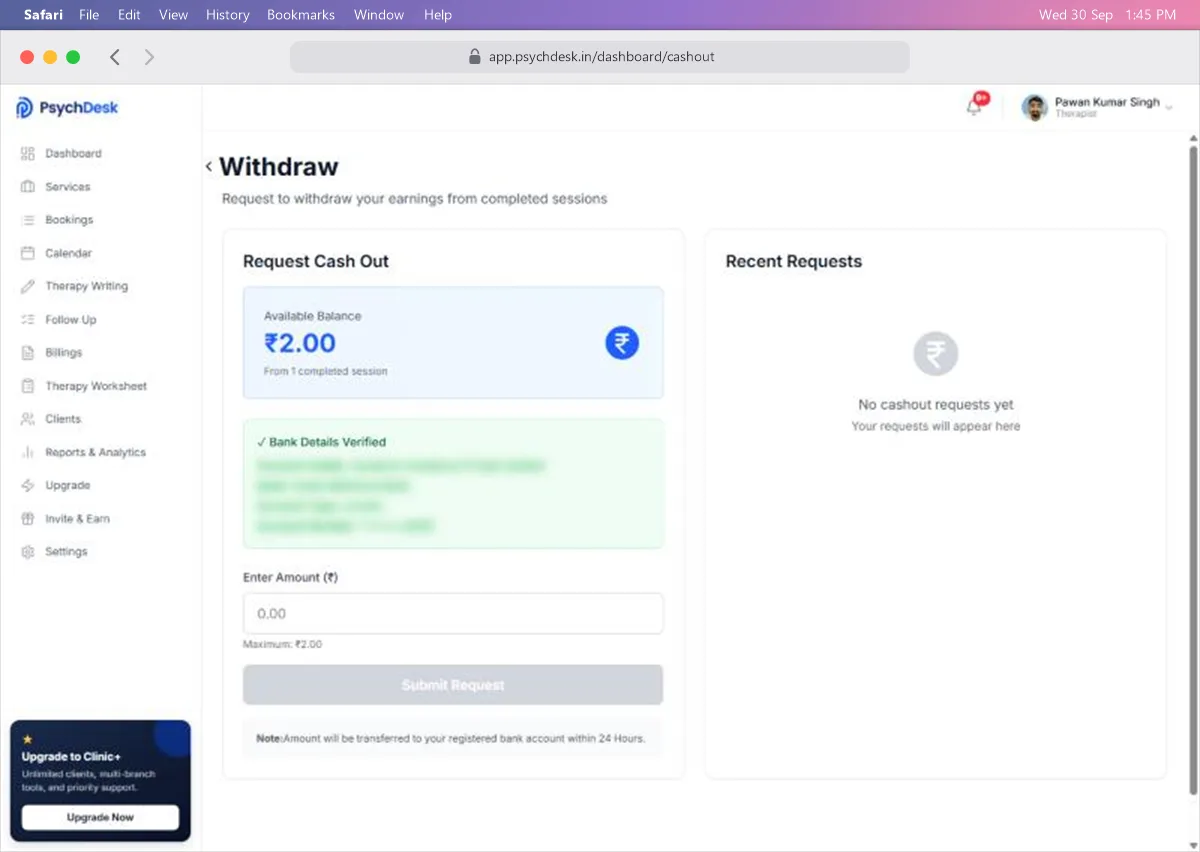
- 1Click Cash Out on the Withdrawable Amount card.
- 2Check the Available Balance and that your bank details show Bank Details Verified.
- 3Enter the amount, up to the maximum shown.
- 4Click Submit Request.
Things to know:
- The money is transferred to your registered bank account within 24 hours.
- Past requests are listed under Recent Requests.
- Only online payments can be withdrawn. Cash and other offline payments are already with you.
Check it worked
- 1Book a test session with Payment Type set to Unpaid.
- 2Open Billings and confirm a new invoice appears at the top of the Unpaid tab with the right client, service and amount.
- 3Download it and check your details and the client's name on the PDF.
Common problems
| Problem | Likely cause | Fix |
|---|---|---|
| No invoice for a booking | The page has not refreshed | Reload the page; invoices are created when the booking is saved |
| Invoice shows the wrong amount | The service price was different at booking | Create a corrected invoice with Create Invoice |
| Your GSTIN is missing from invoices | It is not saved in Bank Details | Add it under Settings > Bank Details |
| Cash Out is empty or greyed out | No online payments are waiting | Only online payments can be withdrawn |
| Totals look higher than money received | Total Earnings includes unpaid invoices | Use Online Payments and Offline Payments for money actually received |
What to set up next
- See income and session trends over time: see the Reports & Analytics guide.
- Share worksheets with clients: see the Therapy Worksheet guide.