

What this does for you
- Start each day knowing what is scheduled and what needs attention, in one screen.
- Join your next online session straight from the home screen.
- Jump to common tasks, such as writing a note or raising an invoice, in one click.
The Dashboard
Click Dashboard in the left-hand menu, or log in.
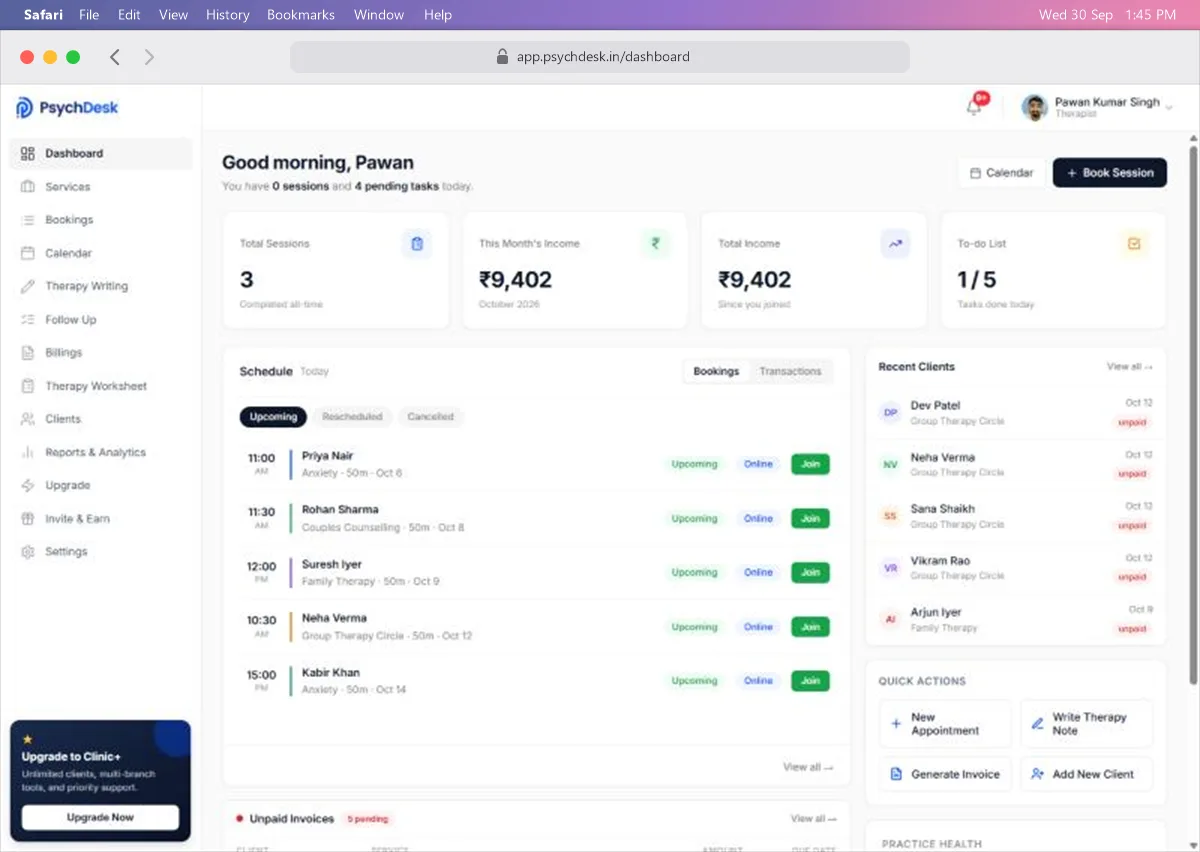
Summary cards
| Card | What it shows |
|---|---|
| Total Sessions | Sessions completed since you joined |
| This Month's Income | Income for the current month |
| Total Income | Income since you joined |
| To-do List | Tasks done today out of your total, for example 1 / 5 |
Schedule
The Schedule panel has two views, switched with the buttons at its top right.
Bookings lists your upcoming sessions with the time, client, service, length and date. Each has its status, mode and a Join button for online sessions. The small tabs Upcoming, Rescheduled and Cancelled narrow the list.
Transactions lists recent payments with the client, date, service, transaction ID and amount.
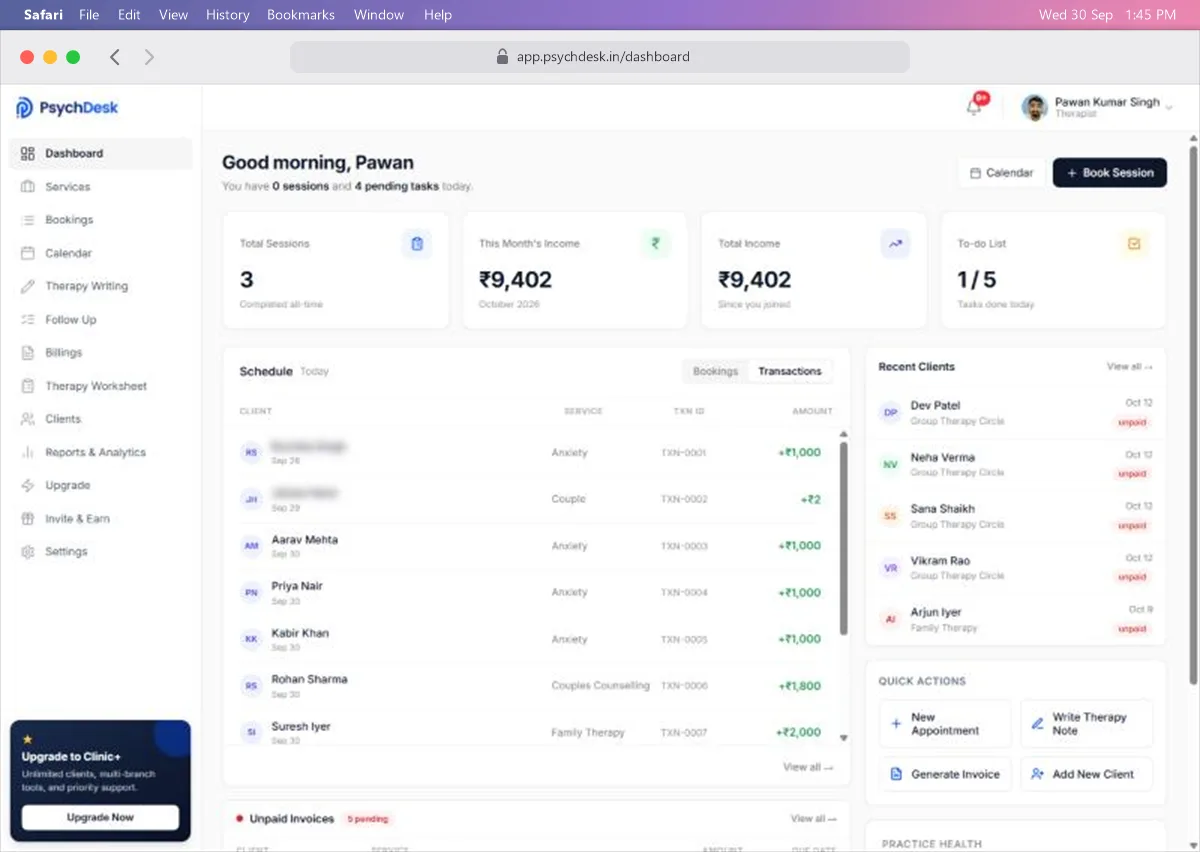
Click View all at the bottom of the panel to open the full list on the Bookings page.
Unpaid Invoices
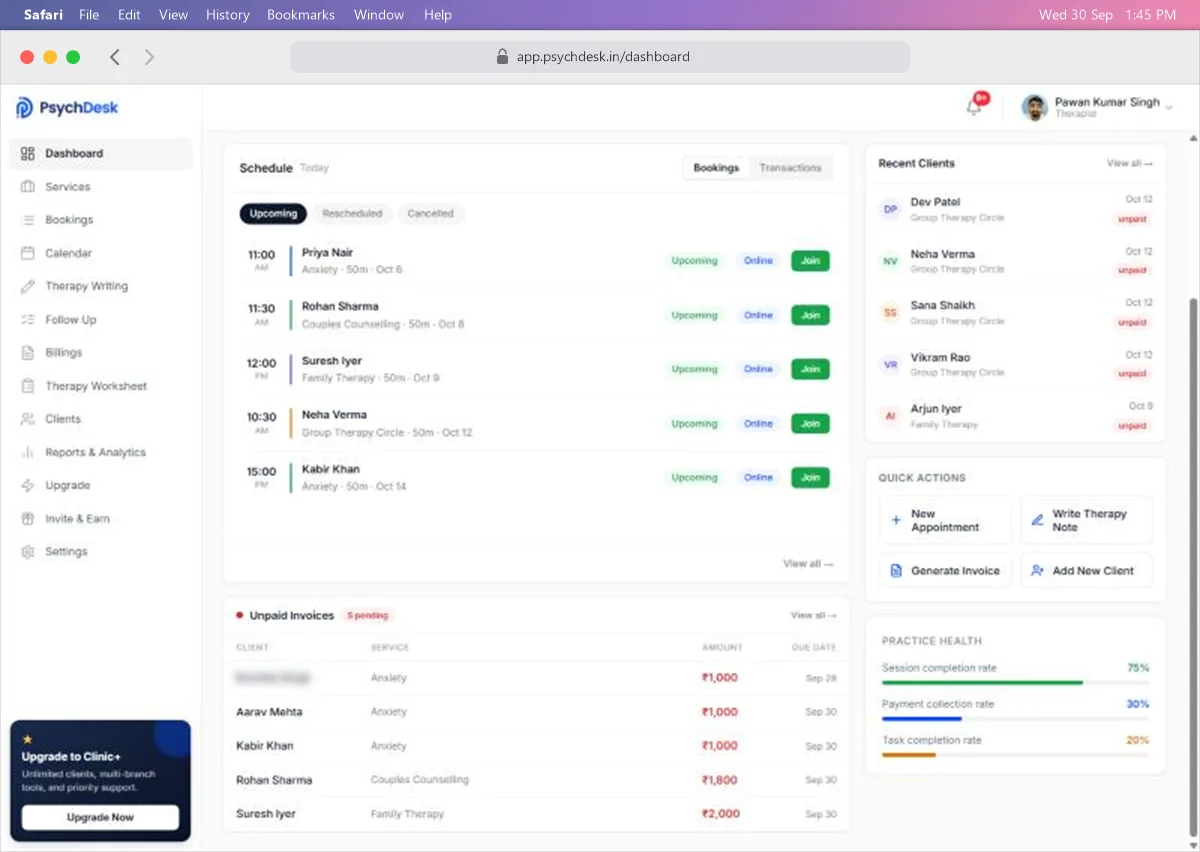
Scroll down to see Unpaid Invoices, with the number pending beside the title. Each row shows the client, service, amount and due date. Click View all to open Billings.
Recent Clients
The right-hand column lists your most recent clients, with their service, session date and payment status. Click View all to open Clients.
Quick Actions
Four shortcuts:
- New Appointment books a session.
- Write Therapy Note opens Therapy Writing.
- Generate Invoice opens Billings, where you can create an invoice.
- Add New Client starts registering a client.
Practice Health
Three bars show how your practice is running:
| Measure | What it means | Good sign |
|---|---|---|
| Session completion rate | Share of sessions that went ahead as planned | High |
| Payment collection rate | Share of invoiced money that has been paid | High |
| Task completion rate | Share of Follow Up tasks marked Done | High |
A low Payment collection rate means invoices are waiting to be paid. Open Unpaid Invoices and follow up.
A daily routine
- 1Open the Dashboard and read the greeting for today's sessions and tasks.
- 2Check the Schedule and join your first online session from there when it is time.
- 3Look at Unpaid Invoices and Practice Health once a day to keep payments and tasks moving.
- 4Use Write Therapy Note after each session.
Common problems
| Problem | Likely cause | Fix |
|---|---|---|
| A session is missing from the Schedule | It is under Rescheduled or Cancelled | Click those tabs, or open Bookings |
| Income looks higher than money received | The income cards include unpaid invoices | Check Billings for Paid and Unpaid amounts |
Where to go next
- Set up your practice from scratch: see Quick Setup.
- See all the guides: see the Introduction.