

What this does for you
- 120 worksheets and 12 assessments ready to use, so you do not have to build handouts from scratch.
- Adjust any worksheet in a few minutes: change the wording, add your own questions, or remove sections.
- Keep the version you gave each client with that client.
Before you start
- The client exists in PsychDesk. Worksheets are saved to a client. See the Bookings guide for registering a client.
- Your plan. The Basic plan includes 5 worksheets and 5 assessments; Standard includes unlimited. Check Upgrade in the left-hand menu if you reach a limit.
The Therapy Worksheets page
Click Therapy Worksheet in the left-hand menu.
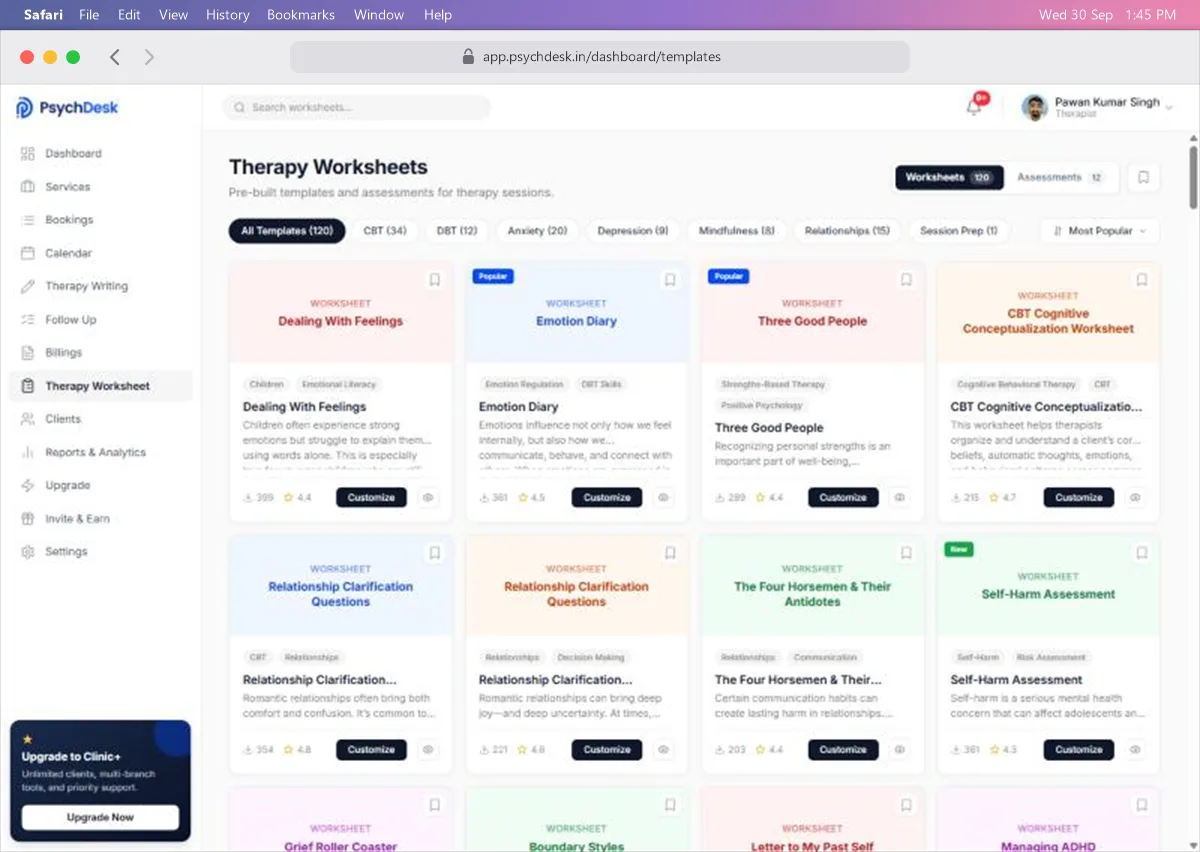
At the top right:
- Worksheets and Assessments switch between the two libraries. The number beside each is how many there are.
- The bookmark icon shows only the items you have bookmarked.
Below the title:
- Category buttons narrow the library, such as CBT, DBT, Anxiety, Depression, Mindfulness, Relationships and Session Prep. The number shows how many items are in each.
- Most Popular on the right changes the order.
- Search worksheets at the very top finds an item by name.
Each card shows the title, its tags, a short description, how many times it has been downloaded, its rating, and three controls:
- The bookmark icon (top right of the card) saves it to your bookmarks.
- Customize opens it for editing.
- The eye icon opens a preview.
Cards may also carry a Popular or New label.
Preview a worksheet
Click the eye icon on a card.
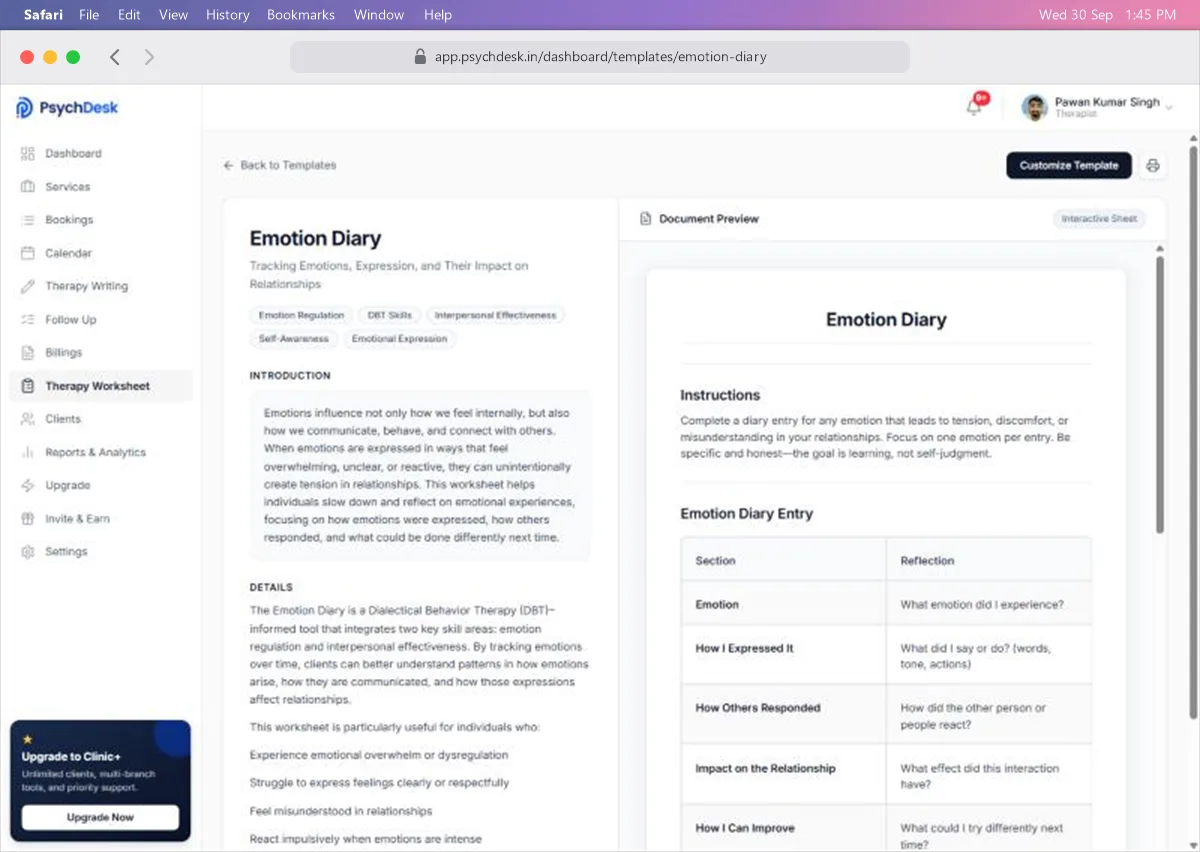
The left side explains the worksheet: what it is for, how it works and who it suits. The right side shows the document exactly as the client will see it.
Use the printer icon at the top right to print it, or Customize Template to edit it. Back to Templates returns to the library.
Customize a worksheet
- 1Click Customize on the card, or Customize Template from the preview.
- 2Change the Worksheet Title if you want to.
- 3Edit the content in the editor below.
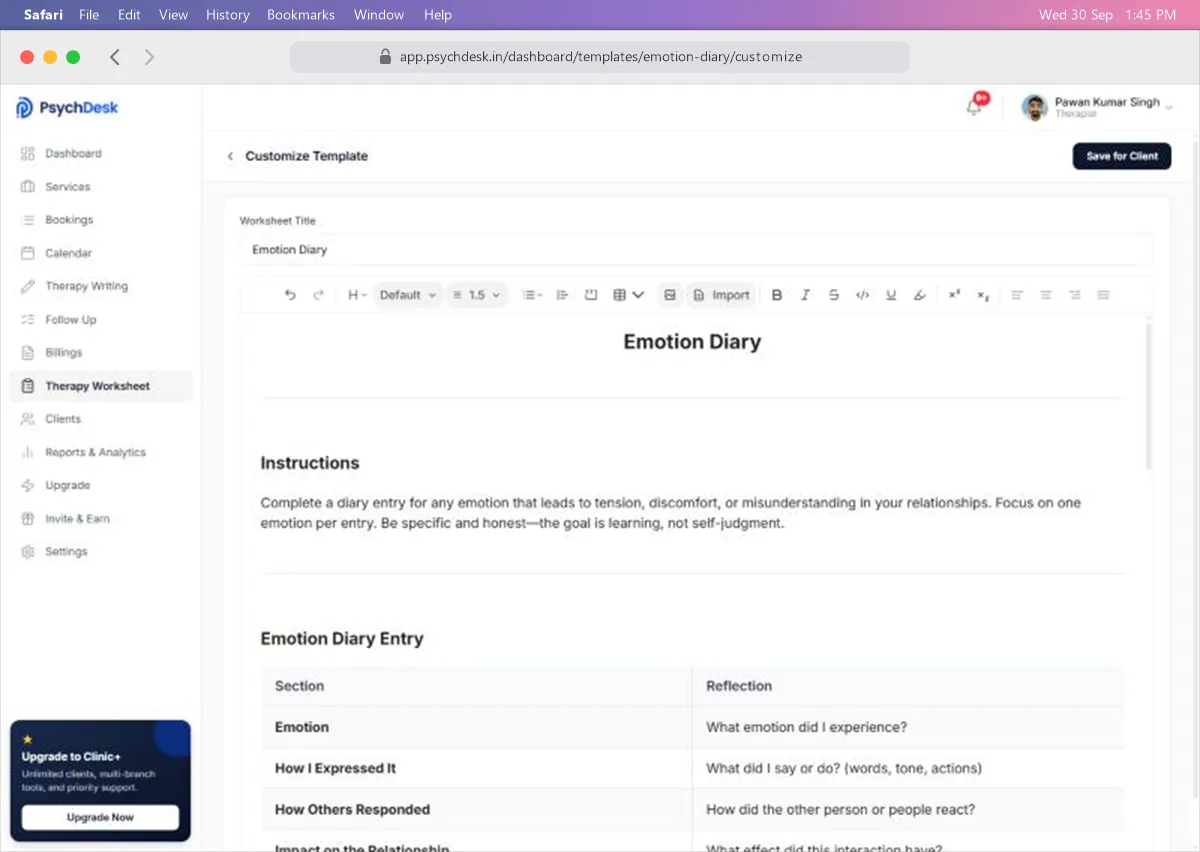
The editor works like a word processor. You can:
- Change or add instructions and questions.
- Add or remove table rows.
- Use headings, lists, bold, italic and highlight.
- Add an image with Insert Image, or bring in text with Import.
Your changes apply only to the copy you save. The original in the library stays the same.
Save a worksheet to a client
- 1Click Save for Client at the top right of the editor.
- 2Search for the client by name, email or phone.
- 3Click the client so a tick appears. The bottom of the window shows who is selected.
- 4Click Save for Client.
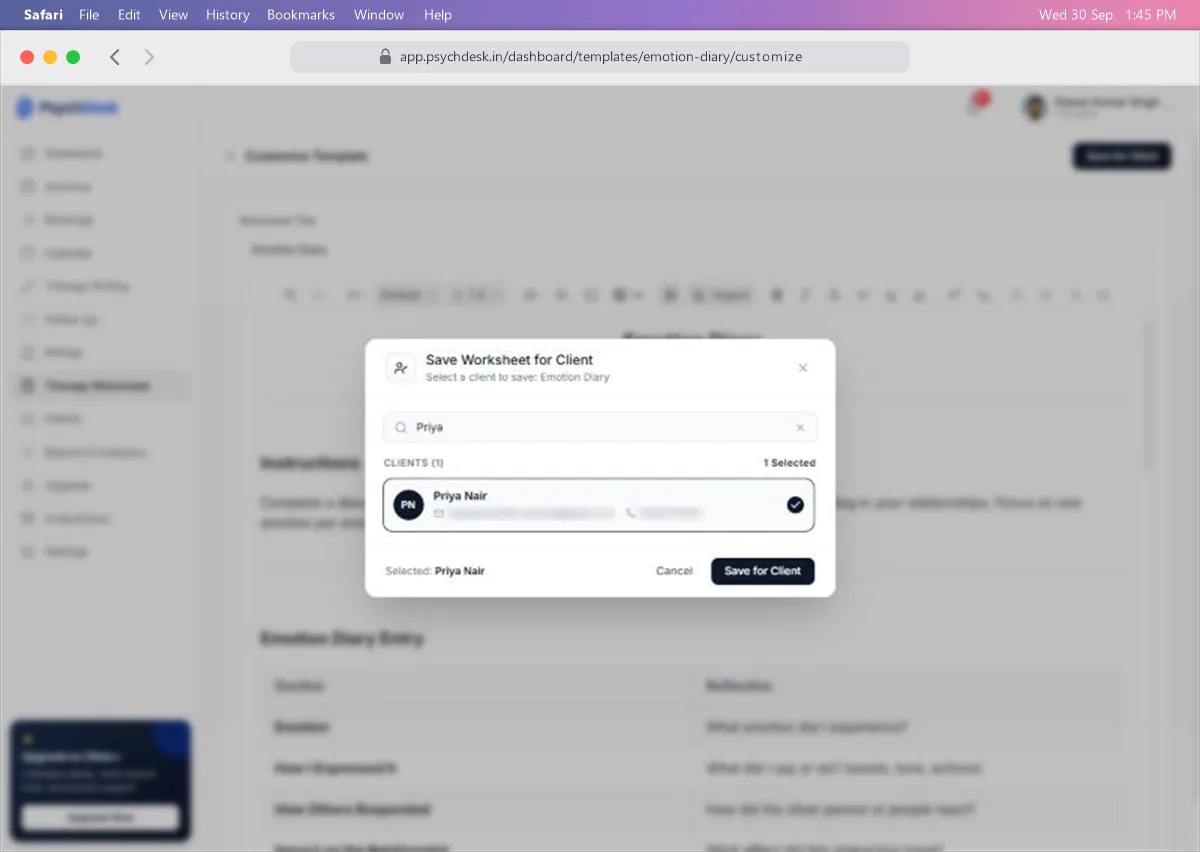
You are taken back to the library when the worksheet is saved.
Assessments
Click Assessments at the top right to open the assessment library. It holds standard screening and outcome measures, including:
- PHQ-9 for depression.
- GAD-7 for anxiety.
- DASS-21 for depression, anxiety and stress.
- PCL-5 for PTSD.
- AUDIT for alcohol use.
- ASRS-v1.1 for adult ADHD.
- EPDS for postnatal depression.
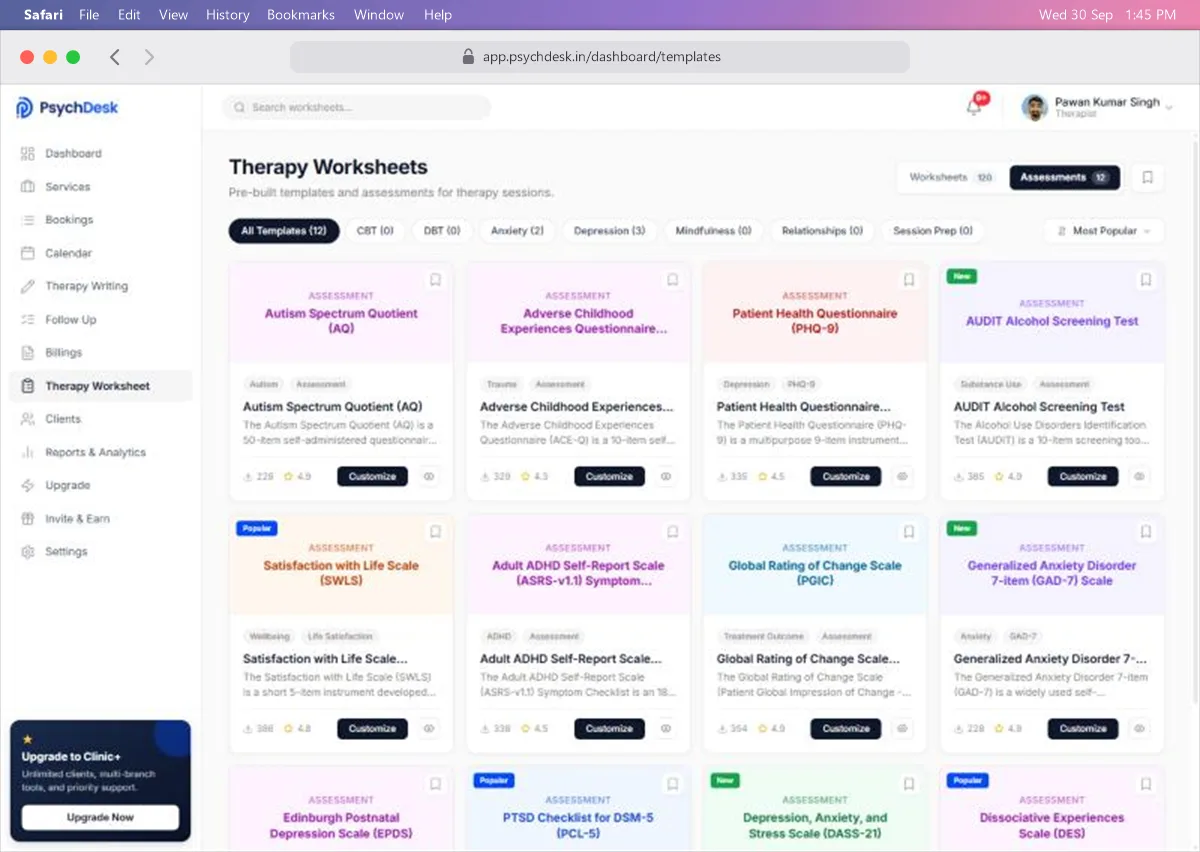
Assessments work the same way as worksheets: preview, customize and save to a client.
Use standard assessments as published. Changing the questions or scoring means the results can no longer be compared with the published norms.
Tips for choosing worksheets
- Start from the category that matches the client's goal, then read the preview's introduction to check the fit.
- Bookmark the five or six you use most so they are one click away.
- For children, look for worksheets tagged Children; they use simpler language and more visual prompts.
- Adjust the wording to the client's language and context. A short, relevant worksheet gets completed more often than a long one.
Check it worked
- 1Save a worksheet to a test client.
- 2Open that client under Clients, click View Profile, and open the Therapy Worksheet tab. The worksheet is listed there with a View button.
Common problems
| Problem | Likely cause | Fix |
|---|---|---|
| Cannot find a worksheet | A category or the Assessments tab is still selected | Click Worksheets and All Templates, then search |
| Save for Client stays grey | No client is selected | Click the client so a tick appears |
| The client is not in the list | They are not registered yet | Register them through Bookings > Book Session |
| Edits changed the wrong worksheet | Edits are only kept in the saved copy | Customize again from the library and save to the right client |
What to set up next
- Write up the session where you used the worksheet: see the Therapy Writing guide.
- Add a follow-up task to check the client has completed it: see the Follow Up guide.