
What this does for you
- Clients see exactly what you offer and what it costs before they book.
- Each service gets its own link, so you can send a client straight to the right one.
- Packages let a client commit to a set of sessions up front, on a fixed weekly, monthly or custom rhythm, with the slots reserved for them.
Before you start
- Your availability is set. Every service follows a weekly schedule. If you have not set one, do Quick Setup step 4 first.
- Your username is final. Service links are built from it.
- Your plan. Recurring and advanced scheduling is listed under the Standard plan. Check Upgrade in the left-hand menu if you do not see the options described below.
- One service per therapy type you offer. When you book a session, only services matching the client's therapy type are offered. If you see couples, families or groups, create a service for each.
The Services page
Click Services in the left-hand menu.
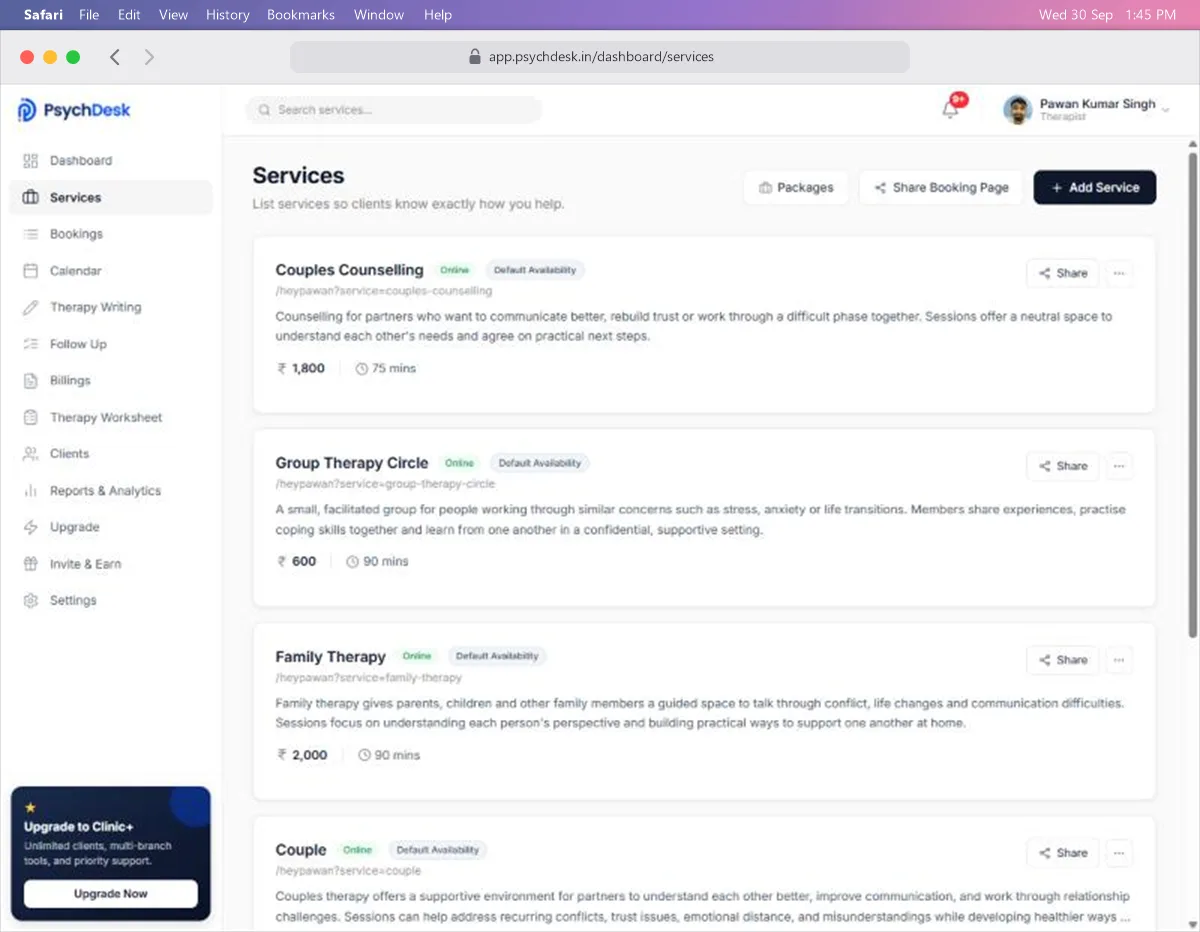
At the top:
- Search services finds a service by name.
- Packages opens your multi-session packages.
- Share Booking Page shares your whole booking page.
- Add Service creates a new service.
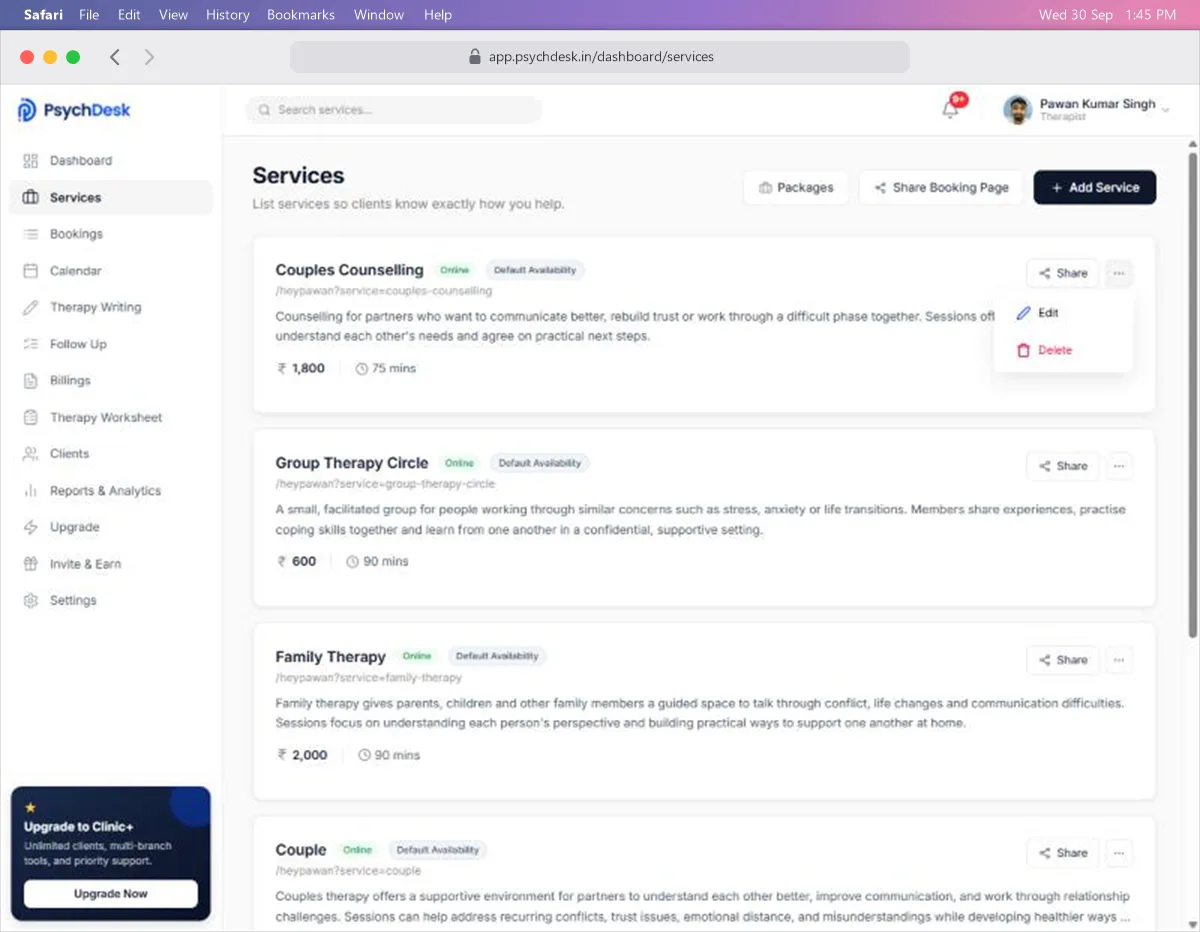
Each service card shows its name, mode (for example Online), the schedule it follows, its link, a short description, the price and the duration. On the right of each card are Share and a ⋯ menu for editing and deleting.
Create a service
- 1Click Add Service.
- 2Fill in the details below.
- 3Click Save Service.
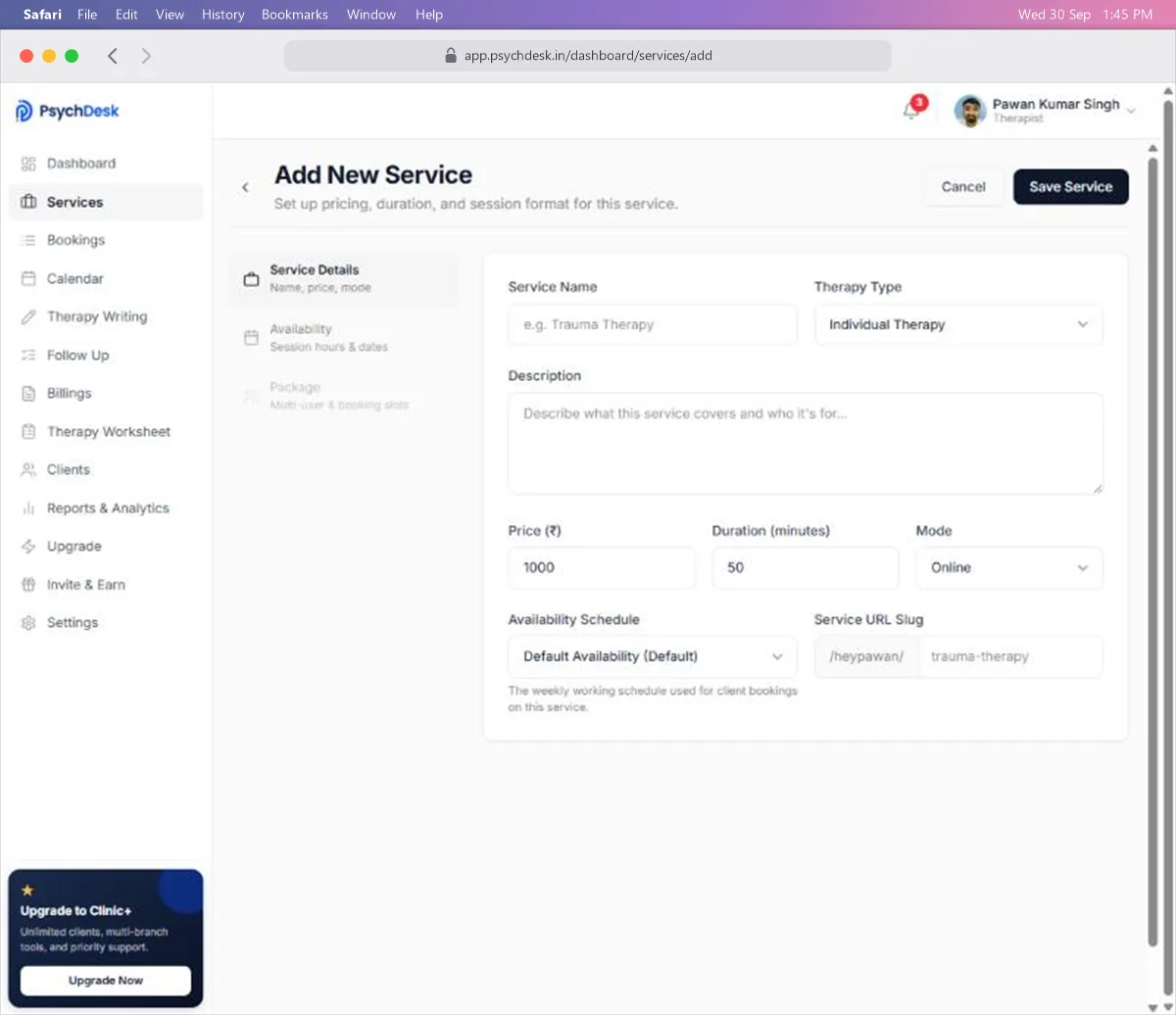
| Field | What to enter | Rules |
|---|---|---|
| Service Name | What clients will see, such as "Anxiety Therapy" | Keep it short and plain |
| Therapy Type | Individual, Couple, Family or Group Therapy | Pick one from the list |
| Description | What the service covers and who it is for | Shown on your booking page |
| Price (₹) | Your fee per session | A number, 0 or more. 0 makes the session free |
| Duration (minutes) | Length of one session | A number, at least 1 |
| Mode | Online, In-Person, or Hybrid | Pick one from the list |
| Availability Schedule | The weekly schedule this service follows | Pick from the schedules you created in Settings |
| Service URL Slug | The end of this service's link | Use lowercase words joined by hyphens, such as anxiety-therapy |
Things to know:
- The duration decides how your day is cut into time slots. A 60-minute service on a 9:00 AM to 5:00 PM day gives hourly slots.
- The price is what the client is charged at booking. Check it before you save.
- The form has three sections on the left: Service Details, Availability and Package. For a new service, fill in Service Details and save. The other two are covered under editing.
To add more services later, click Add Service again. There is no need to repeat any other setup.
Edit a service
- 1On the service card, click ⋯.
- 2Click Edit.
The edit page has three sections.
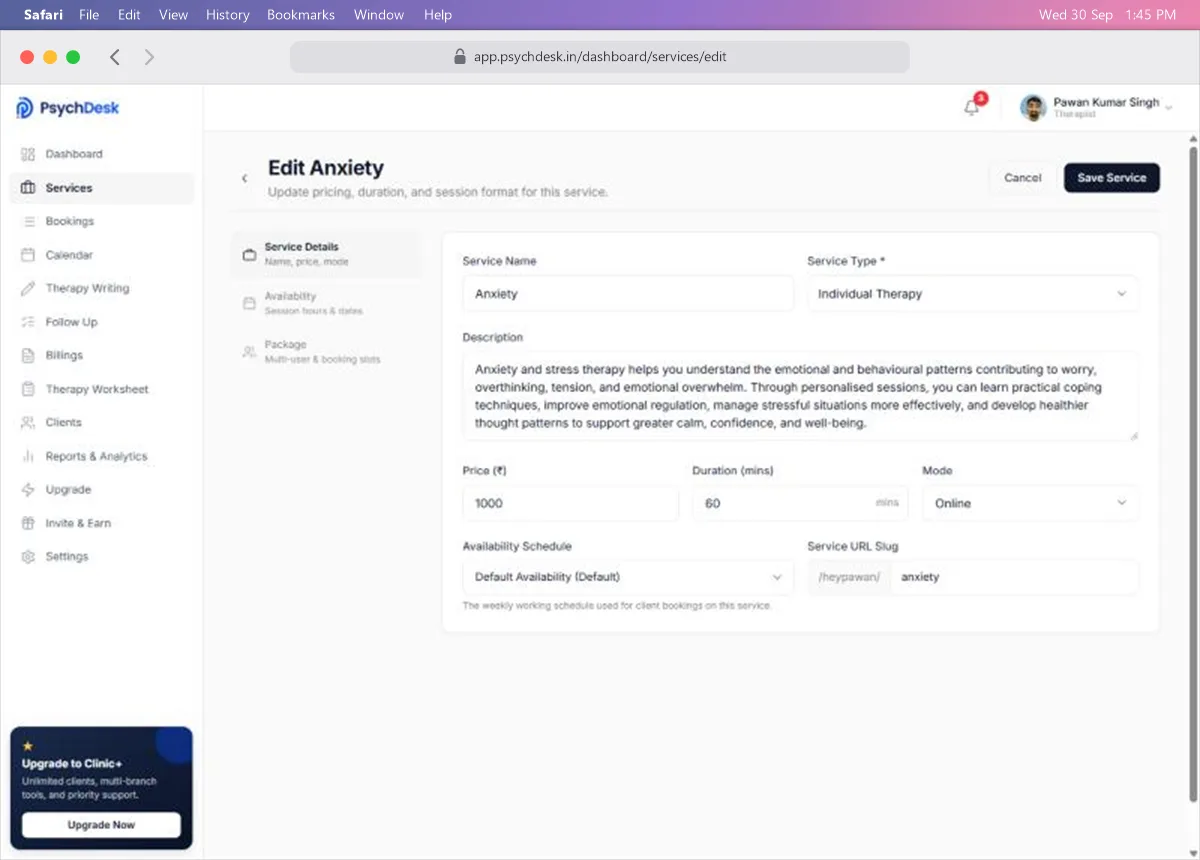
Service Details. The same fields as when you created it. Change what you need and click Save Service.
Availability. Shows which weekly schedule this service uses and its working hours for each day. To change the hours themselves, click Manage Schedules, which takes you to your availability settings. To move the service to a different schedule, go back to Service Details and change Availability Schedule.
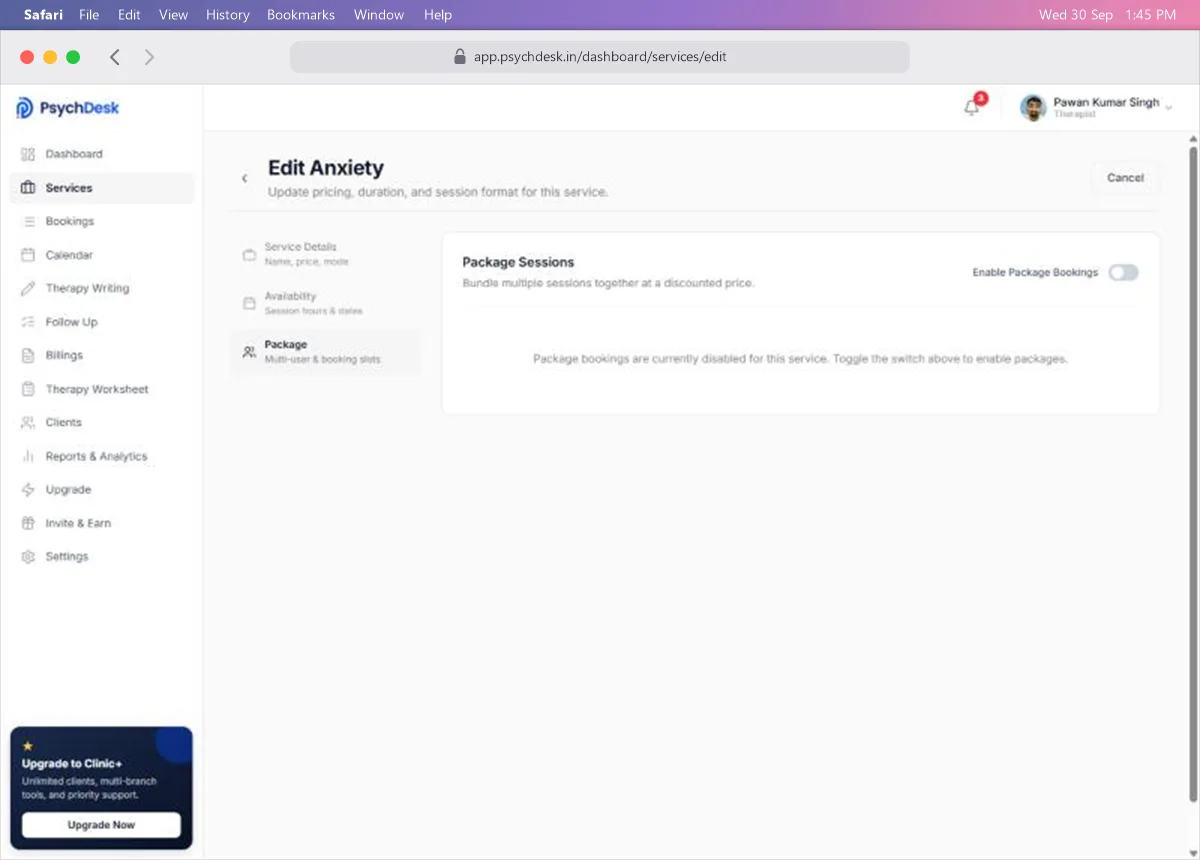
Package. Lets you offer this service as a multi-session package. Turn on Enable Package Bookings to switch it on.
Things to know:
- Changing the Service URL Slug changes the service's link. Any link you have already sent to clients will stop pointing to it, so send the new one.
- A price change applies to new bookings. Tell clients before you raise a fee.
- Dates you have marked as holidays or given custom hours in your Daily Calendar always override the weekly schedule shown here.
Share a service
To share one service, click Share on its card. The client lands on your booking page with that service already chosen.
To share your whole booking page, click Share Booking Page at the top. You get four options:
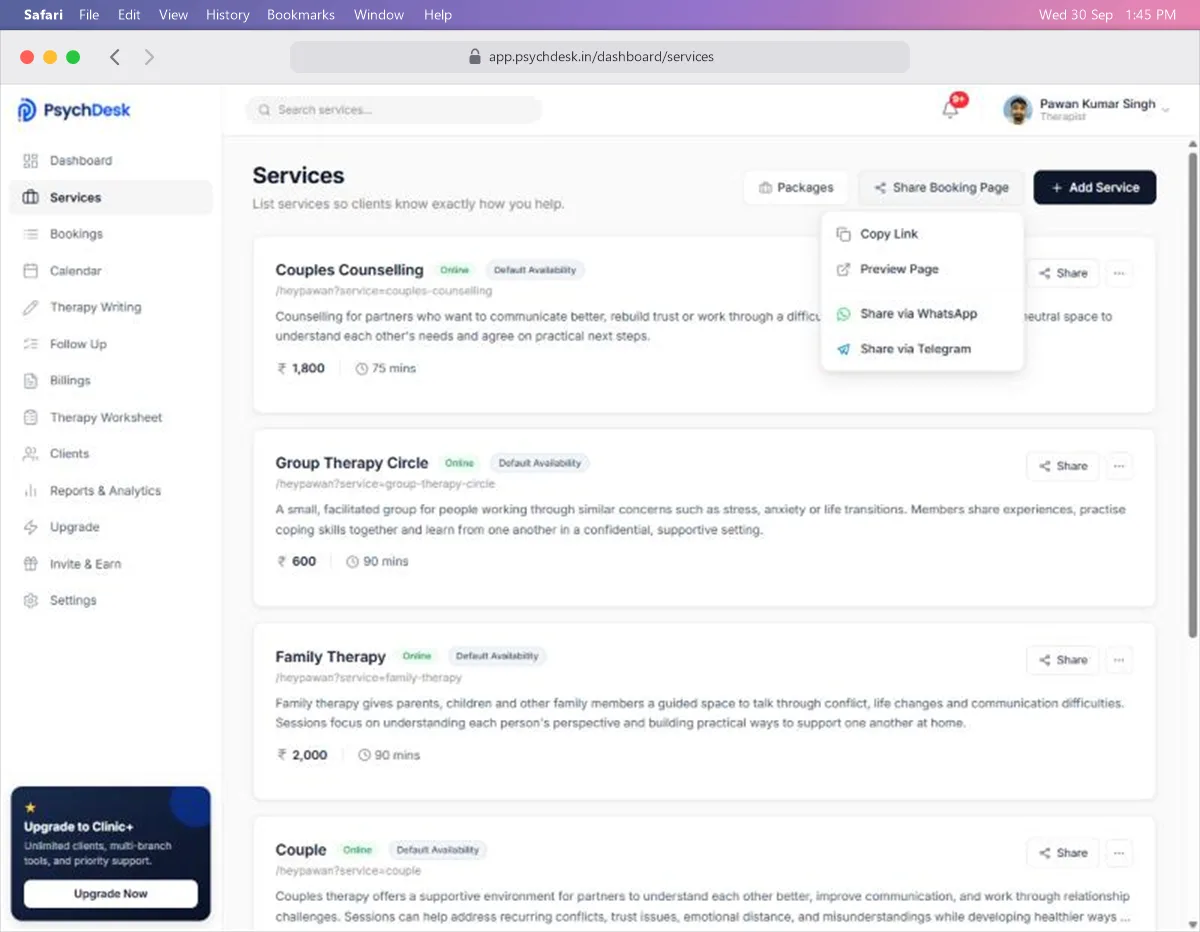
- Copy Link copies the link so you can paste it anywhere.
- Preview Page opens the page as a client sees it.
- Share via WhatsApp opens WhatsApp with the link ready to send.
- Share via Telegram does the same in Telegram.
Use Preview Page after any change, to confirm it looks right before clients see it.
Delete a service
- 1On the service card, click ⋯.
- 2Click Delete.
Before you delete:
- Check the service has no upcoming bookings.
- If you only want to stop new bookings for a while, change its schedule or mark the dates as holidays instead.
- Anyone holding the old link will no longer reach the service.
Packages: selling several sessions together
A package bundles a set number of sessions of one service into a single plan. The client pays once and the sessions are booked on a fixed schedule. This is how you take a bulk booking, and how you set up a recurring one.
Create a package
- 1On the Services page, click Packages.
- 2Click Create Package.
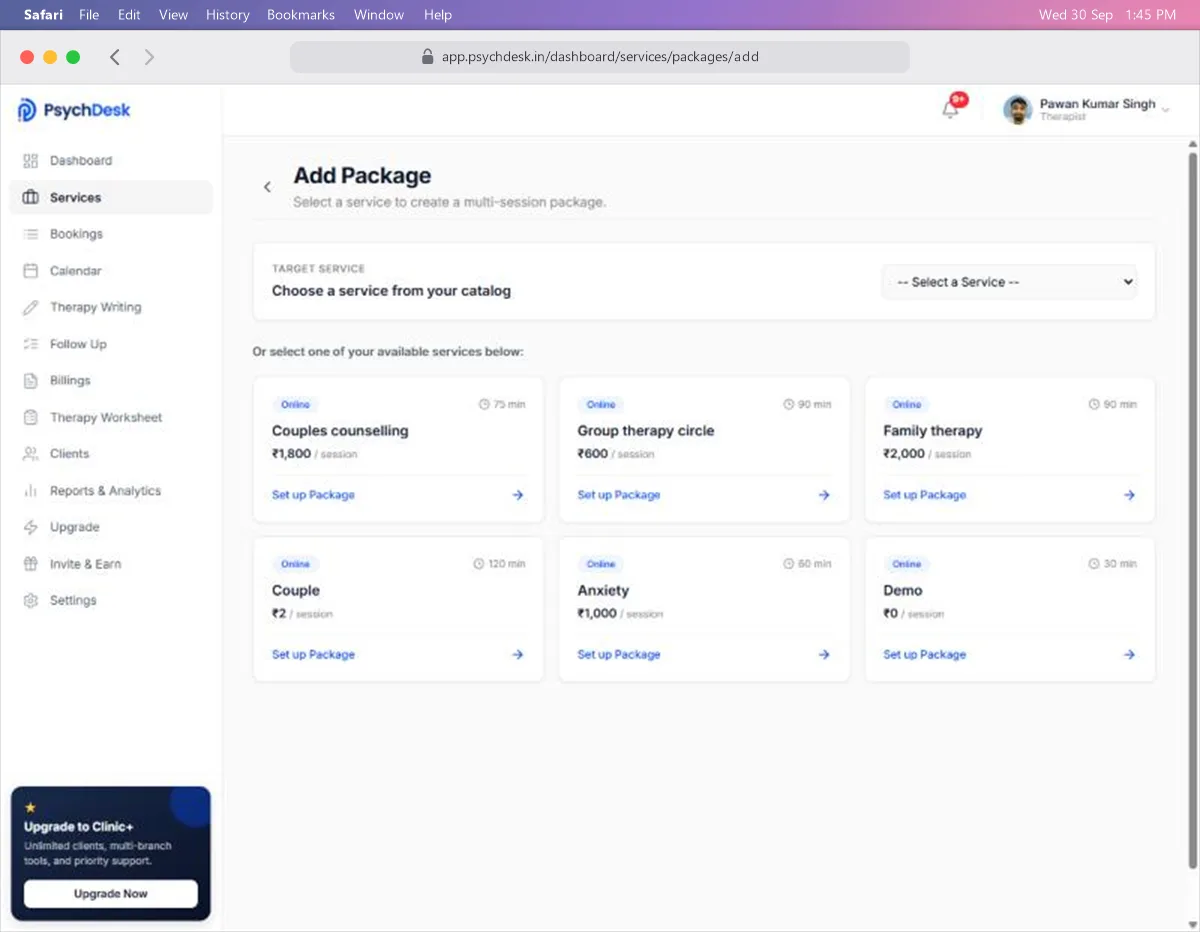
- 3Choose the service the package is for. Pick it from the list at the top, or click Set up Package on its card.
- 4Fill in the package details.
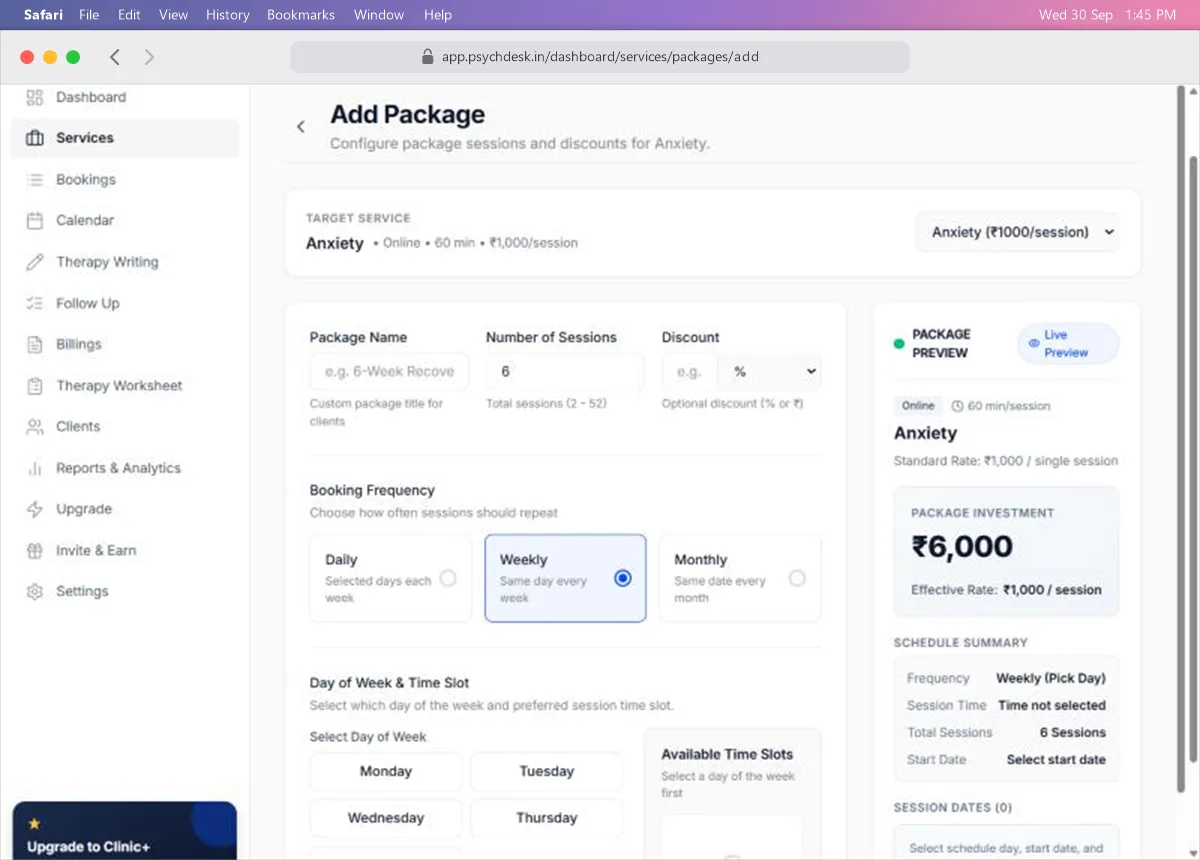
| Field | What to enter | Rules |
|---|---|---|
| Package Name | The title clients see, such as "6-Week Recovery Program" | Your own wording |
| Number of Sessions | How many sessions the package contains | Between 2 and 52 |
| Discount | Money off the full price | Optional. Choose % (0 to 100) or ₹ Amount |
| Booking Frequency | How often the sessions repeat | Daily, Weekly or Monthly |
- 5Set the schedule (see the next section).
- 6Check the Package Preview on the right.
- 7Click Create Package.
The Package Preview updates as you type. It shows the total the client pays under Package Investment, the Effective Rate per session after discount, and the full list of session dates.
For example, six sessions of a ₹1,000 service with a 10% discount come to ₹5,400, or ₹900 a session. The preview shows the saving to the client as well.
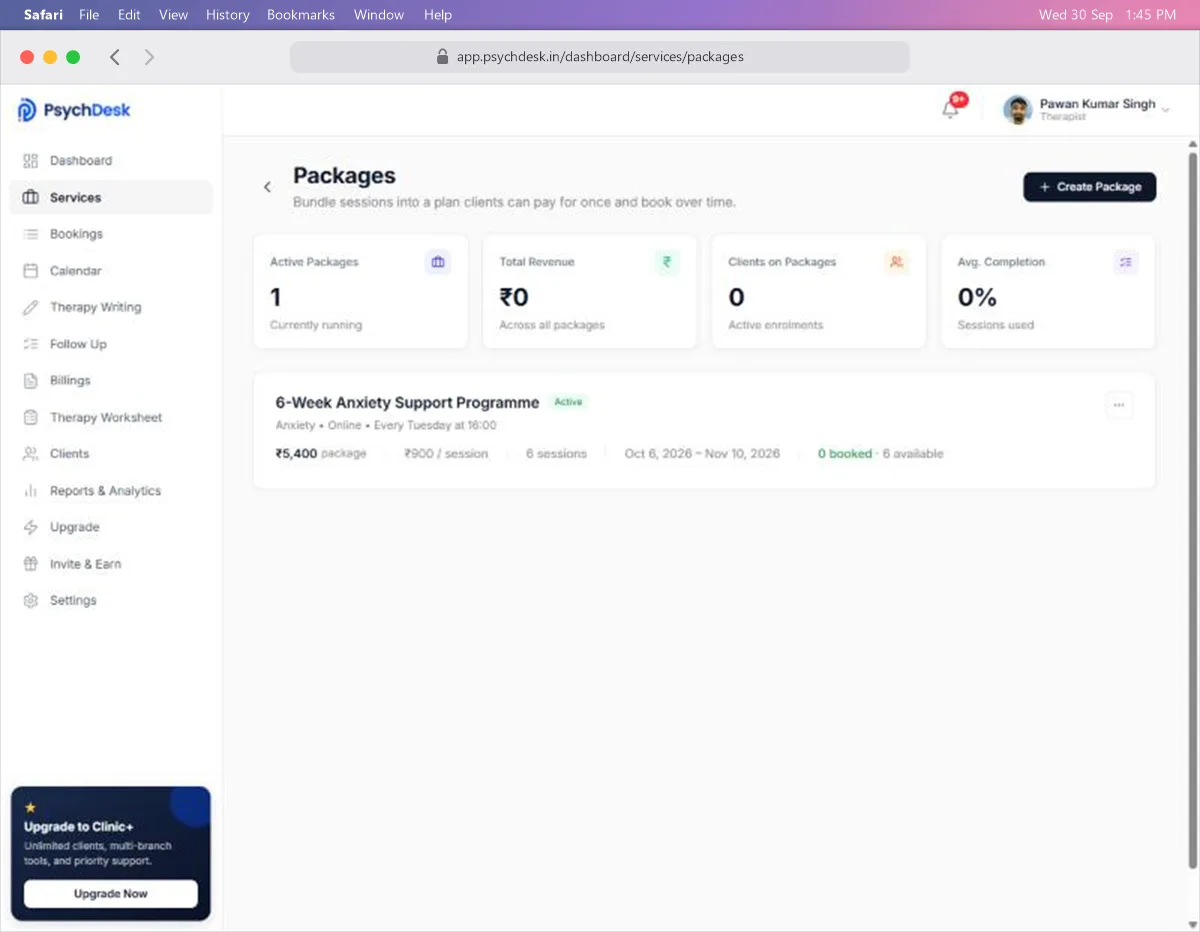
Once created, the package appears on the Packages page with its price, session count, date range, and how many sessions are booked.
Set up the recurring schedule
Under Booking Frequency, choose how the sessions repeat. What you pick next depends on the choice.
Weekly: the same day every week. This suits most ongoing therapy.
- 1Choose Weekly.
- 2Under Select Day of Week, click the day.
- 3Under Available Time Slots, click the time.
- 4Set the Start Date.
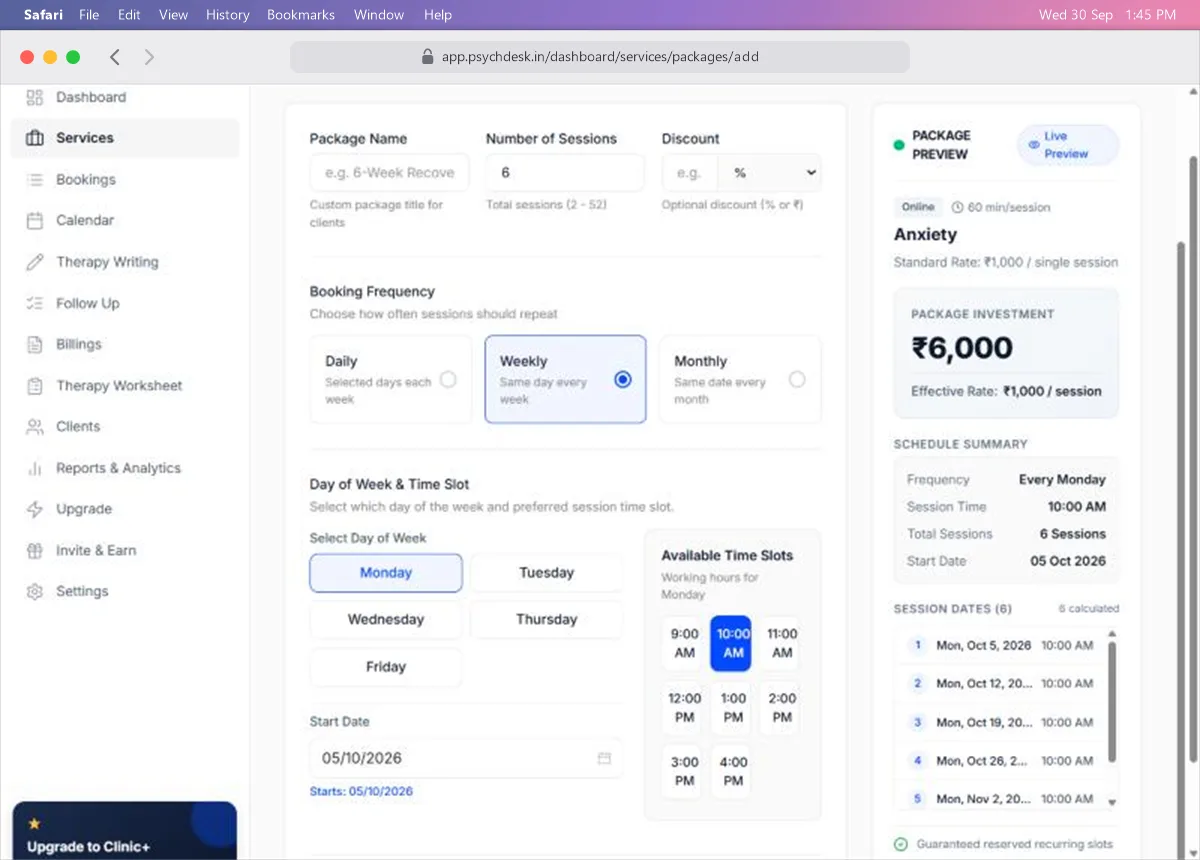
In the example above, six sessions on Mondays at 10:00 AM starting 5 October run through to 9 November. The preview lists every date so you can check it against your diary.
Monthly: the same date every month. This suits maintenance or review sessions.
- 1Choose Monthly.
- 2Click the day of the month on the calendar.
- 3Click the time slot.
Daily: dates you pick yourself. This suits intensive or irregular blocks.
- 1Choose Daily.
- 2Click each date you want on the calendar. You can select several.
- 3Click the time slot.
Things to know:
- Only days and times inside the service's availability schedule can be chosen. If a day is missing, it is not a working day on that schedule.
- The first and last session dates set the period the package is valid for. Both you and the client see this date range.
- Check the session dates in the preview for holidays before you create the package.
How a package gets booked
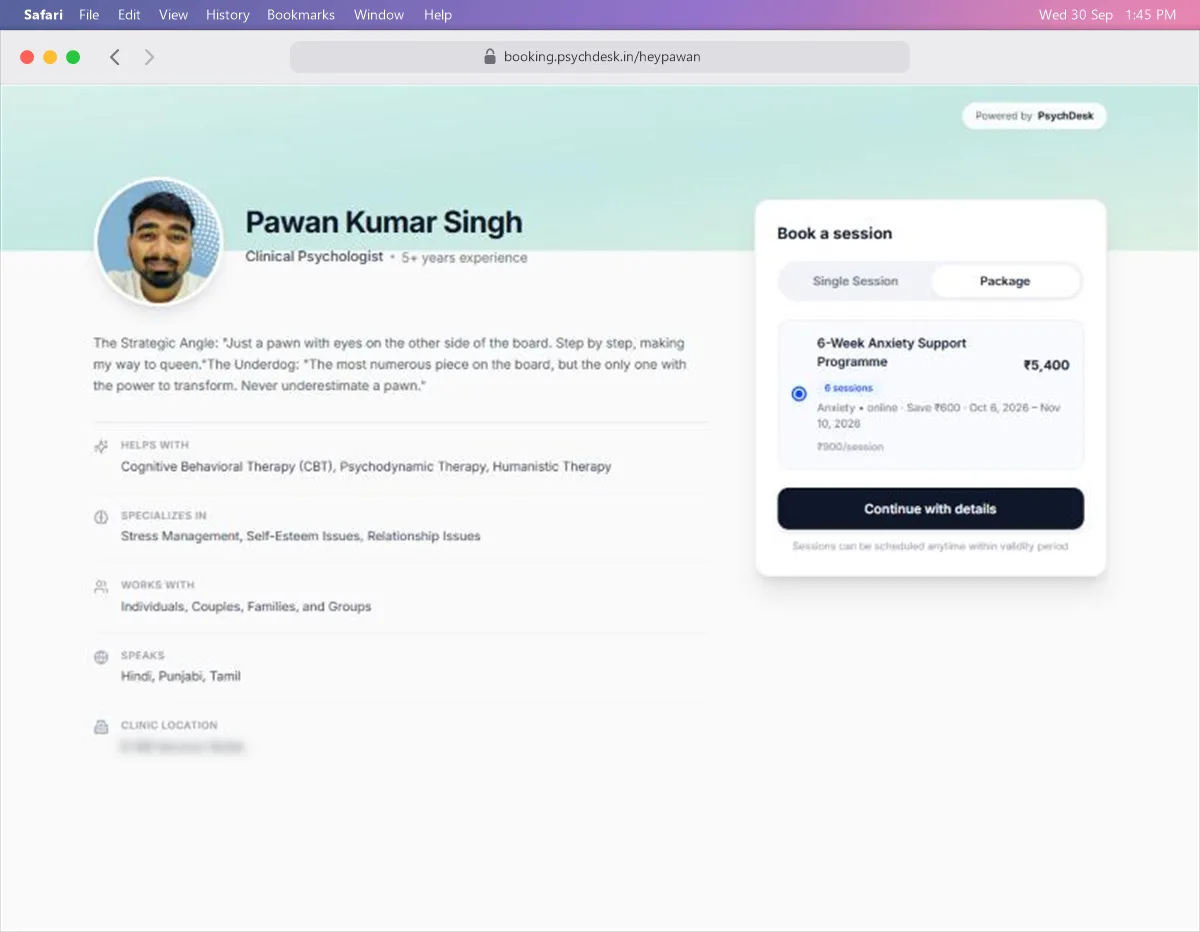
By the client. Your booking page has a Package tab next to Single Session. The client sees the package name, number of sessions, total price, saving and valid dates, and clicks Continue with details.
By you. Go to Bookings, click Book Session, choose the client, then set Booking Mode to Package. The Bookings guide walks through this.
The Packages page under Services shows your totals: active packages, revenue, clients enrolled and average completion.
Check it worked
- 1On the Services page, click Share Booking Page, then Preview Page.
- 2Confirm the new or edited service appears with the right price, duration and mode.
- 3Click the service and check that time slots appear on your working days.
- 4If you created a package, click the Package tab and confirm it is listed with the right number of sessions and total.
Common problems
| Problem | Likely cause | Fix |
|---|---|---|
| Service shows no time slots | Its schedule has no working hours on those days, or the dates are marked as holidays | Edit the service, open Availability, and check the schedule. Then check your Daily Calendar |
| Slots are the wrong length | The duration is wrong | Edit the service and correct Duration |
| A day is missing when setting up a package | That day is not a working day on the service's schedule | Add the day to the schedule in Settings > Availability |
| A shared link no longer works | The slug or your username was changed | Share the new link |
| Package total looks wrong | Discount entered as ₹ instead of %, or the other way round | Check the selector next to Discount |
What to set up next
- Add your clients: see the Clients guide.
- Book a session or a package for a client: see the Bookings guide.