

What this does for you
- Nothing a client is waiting on slips through the gaps between sessions.
- One list of what is due, instead of notes scattered across your phone and diary.
- A quick count of what is pending, in progress and done.
Before you start
- The client exists in PsychDesk. Every task must be linked to a client. See the Bookings guide for registering a client.
The Follow Up page
Click Follow Up in the left-hand menu.
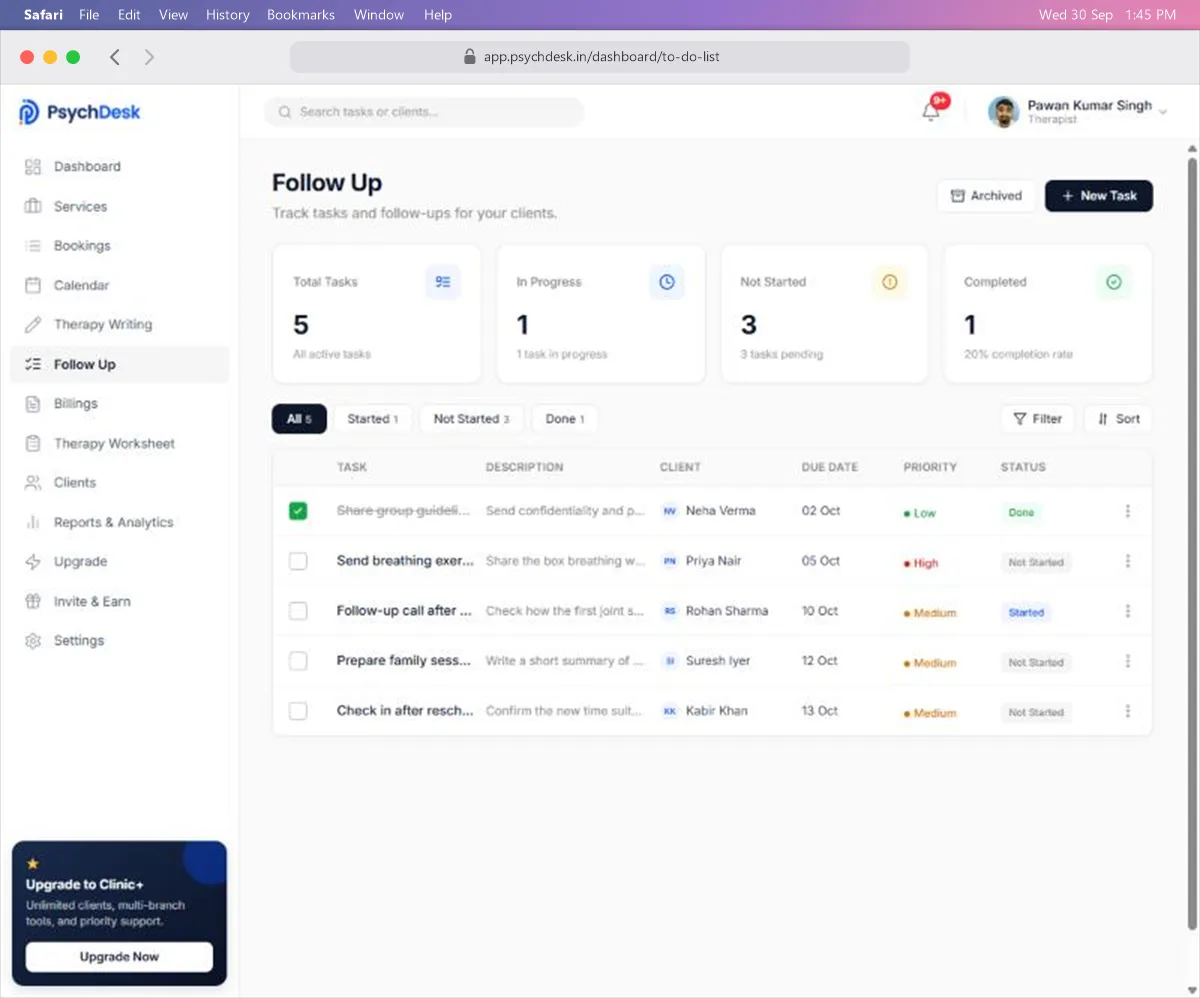
The four cards at the top:
| Card | What it counts |
|---|---|
| Total Tasks | All active tasks |
| In Progress | Tasks marked Started |
| Not Started | Tasks not yet begun |
| Completed | Tasks marked Done, with your completion rate |
Below the cards:
- The tabs All, Started, Not Started and Done narrow the list by status. The number on each tab is how many tasks it holds.
- Filter and Sort are on the right.
- Search tasks or clients at the very top finds a task by its name or client.
Each row shows the task name, description, client, due date, priority and status. Tasks marked Done are ticked and struck through.
Add a task
- 1Click New Task at the top right.
- 2Fill in the details.
- 3Click Create Task.
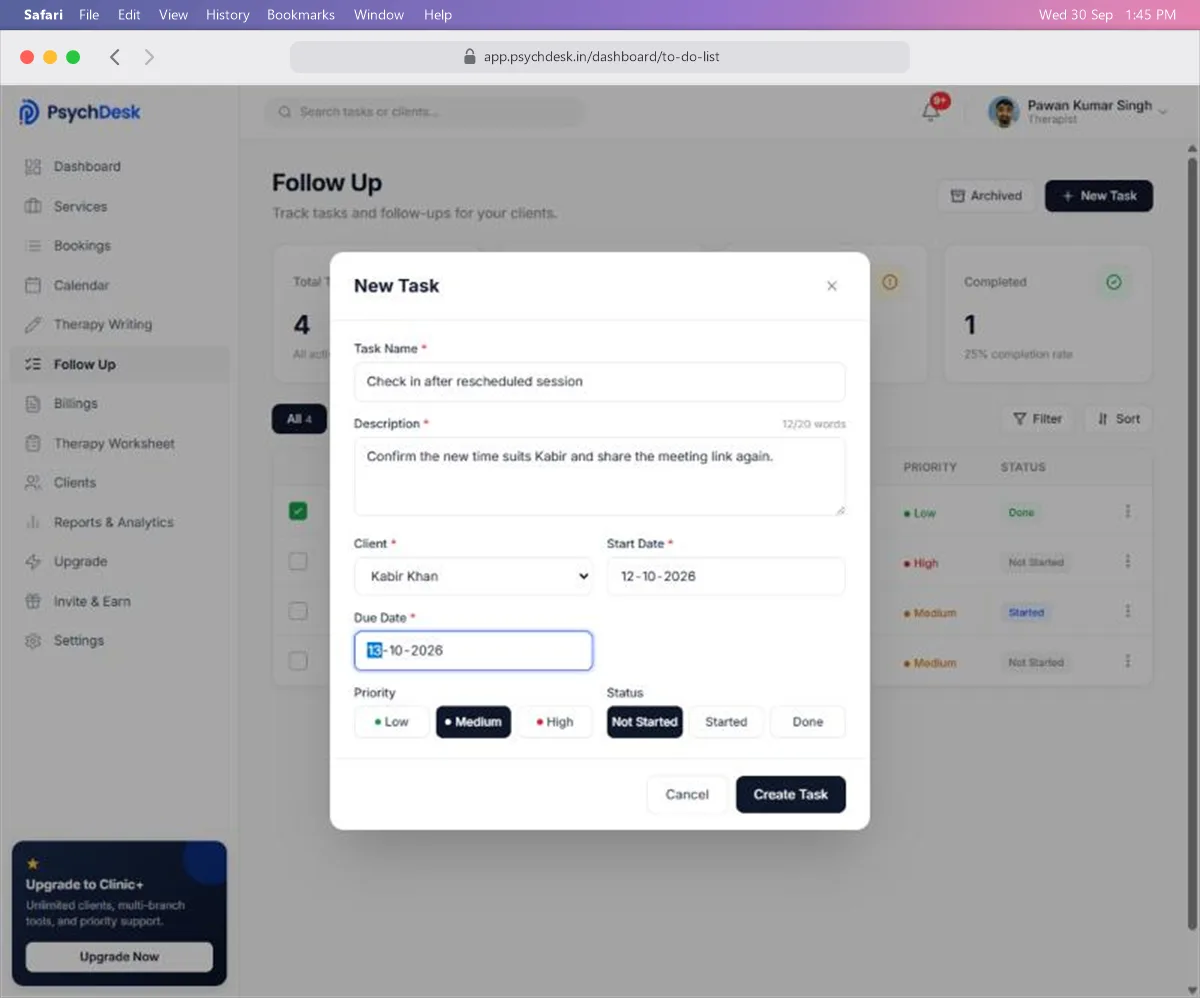
| Field | What to enter | Rules |
|---|---|---|
| Task Name | A short action, such as "Send breathing exercise worksheet" | Required |
| Description | What exactly needs doing | Required. Up to 20 words; a counter shows how many you have used |
| Client | Who the task is for | Required. Pick from your clients |
| Start Date | When you plan to begin | Required |
| Due Date | When it must be done | Required |
| Priority | Low, Medium or High | Medium is selected unless you change it |
| Status | Not Started, Started or Done | New tasks are saved as Not Started; see the note below |
Things to know:
- Saving can take several seconds; the button reads "Saving…" until it finishes.
- New tasks are saved as Not Started even if you choose another status in the form. Change the status from the list afterwards.
- Keep client details out of the task name. The name is visible in the list to anyone looking at your screen.
Update a task's status
- 1Click the status label on the task's row, for example Not Started.
- 2Choose Done, Started or Not Started.
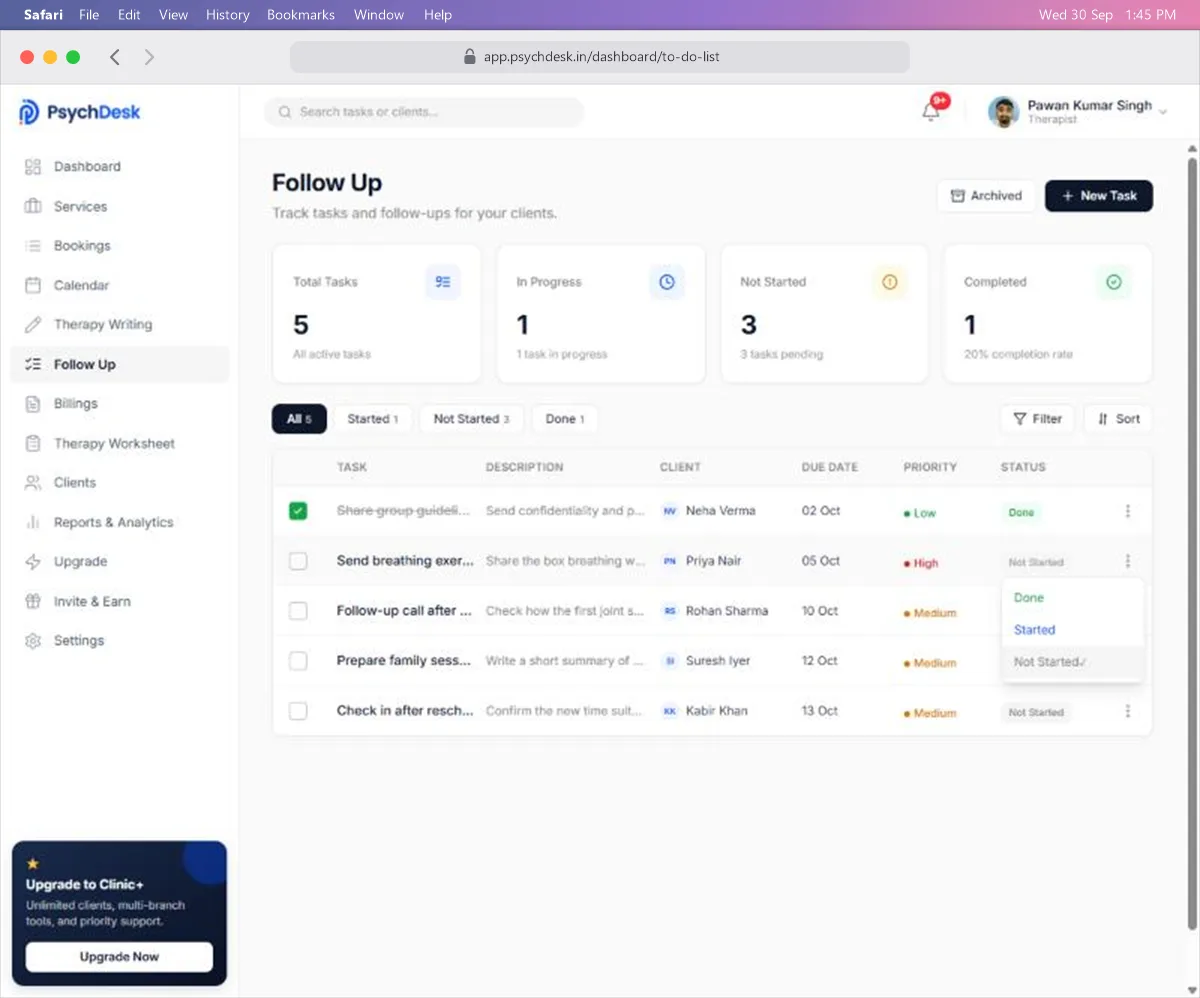
The summary cards update straight away. A task marked Done is ticked and struck through, and a confirmation says "Task completed!".
On the last row of a long list, the menu can open below the bottom of the table. Scroll the page down a little, or sort the list so the task is higher up.
Edit or delete a task
- 1Click ⋮ at the end of the task's row.
- 2Choose Edit or Delete.
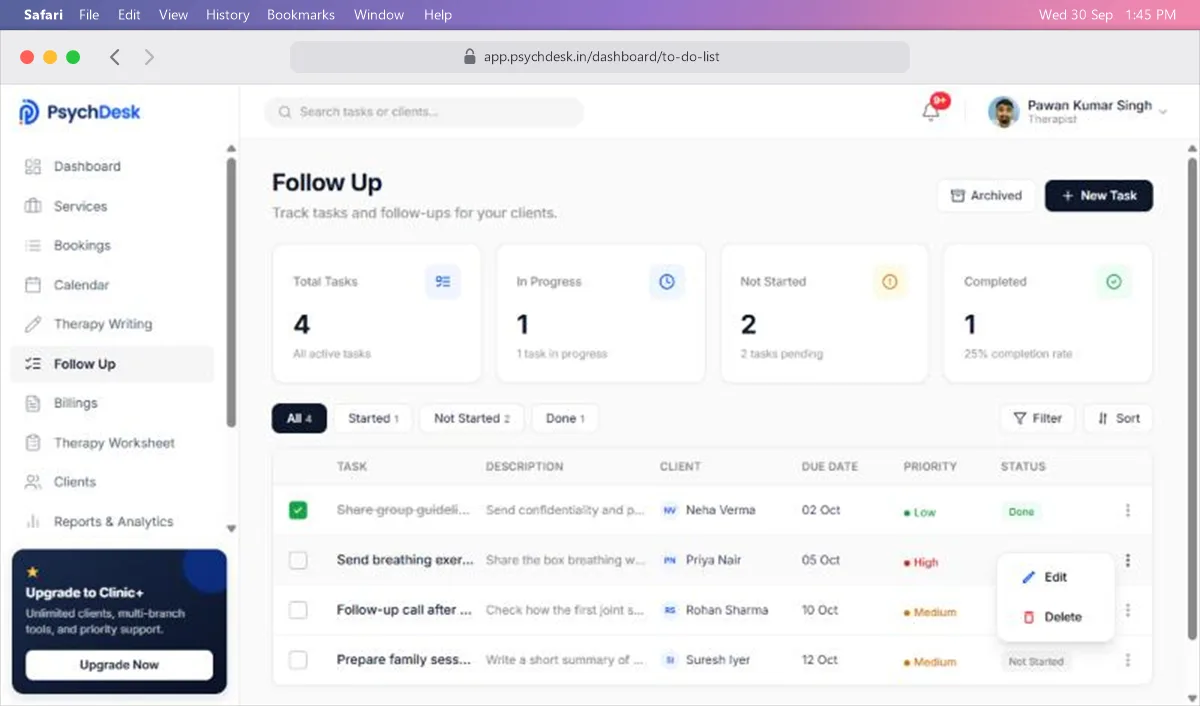
Edit opens the task form. Check that the details you expect are there before you click Update Task, and re-enter anything that is missing.
Delete removes the task. Only delete tasks created by mistake; for finished work, mark the task Done so your completion rate stays accurate.
Find tasks with Filter and Sort
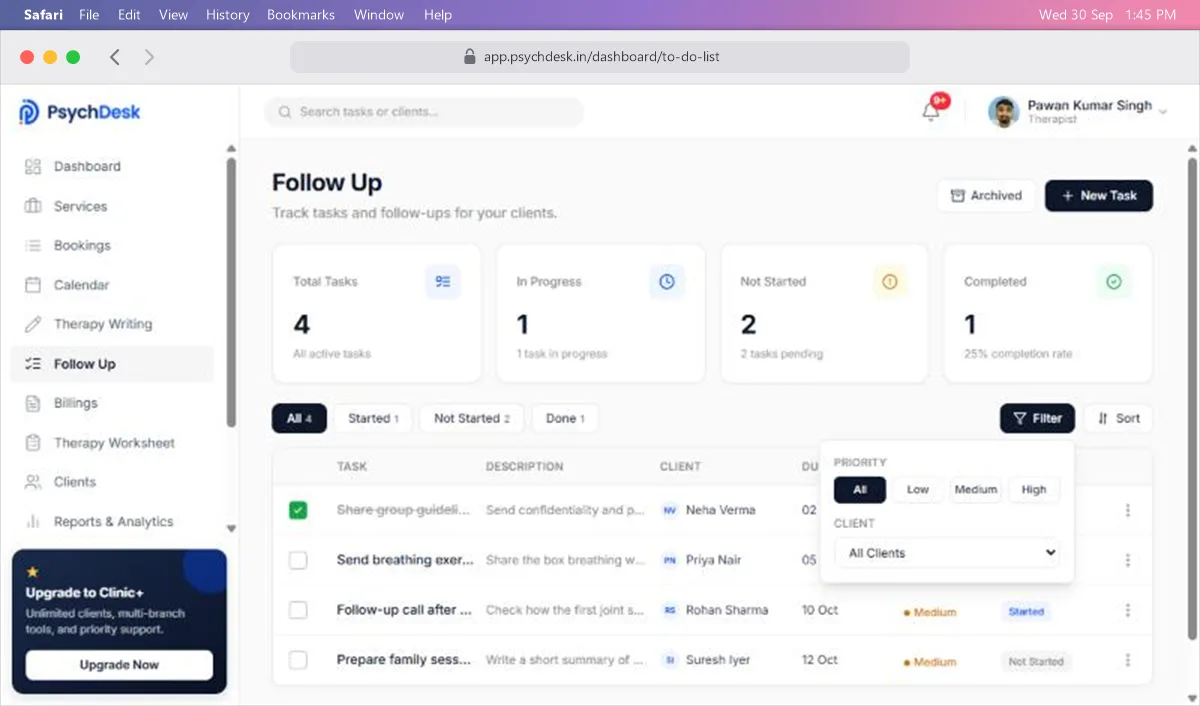
Filter narrows the list by Priority (All, Low, Medium, High) and by Client.
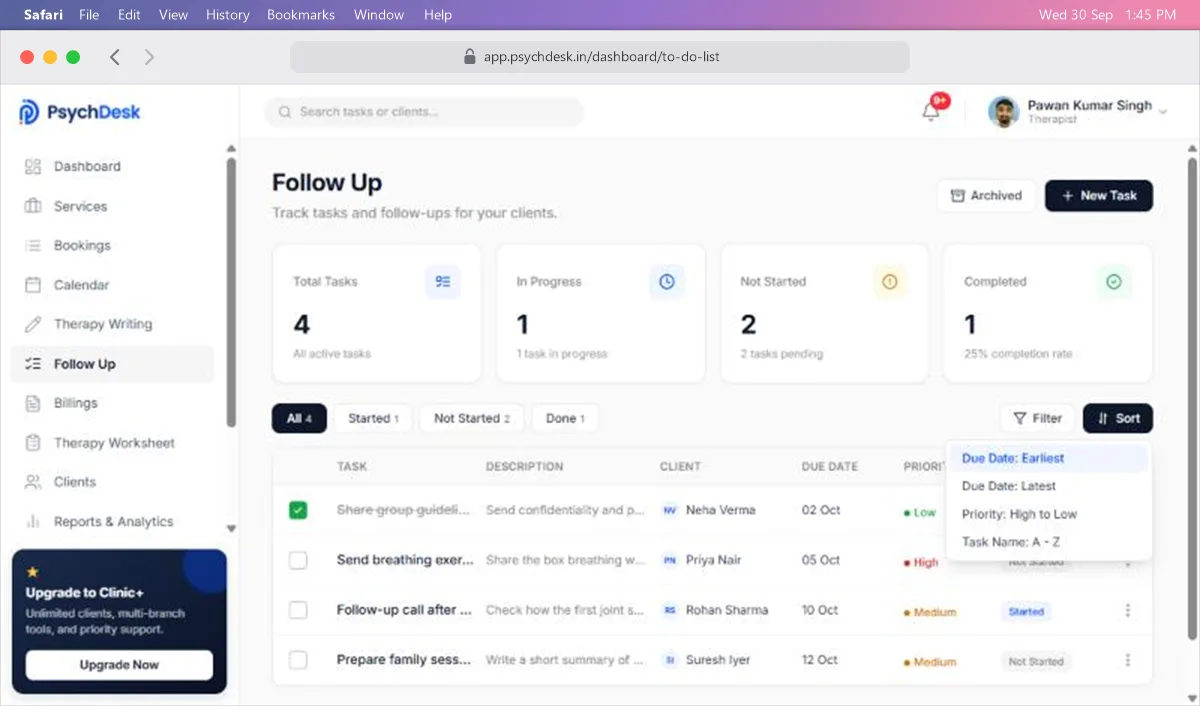
Sort changes the order:
- Due Date: Earliest (default), to see what is most urgent.
- Due Date: Latest.
- Priority: High to Low.
- Task Name: A - Z.
A good daily habit: open Follow Up, click the Not Started tab, and sort by Due Date: Earliest.
Archived tasks
The Archived button at the top switches the list to archived tasks. Click it again to return to your active tasks.
Check it worked
- 1Create a task for a test client.
- 2Confirm it appears in the list and the Total Tasks card has gone up by one.
- 3Change its status to Done and confirm it is ticked and the Completed card has gone up.
Common problems
| Problem | Likely cause | Fix |
|---|---|---|
| Create Task does nothing | A required field is empty, or the description is over 20 words | Fill in every field marked * and shorten the description |
| The task saved with the wrong status | Status in the form is not kept | Change it from the list after saving |
| The client is missing from the list | They are not registered yet | Register them through Bookings > Book Session |
| The status menu is cut off | The task is the last row | Scroll down, or sort so the task moves up |
| A task seems to have disappeared | A tab, filter or the Archived view is active | Click All, reset Filter to All, and make sure Archived is off |
What to set up next
- Share worksheets and exercises with clients: see the Therapy Worksheet guide.
- Raise invoices and track payments: see the Billings guide.