

What this does for you
- One record per client with everything about their care, instead of looking in five places.
- Couples, families and groups are kept together, while each member still has their own record.
- Find any client in seconds by name or email.
Before you start
- Services exist for the therapy types you offer. Adding a new client takes you straight into booking their first session. See the Services guide.
- Have the client's name and phone number. These are the only required details.
The Clients page
Click Clients in the left-hand menu.
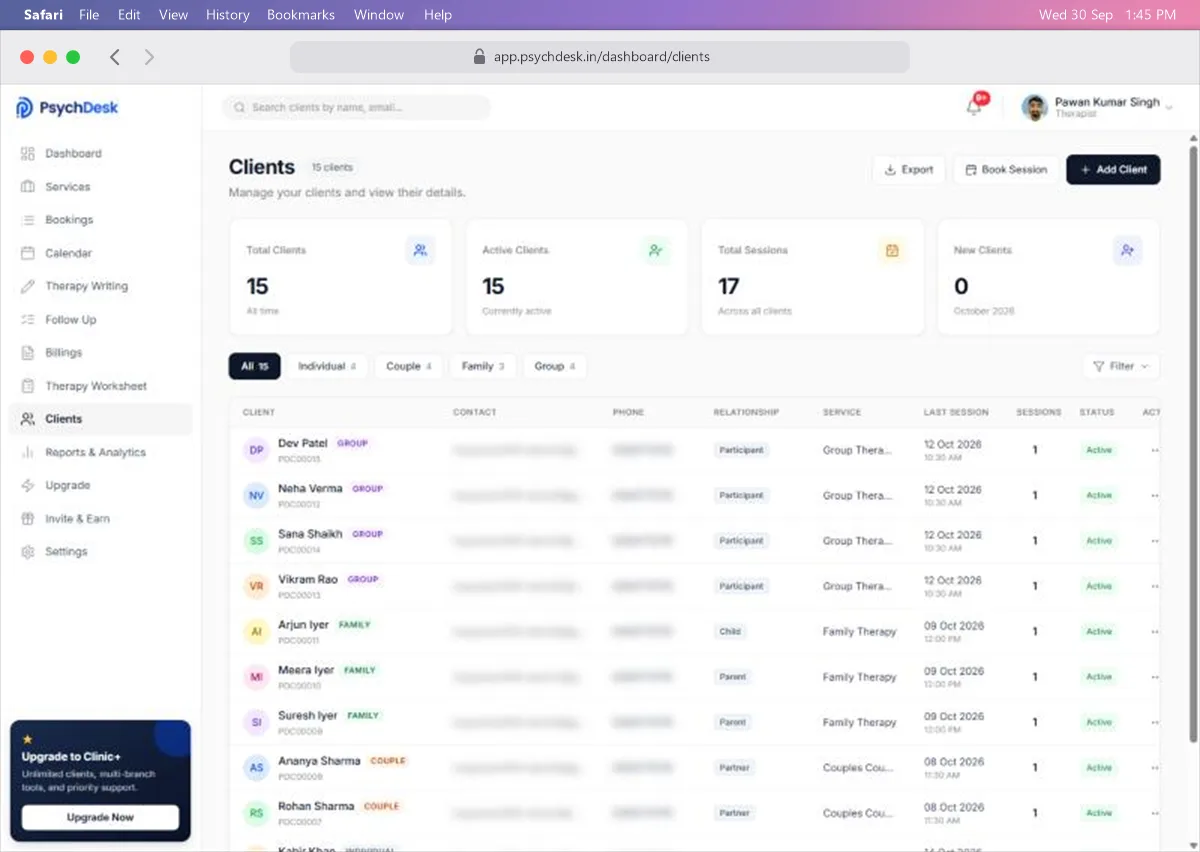
At the top right:
- Export downloads your client list.
- Book Session books a session for an existing client.
- Add Client registers a new client.
The four cards show Total Clients, Active Clients, Total Sessions across all clients, and New Clients this month.
The tabs All, Individual, Couple, Family and Group narrow the list by therapy type. Filter on the right narrows it further, and Search clients by name, email at the very top finds one client.
Each row shows:
| Column | What it shows |
|---|---|
| Client | Name, therapy type label, and client ID (starting PDC) |
| Contact and Phone | Email and phone number |
| Relationship | Their role in a couple, family or group, such as Partner, Parent, Child or Participant |
| Service | The service they are booked for |
| Last Session | Date and time of their most recent or next session |
| Sessions | How many sessions they have had |
| Status | Active or not |
| Actions | The ⋯ menu |
Add a client
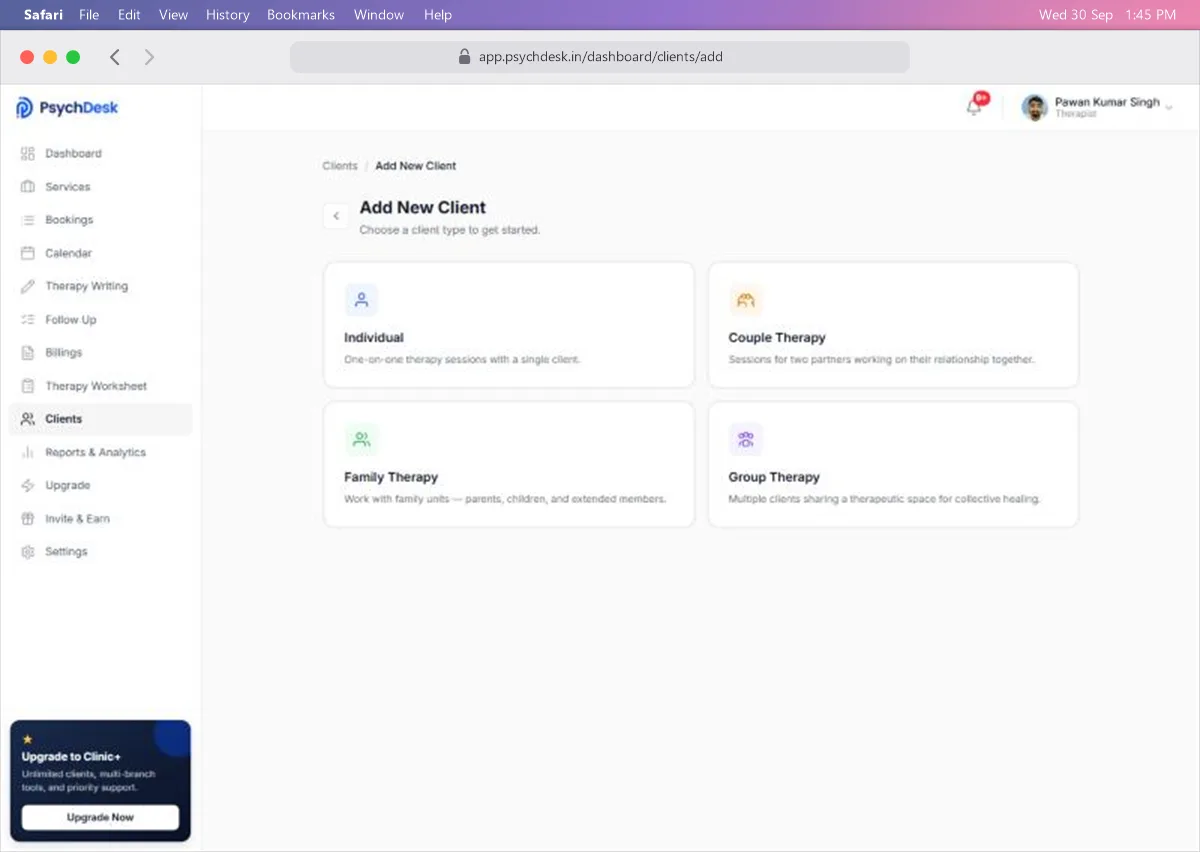
- 1Click Add Client.
- 2Choose the therapy type: Individual, Couple Therapy, Family Therapy or Group Therapy.
- 3Fill in the client's details.
- 4Click Schedule Session and book their first session.
The client's details form, the extra members for couples, families and groups, and the booking steps are the same as when you register a client from Bookings. The Bookings guide covers every field.
The client is saved when you finish the booking with Create Client & Booking.
Open a client's record
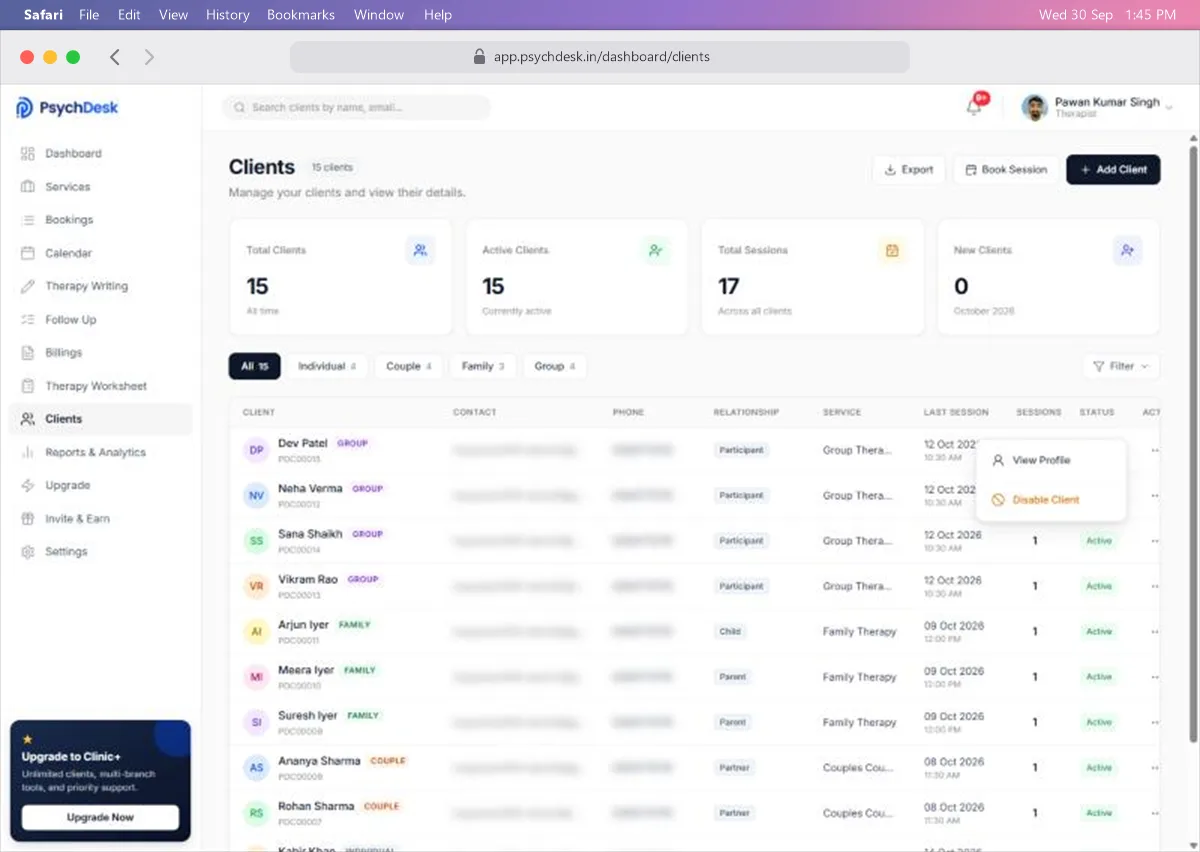
- 1Click ⋯ at the end of the client's row.
- 2Click View Profile.
The top of the record shows the client's name, status, therapy type, ID, age, gender, contact details and therapist, with Edit and Book Session buttons.
Below that are seven tabs.
Overview
Personal details, the current treatment plan, quick stats (total sessions, last and next session, client since), the last session, and upcoming appointments with a Join button.
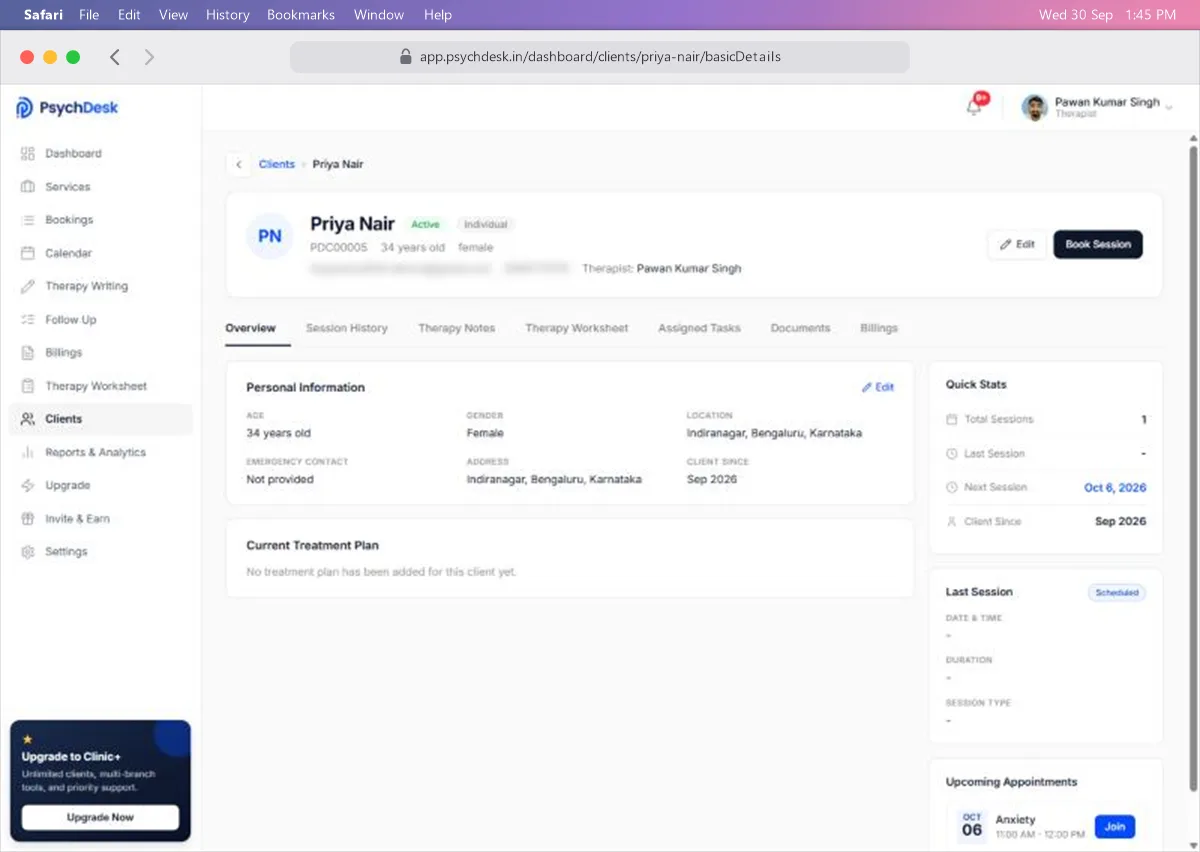
Click Edit beside Personal Information to update their details.
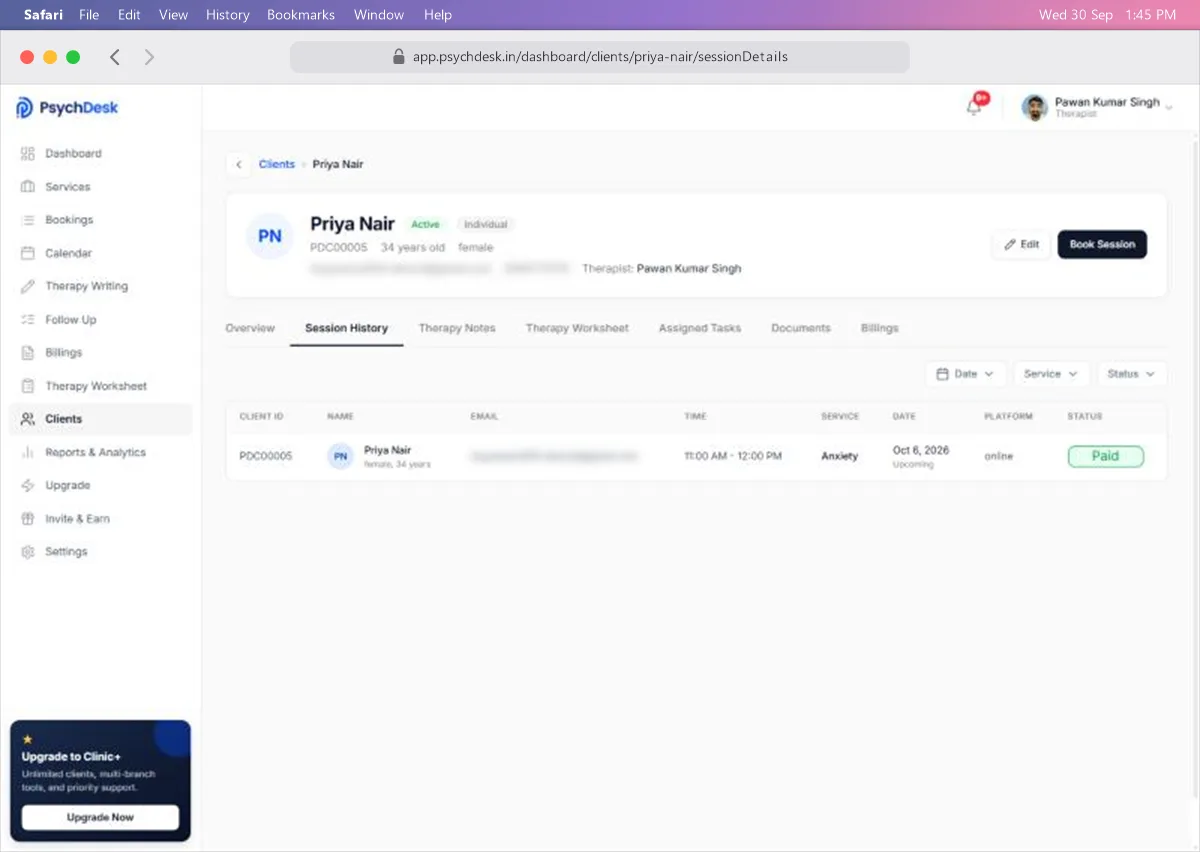
Session History
Every session for this client with date, time, service, platform and payment status. Narrow it with Date, Service and Status.
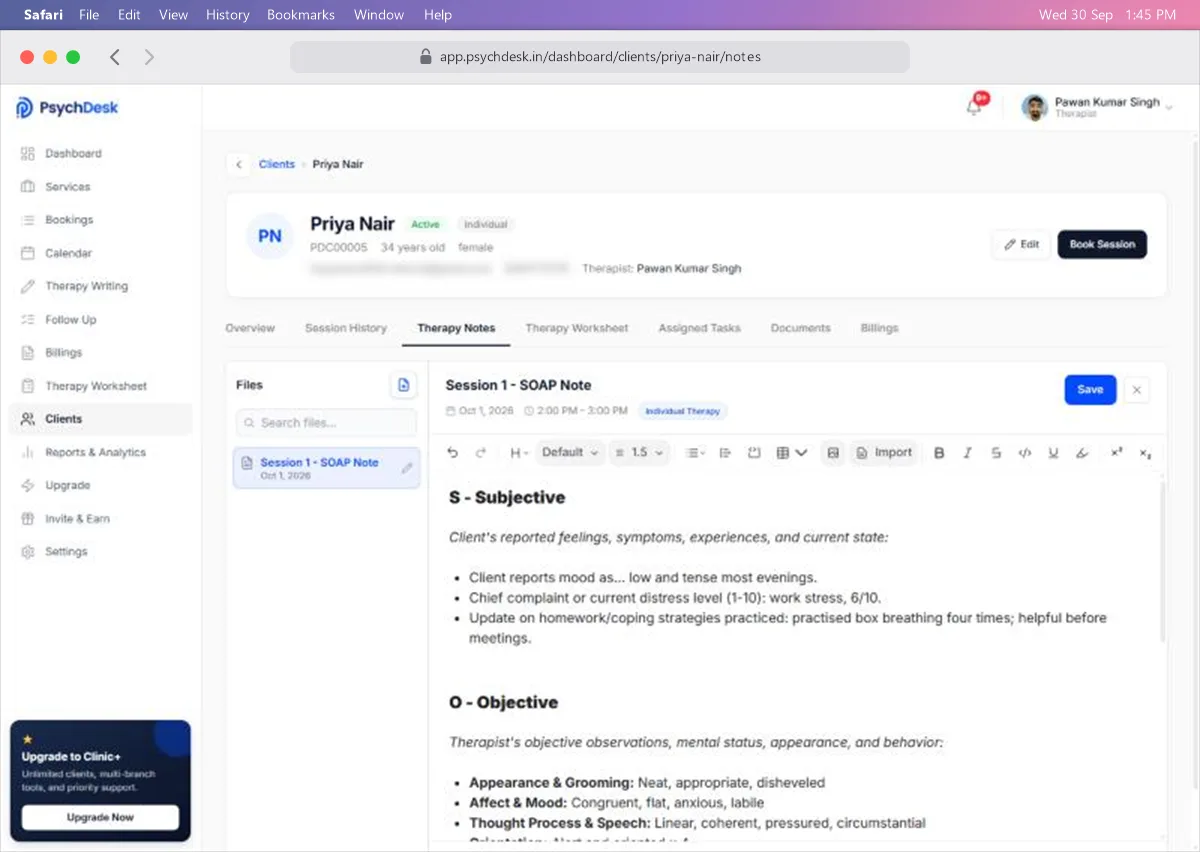
Therapy Notes
All notes saved to this client from Therapy Writing. Click a note to open it, edit it here, and click Save. Use the note icon at the top of Files to start a new one.
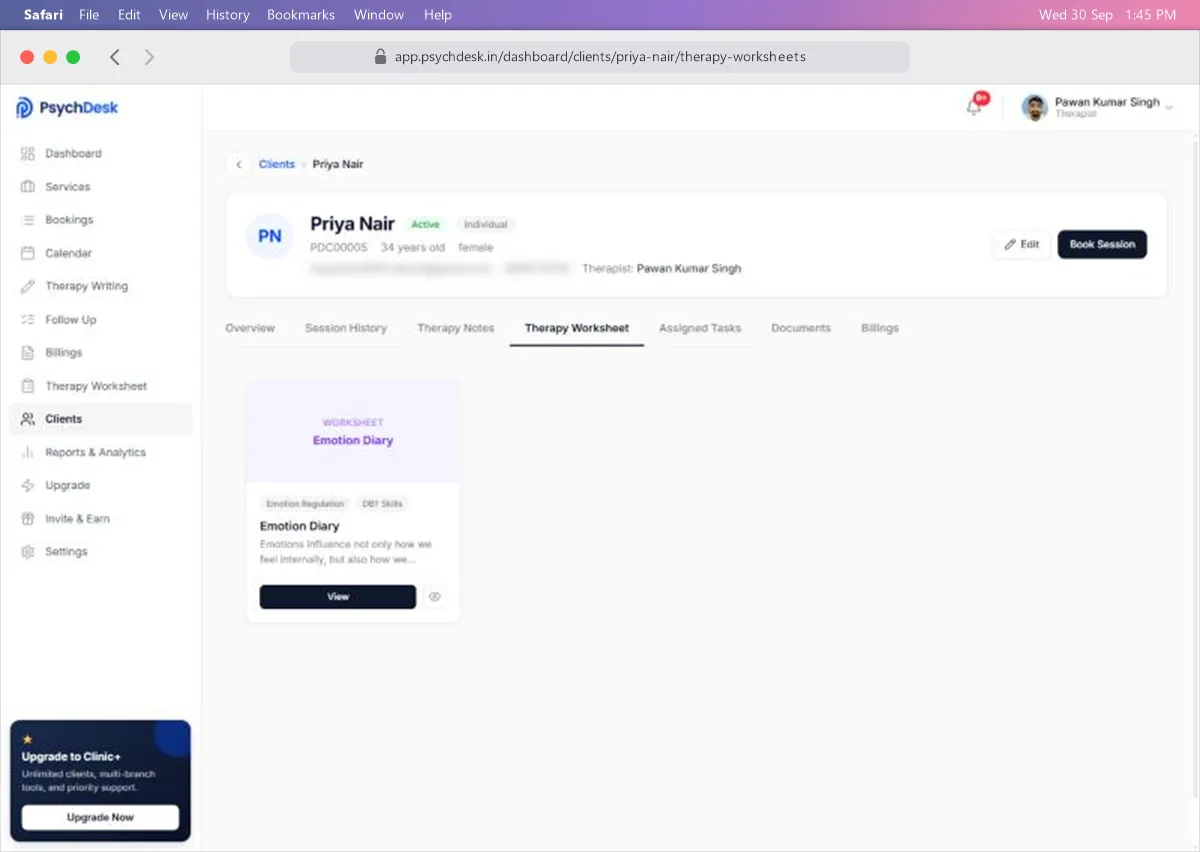
Therapy Worksheet
Worksheets and assessments saved to this client from Therapy Worksheet. Click View to open one.
Assigned Tasks
Follow Up tasks for this client, with the same tabs, filter and sort as the Follow Up page.
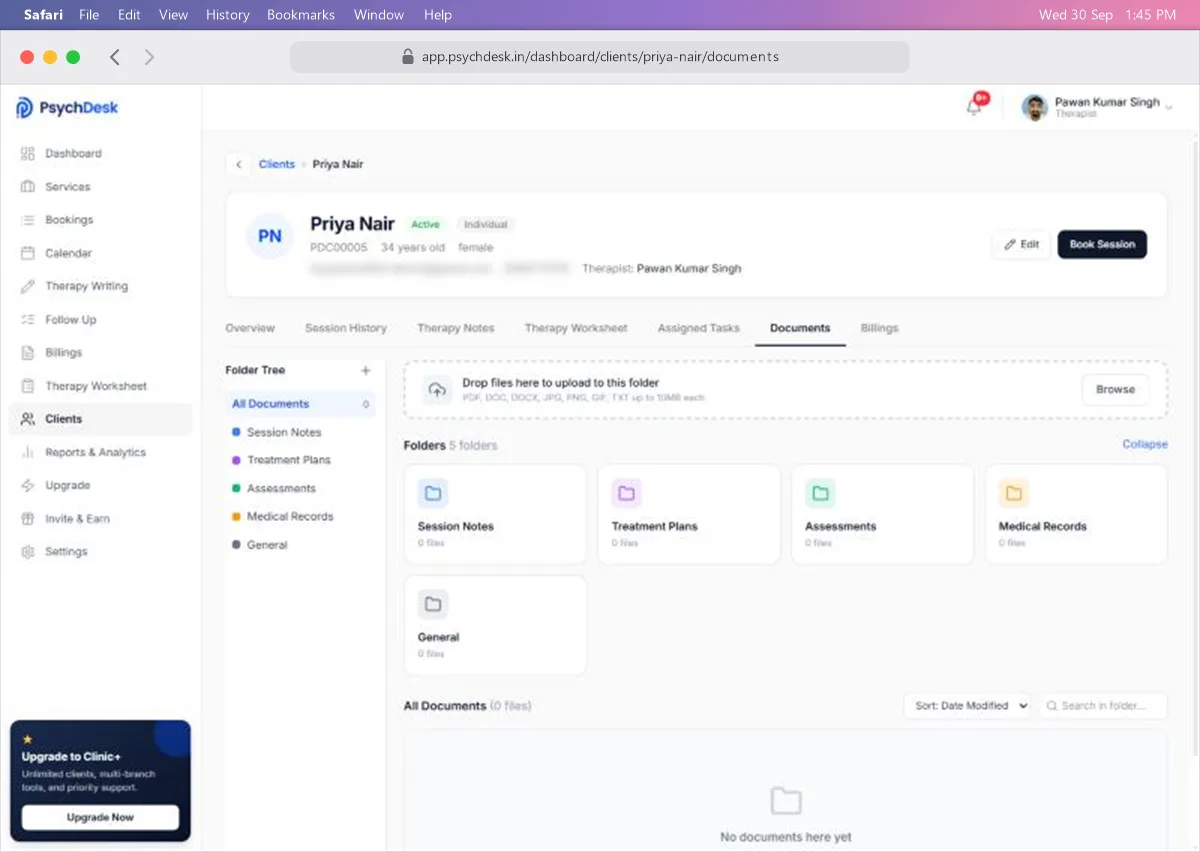
Documents
A file store for the client, with five folders ready: Session Notes, Treatment Plans, Assessments, Medical Records and General.
To upload a file, choose the folder, then drag the file onto the upload area or click Browse. PDF, Word, image and text files are accepted, up to 10 MB each.
Billings
Every invoice for this client, with filters for status, service and payment, and Download All Invoices.
Disable a client
When you stop working with a client, open ⋯ on their row and choose Disable Client. Their record is kept, so it is still there if they return or if you need it for your records.
Keeping client records safe
- Client records hold sensitive health information. Only open a record when you need it, and never on a shared screen.
- Upload only what you need for care. Scan clearly and name files so you can find them later, such as "2026-10-06 intake form".
- Keep contact details up to date so reminders and confirmations reach the right person.
Check it worked
- 1Add a test client and book their first session.
- 2Find them with the search box and open View Profile.
- 3Confirm the session appears under Upcoming Appointments and in Session History.
Common problems
| Problem | Likely cause | Fix |
|---|---|---|
| A client is missing from the list | A tab or filter is active, or they are on another page of the list | Click All, clear the search, and check the next page |
| A family member appears as a separate client | That is how groups work | Each member has their own record, grouped under the family, couple or group ID |
| No services offered when adding a client | No service exists for that therapy type | Create one in Services first |
| A note or worksheet is not in the client's record | It was saved for yourself, not the client | Open it again and save it to the client |
What to set up next
- See how your practice is doing over time: see the Reports & Analytics guide.