

Before you start
Have these three documents ready. Clients must agree to them before they can book, so you cannot skip them.
- Consent form: your client agreement.
- Privacy policy: how you protect client information.
- Terms and conditions: the terms of your service.
Each file must be a PDF or DOCX and no larger than 5 MB.
It also helps to have these to hand:
- A profile photo (512 × 512 px, PNG or JPG).
- Your bank account number, IFSC code and UPI ID.
- A short bio of 25 to 50 words.
- Your working days and hours.
Everything in steps 1 to 5 is under Settings in the left-hand menu. Click Save Changes before you leave each page.
Step 1: Set up your basic details
Go to Settings > Basic Details.
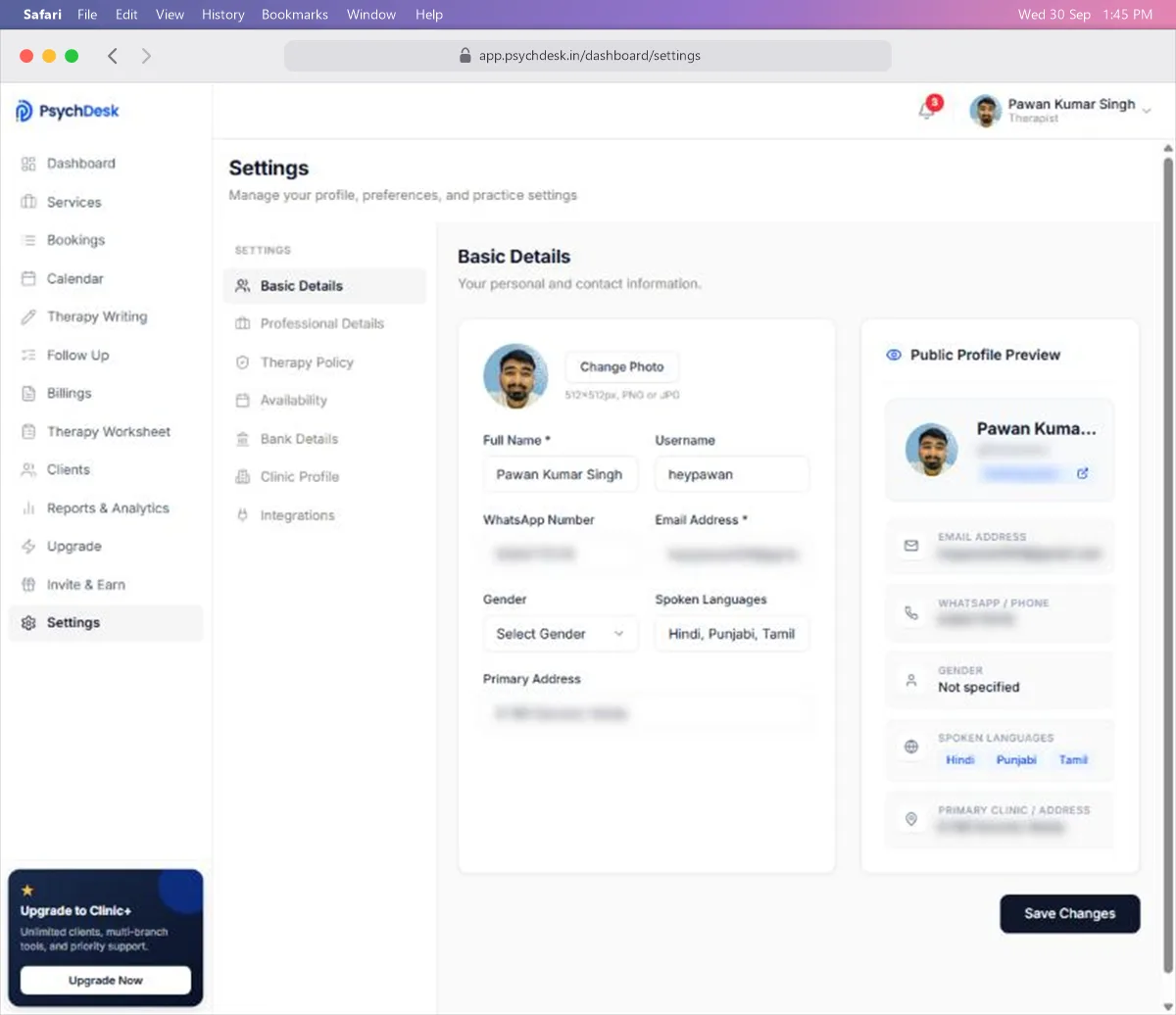
- 1Click Change Photo and upload your profile photo.
- 2Fill in Full Name and Email Address. Both are required.
- 3Choose a Username.
- 4Add your WhatsApp Number, Gender, Spoken Languages and Primary Address.
- 5Click Save Changes.
Restrictions to keep in mind:
- The photo should be 512 × 512 px, in PNG or JPG.
- Your username becomes your public booking address,
booking.psychdesk.in/username. Pick one you are happy to share with clients, because changing it later changes the link. - Your name, languages and address are shown to clients. The Public Profile Preview on the right shows exactly what they will see.
Step 2: Add your professional details
Go to Settings > Professional Details.
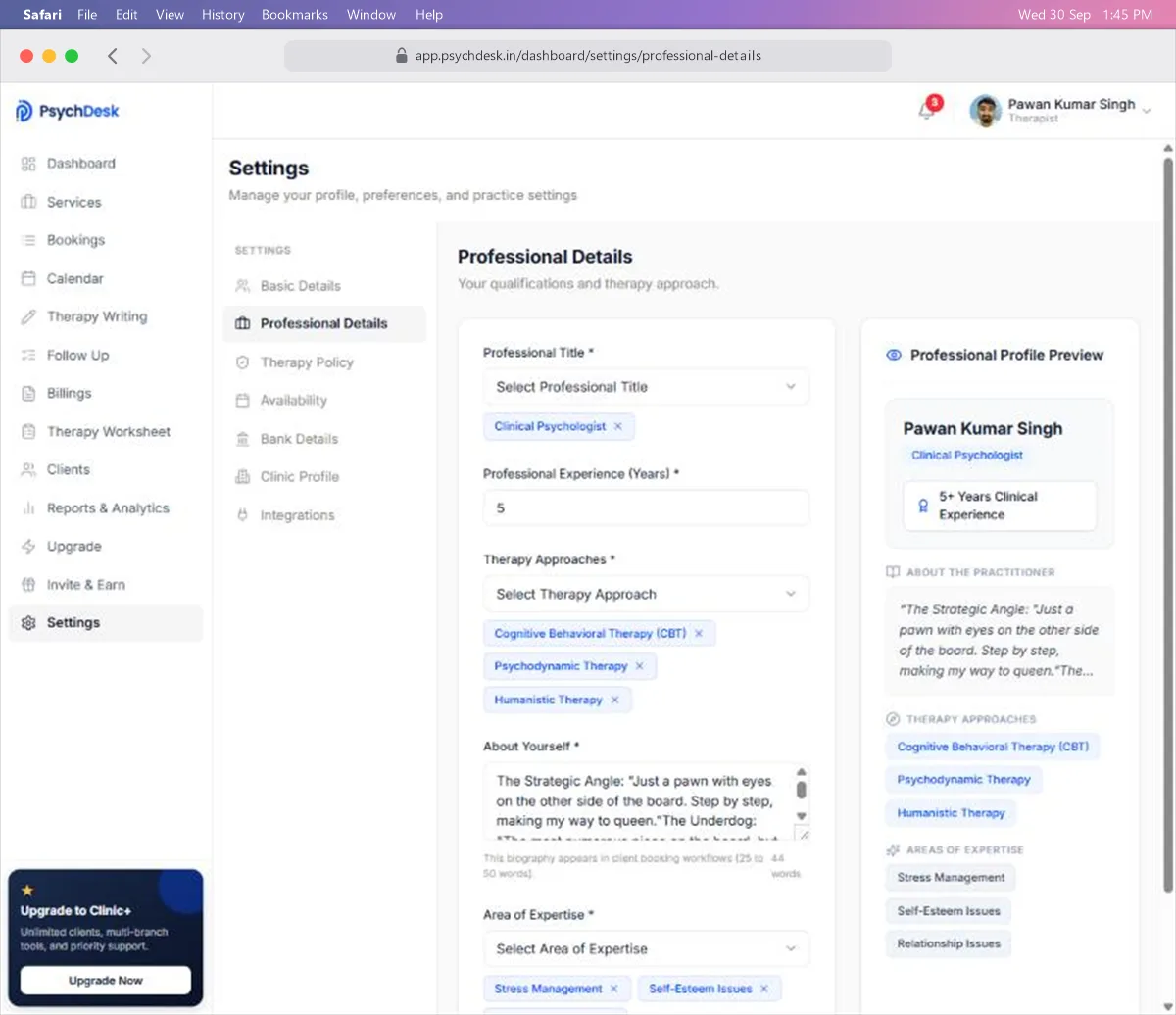
- 1Choose your Professional Title.
- 2Enter your Professional Experience (Years).
- 3Select your Therapy Approaches.
- 4Write your bio under About Yourself.
- 5Select your Area of Expertise.
- 6Click Save Changes.
Restrictions to keep in mind:
- All five fields are required. The page will not save with any of them empty.
- Your bio must be 25 to 50 words. A word counter under the box shows where you are.
- Experience is entered as a number of years only.
- Titles, approaches and areas of expertise are chosen from a fixed list. You cannot type your own.
- Everything here is public. Check the Professional Profile Preview on the right before you save.
Step 3: Upload your consent form, privacy policy and terms
Go to Settings > Therapy Policy.
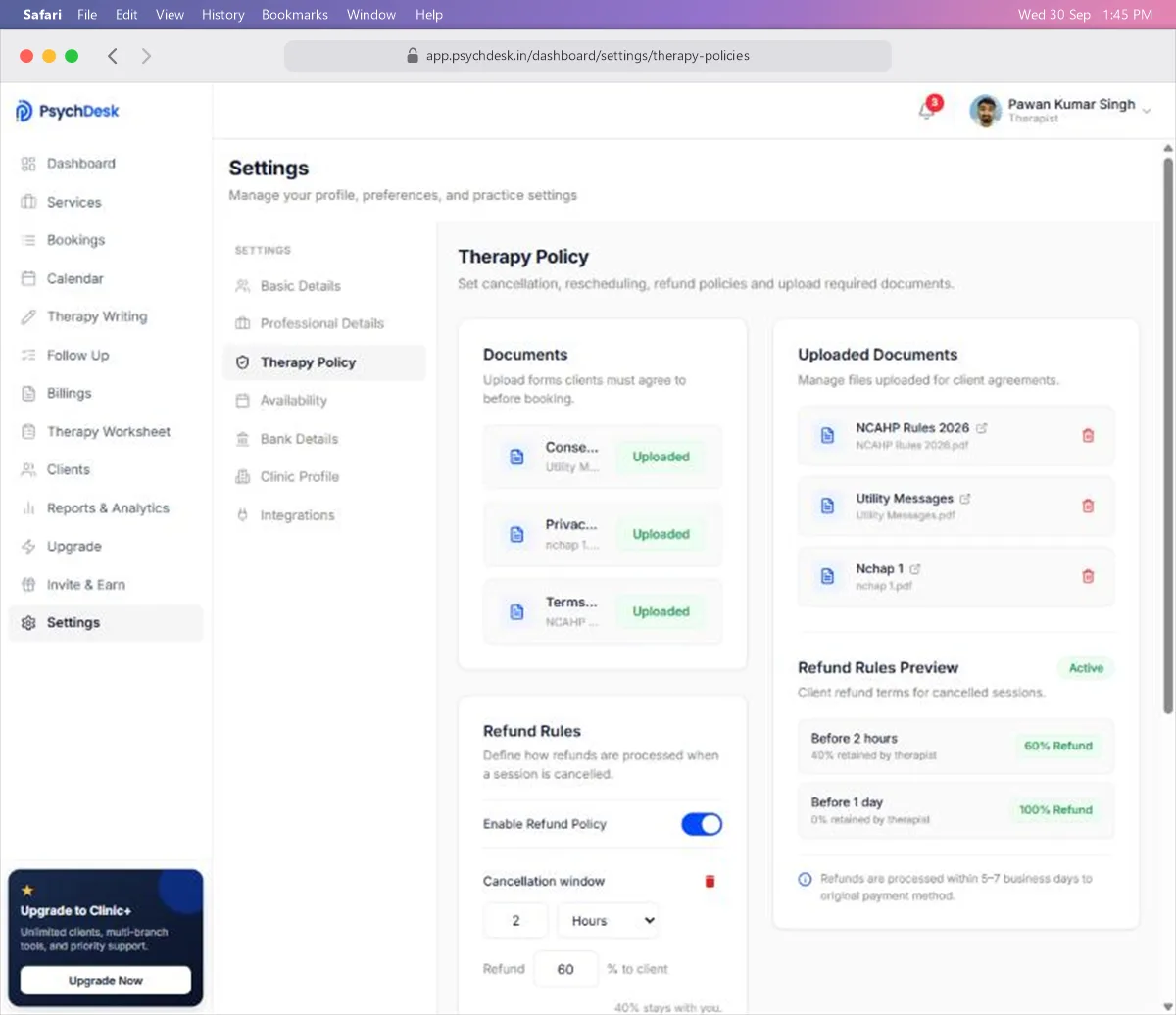
- 1Under Documents, click Upload next to Consent Form and choose your file.
- 2Do the same for Privacy Policy and Terms & Conditions.
- 3Check that each one now shows a green Uploaded label, and that all three appear under Uploaded Documents on the right.
Restrictions to keep in mind:
- PDF or DOCX only, up to 5 MB per file.
- Clients are asked to agree to these documents before booking, so upload the final versions, not drafts.
On the same page you can set your Refund Rules: turn on Enable Refund Policy, then set a cancellation window (in hours or days) and the percentage refunded to the client. Use + Add Rule for more than one window. The Refund Rules Preview shows what clients will see. Refunds go back to the original payment method within 5 to 7 business days.
Step 4: Set up your availability
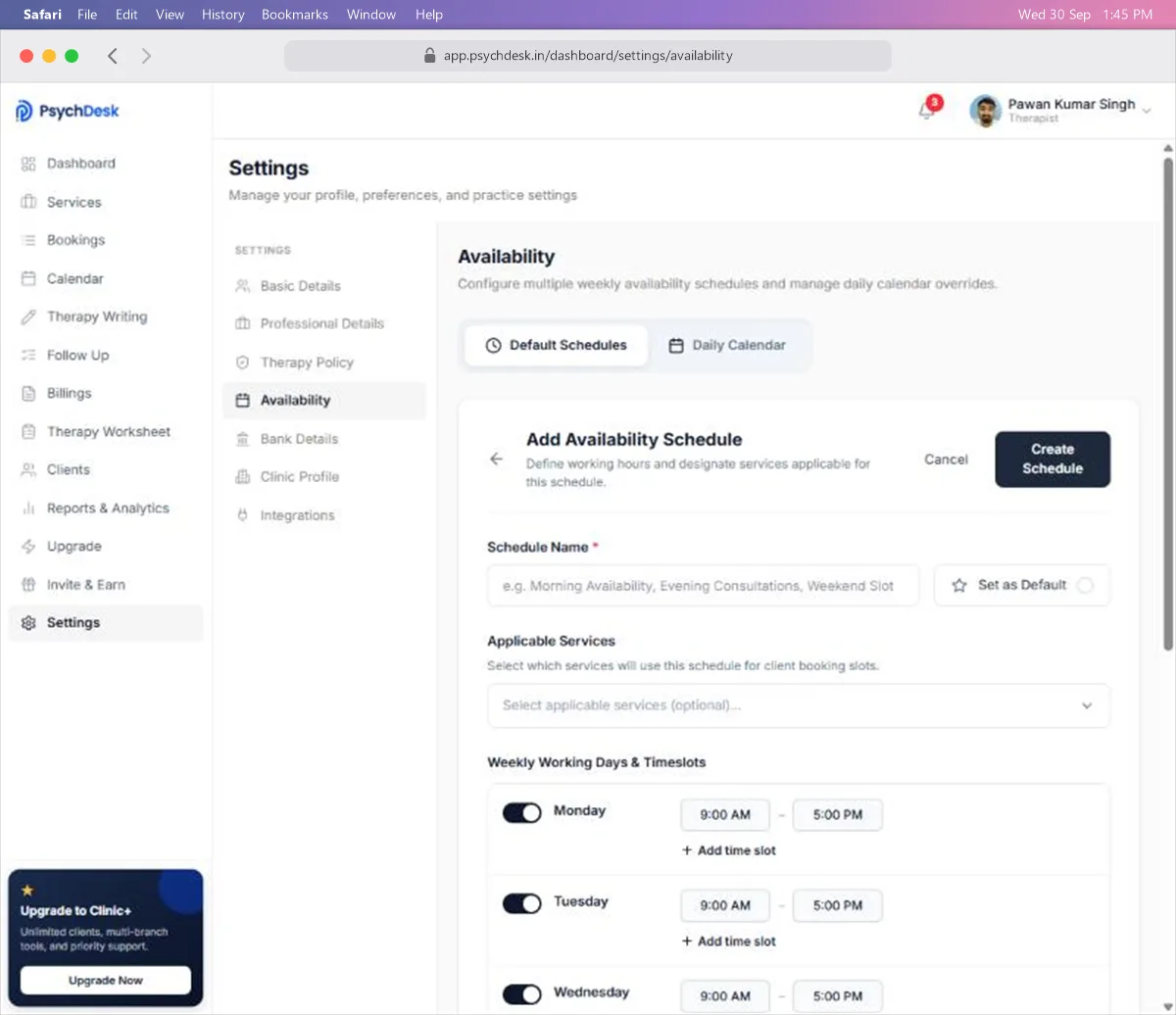
Go to Settings > Availability. There are two tabs, and they work together.
Default Schedules is your normal working week.
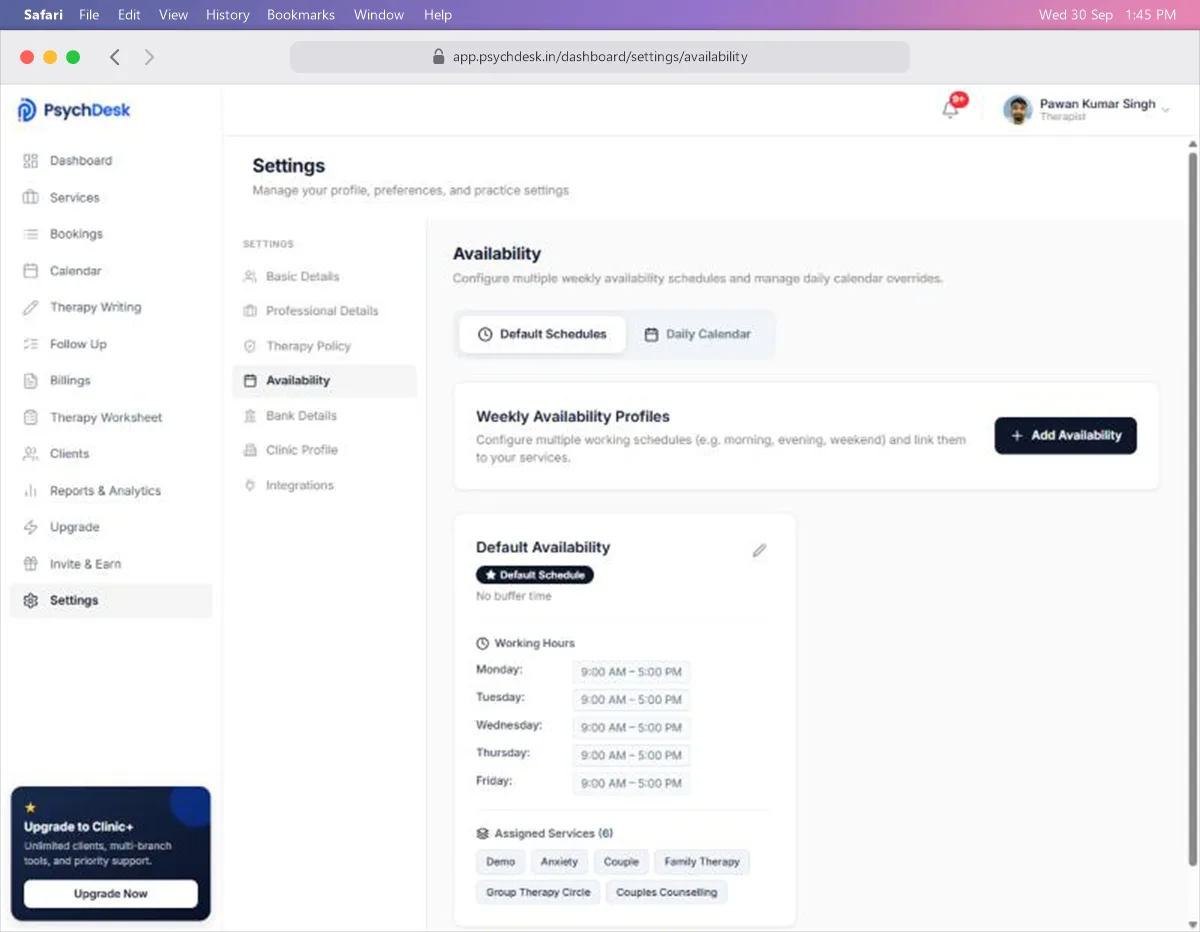
- 1Click Add Availability, or the pencil icon on Default Availability to edit the one already there.
- 2Give it a Schedule Name.
- 3Switch each working day on or off, and set its start and end time. Use Add time slot for a split day, such as a morning and an evening block.
- 4Choose a Buffer Time Between Sessions if you want a break after each session (5 to 30 minutes).
- 5Click Create Schedule.
Daily Calendar is for exceptions on specific dates.
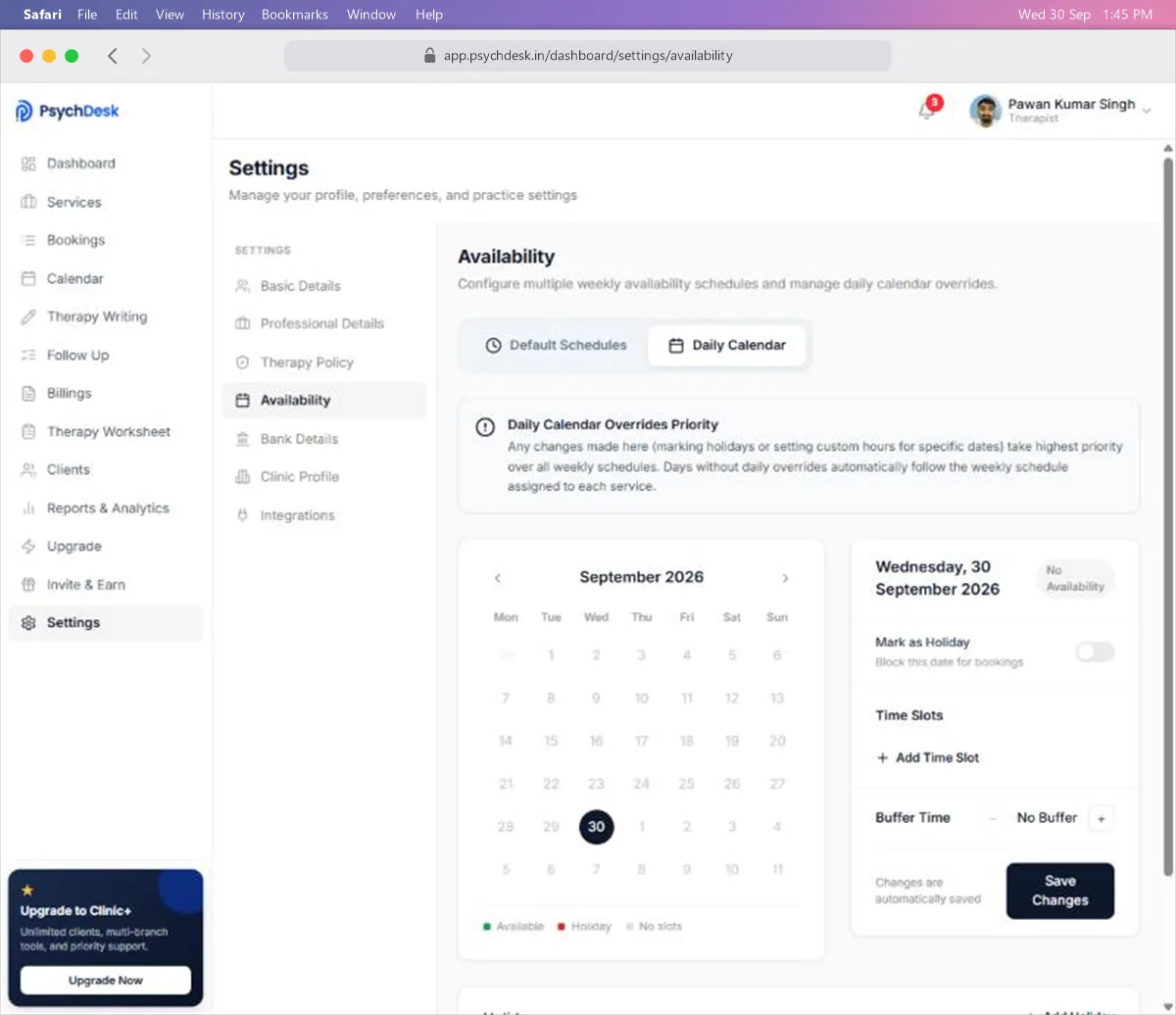
- 1Open the Daily Calendar tab and click a date.
- 2Turn on Mark as Holiday to block the whole day, or use Add Time Slot to set different hours for that day only.
- 3Use Add Holiday to block a single day or a range of days.
How the two fit together:
- Set your default week once. Then use the Daily Calendar only when a particular day is different.
- A change in the Daily Calendar always wins over your weekly schedule for that date.
- Dates you have not changed follow your weekly schedule automatically.
- You can create more than one weekly schedule (for example, mornings and weekends) and attach each to different services.
Step 5: Add your bank details
Go to Settings > Bank Details. This is where your session payments are paid out, so check every digit.
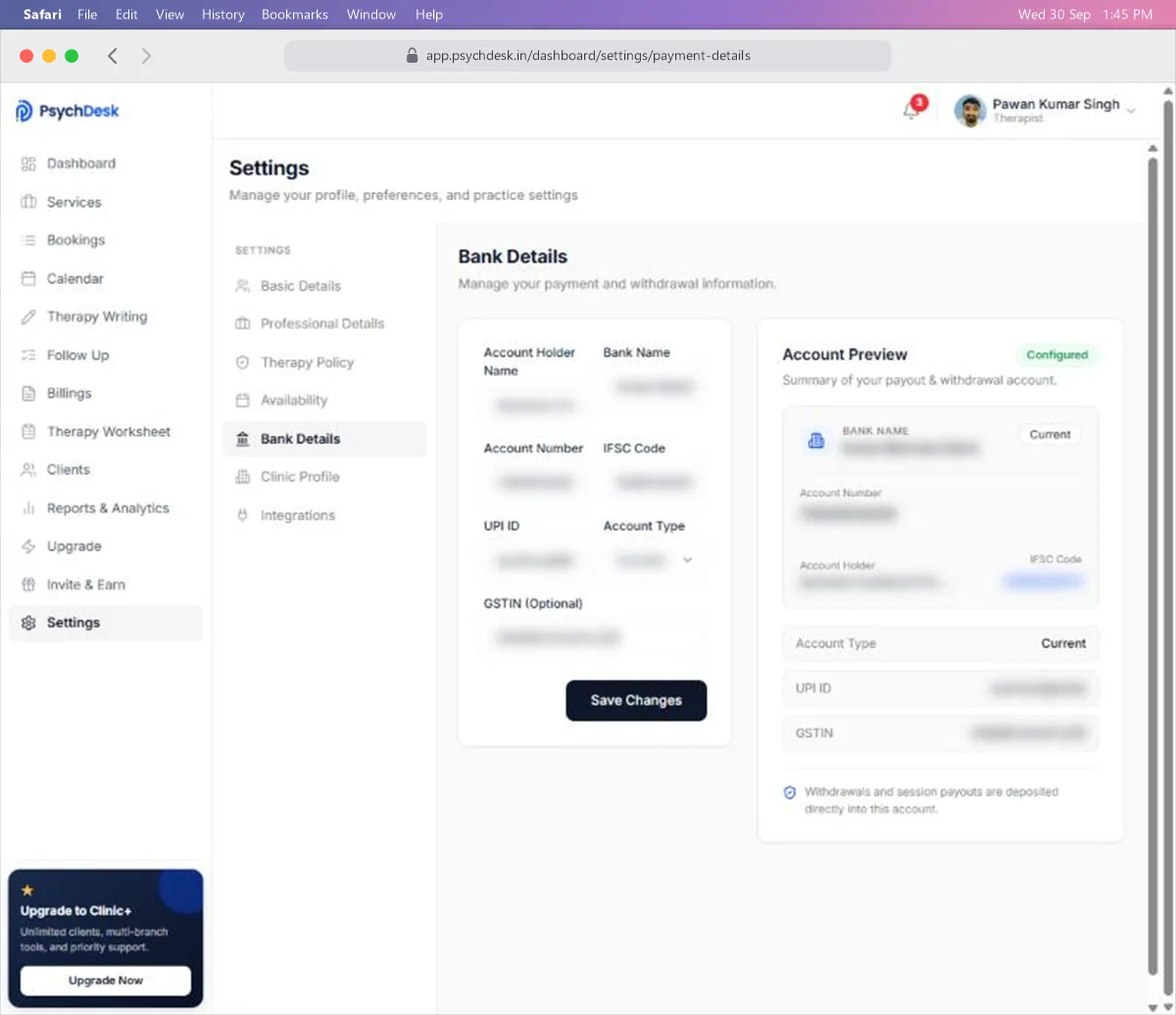
- 1Enter Account Holder Name, Bank Name, Account Number and IFSC Code.
- 2Enter your UPI ID and choose the Account Type.
- 3Add your GSTIN if you have one. It is optional.
- 4Check the Account Preview on the right, then click Save Changes.
Restrictions to keep in mind:
- The account holder name should match the name on the bank account.
- A wrong account number or IFSC code will delay your payout. Copy them from your passbook or banking app rather than typing from memory.
If you practise under a clinic name
If your private practice has its own name and contact details, go to Settings > Clinic Profile and add them.
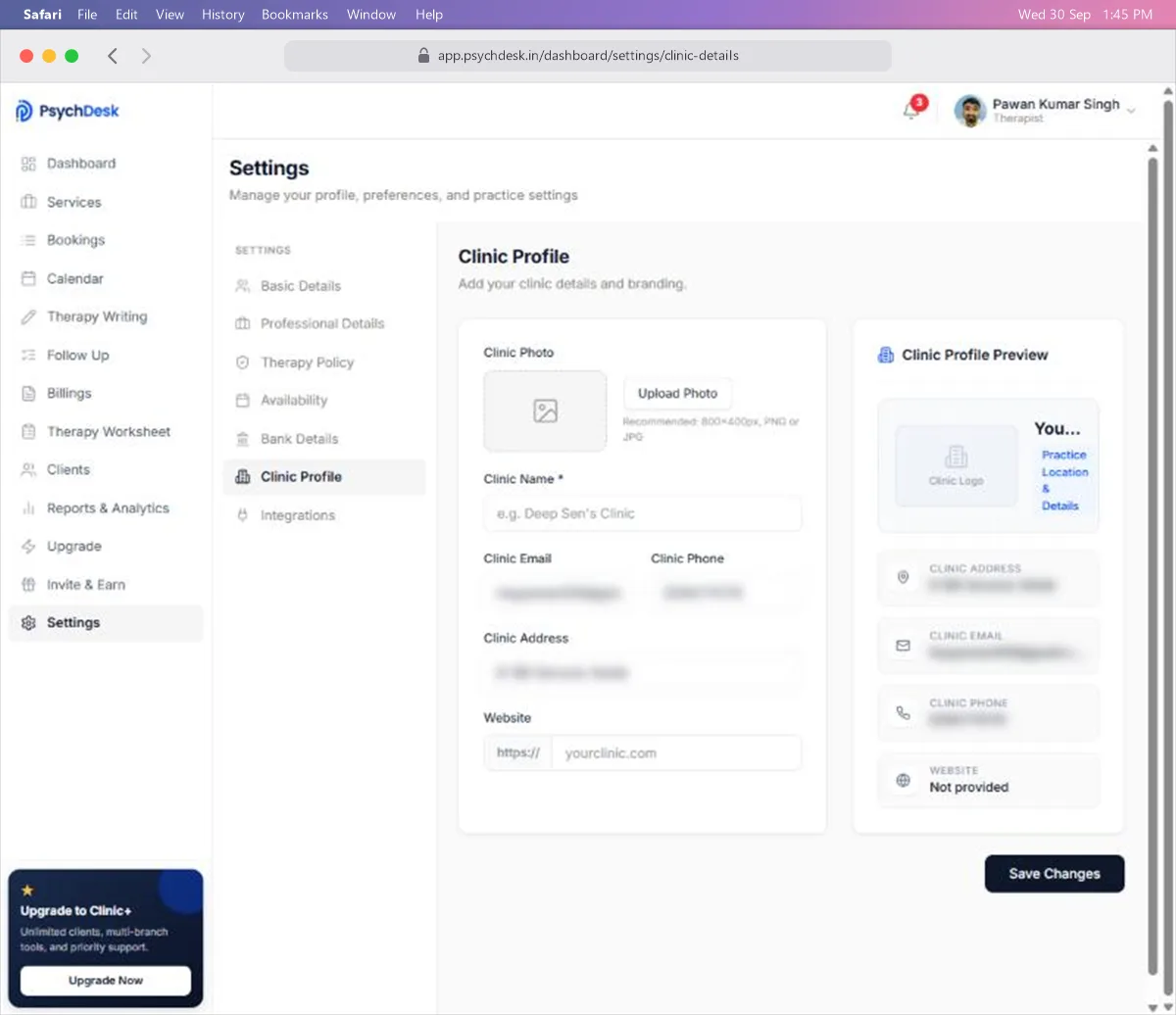
- Clinic Name is required on this page.
- Clinic Email, Clinic Phone, Clinic Address and Website are optional.
- The Clinic Photo should be 800 × 400 px, PNG or JPG.
If you practise under your own name only, you can skip this.
Step 6: Create your first service
Go to Services in the left-hand menu.
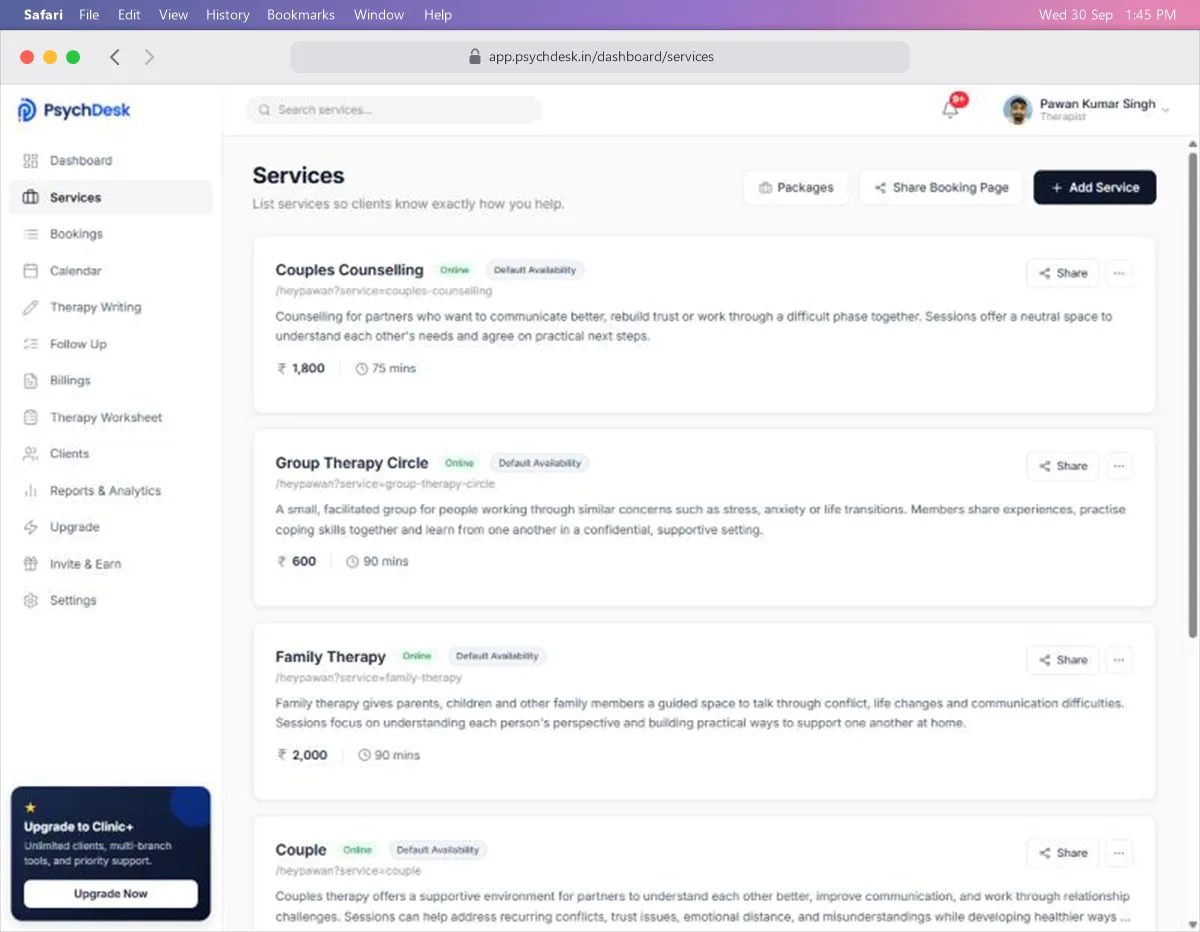
- 1Click Add Service.
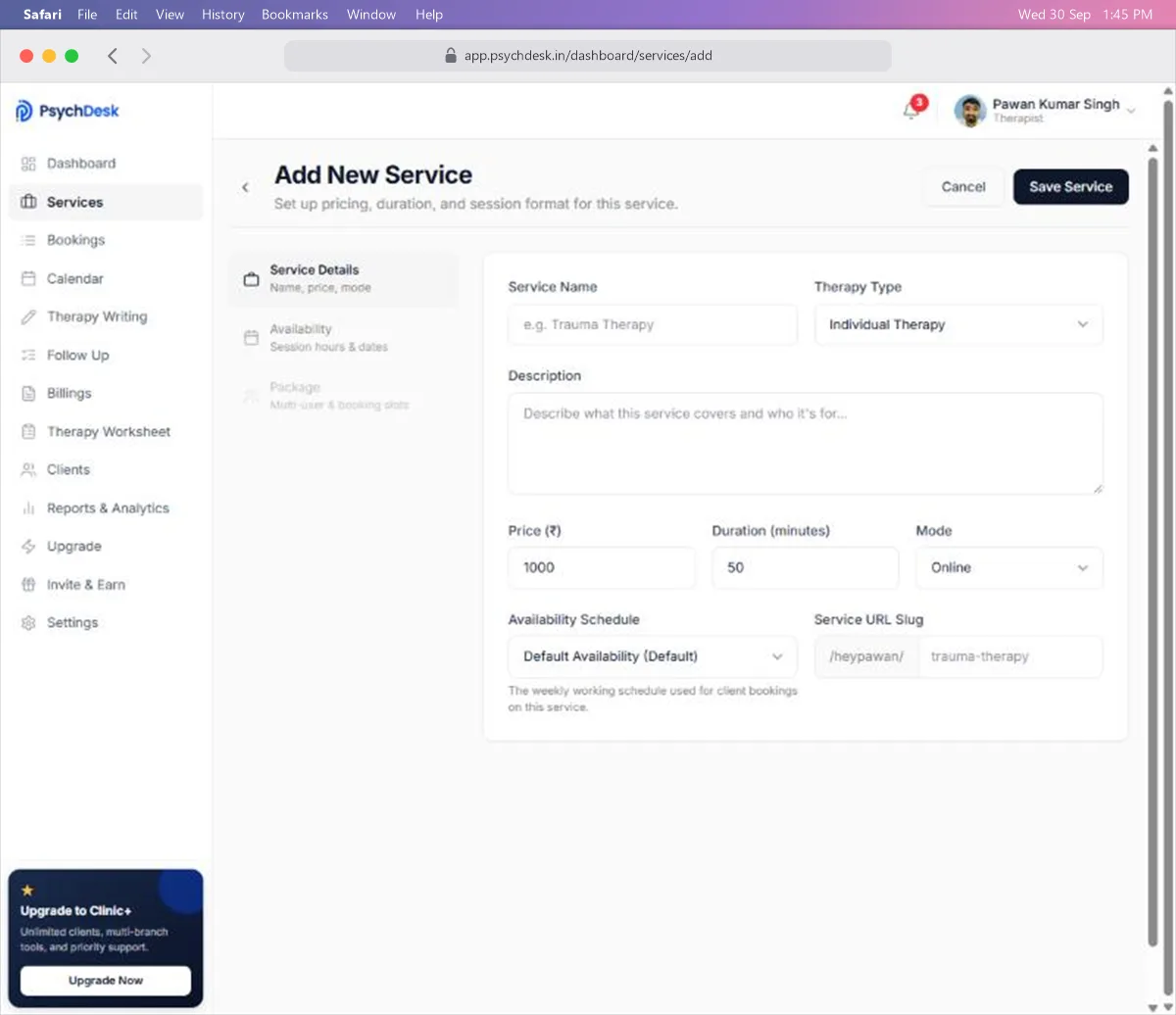
- 2Enter the Service Name and choose the Therapy Type: Individual, Couple, Family or Group.
- 3Write a Description of what the service covers and who it is for.
- 4Enter the Price (₹) and Duration (minutes).
- 5Choose the Mode: Online, In-Person, or Hybrid.
- 6Choose the Availability Schedule this service should follow.
- 7Check the Service URL Slug. This is the end of the direct link to this service.
- 8Click Save Service.
That is your services set up. To offer another one later, come back to Services and click Add Service again.
Your public booking page
Your booking page is now live at:
booking.psychdesk.in/username
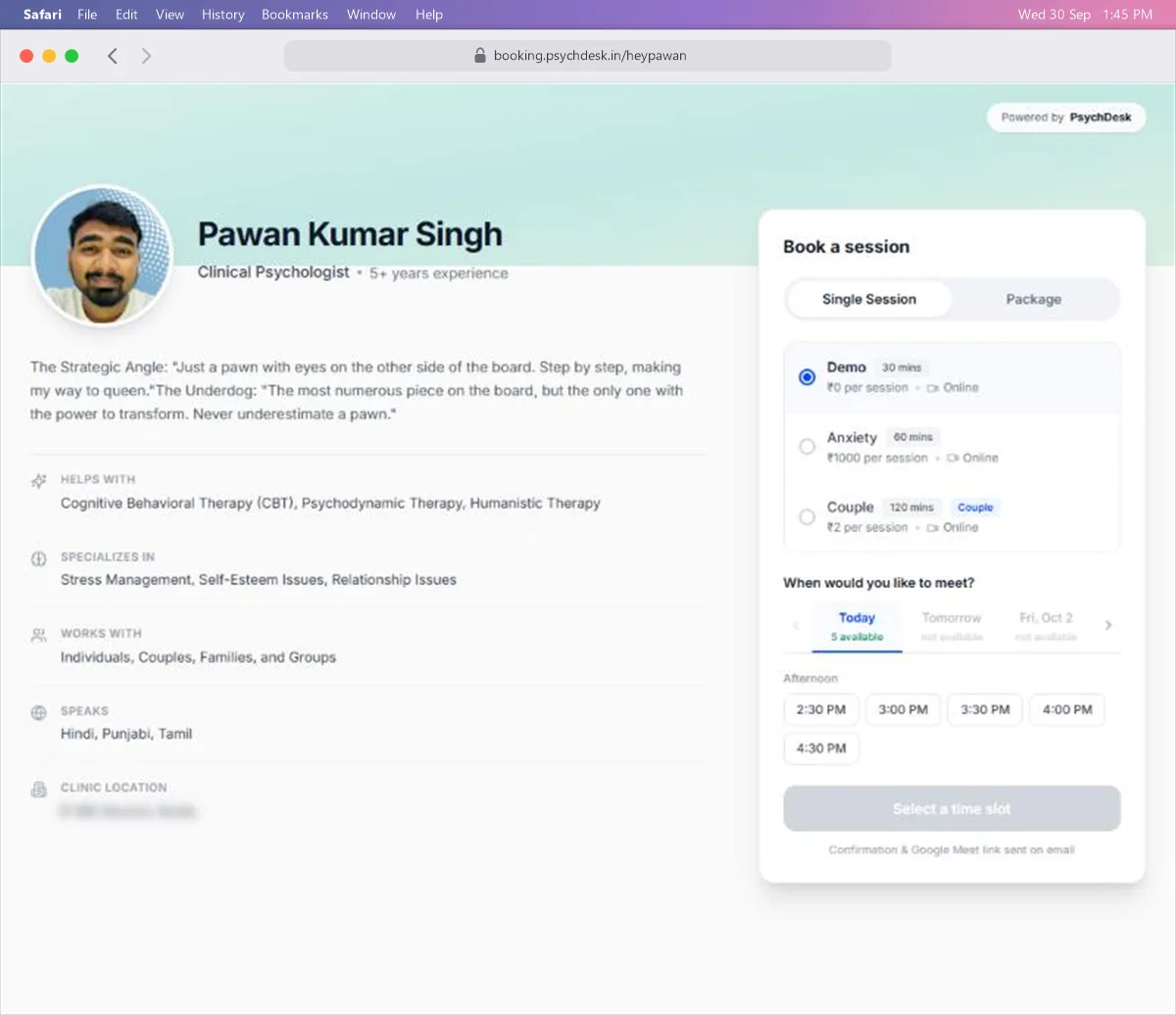
Open it yourself first. It shows everything a client sees about you:
- Your photo, name, title and years of experience
- Your bio
- Your therapy approaches and areas of expertise
- The languages you speak and your location
- Every service, with its duration, price and mode
- Your open time slots, day by day
Clients can book directly from this link. They choose a service, pick a time slot, and receive a confirmation by email.
To share it, go to Services and click Share Booking Page. To send a client straight to one service, click Share on that service instead.
Check it worked
Open your booking page in a private or incognito browser window, so you see it as a client would.
- Your profile reads correctly and has no gaps.
- Each service shows the right price and duration.
- Time slots appear on the days you work, and not on days you do not.
If no slots appear, go back to Step 4 and check that the service is attached to a schedule with working hours on that day.
What to set up next
- Add your first client: see the Clients guide.
- Book a session yourself: see the Bookings guide.