

What this does for you
- One list of all your sessions, so you are not piecing your week together from messages.
- Book a session for a client in under a minute, including for someone who is not in your records yet.
- A quick count of upcoming, completed, cancelled and missed sessions.
Before you start
- At least one service exists. A session is always booked against a service. See the Services guide.
- Your availability is set. Only times inside your schedule can be booked. See Quick Setup, step 4.
- The client's name and phone number, if you are booking for someone new.
The Bookings page
Click Bookings in the left-hand menu.
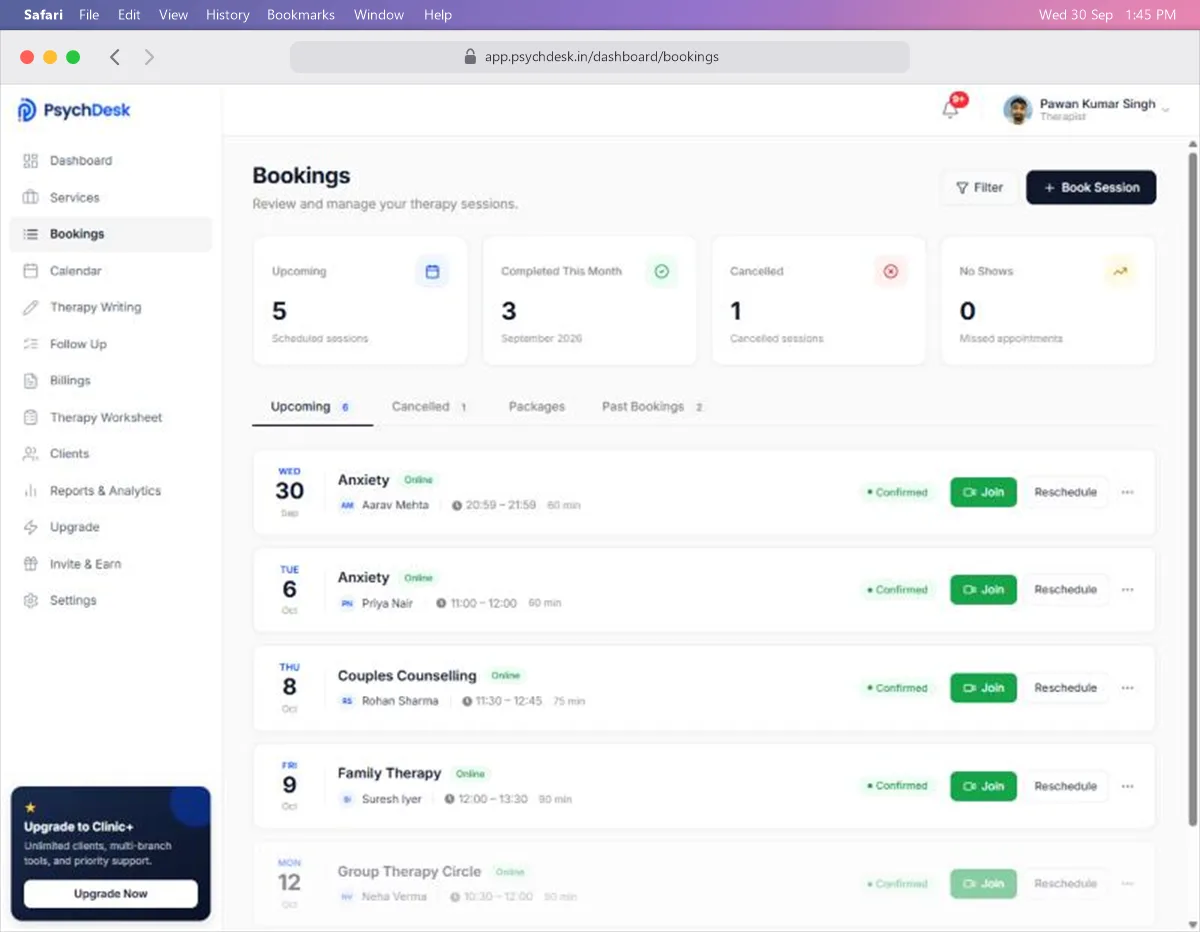
The four cards at the top give you the numbers at a glance:
| Card | What it counts |
|---|---|
| Upcoming | Sessions scheduled ahead |
| Completed This Month | Sessions held in the current month |
| Cancelled | Sessions that were cancelled |
| No Shows | Appointments the client missed |
Below the cards are four tabs:
- Upcoming lists sessions still to come.
- Cancelled lists cancelled sessions.
- Packages lists sessions that belong to a multi-session package.
- Past Bookings lists sessions that have already happened. The number beside it is how many there are.
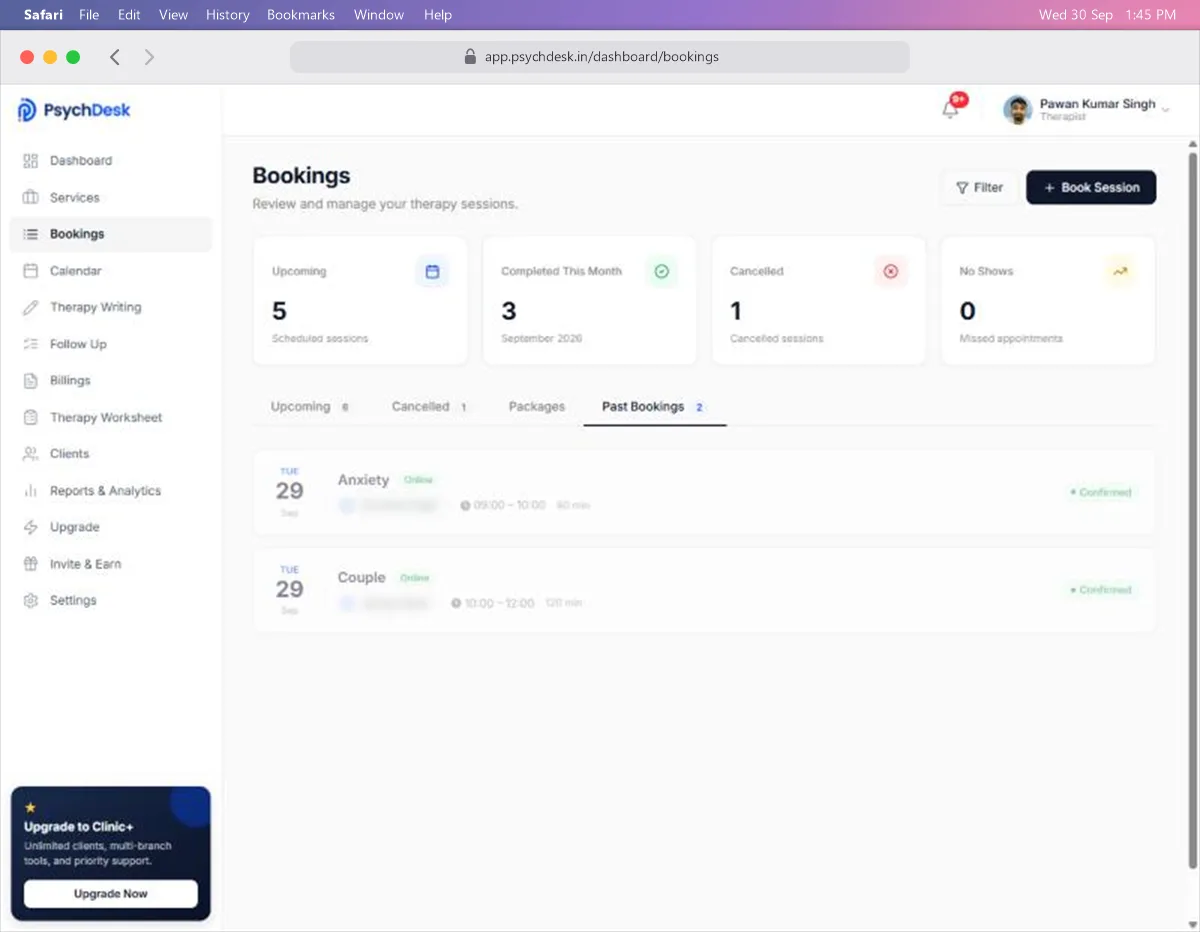
Each row shows the date, the service and its mode, the client, the start and end time, the length, and the status. For a couple, family or group session, the row shows the primary member's name.
Upcoming sessions also have three controls on the right:
- Join opens the online session.
- Reschedule moves the session to another date or time.
- ⋯ opens a menu with Cancel Session.
Find a booking by date
- 1Click Filter at the top right.
- 2Choose Next 7 Days, Next 15 Days or Next 30 Days. For any other range, stay on Customized, then pick a start date and an end date on the calendar.
- 3Click Apply.
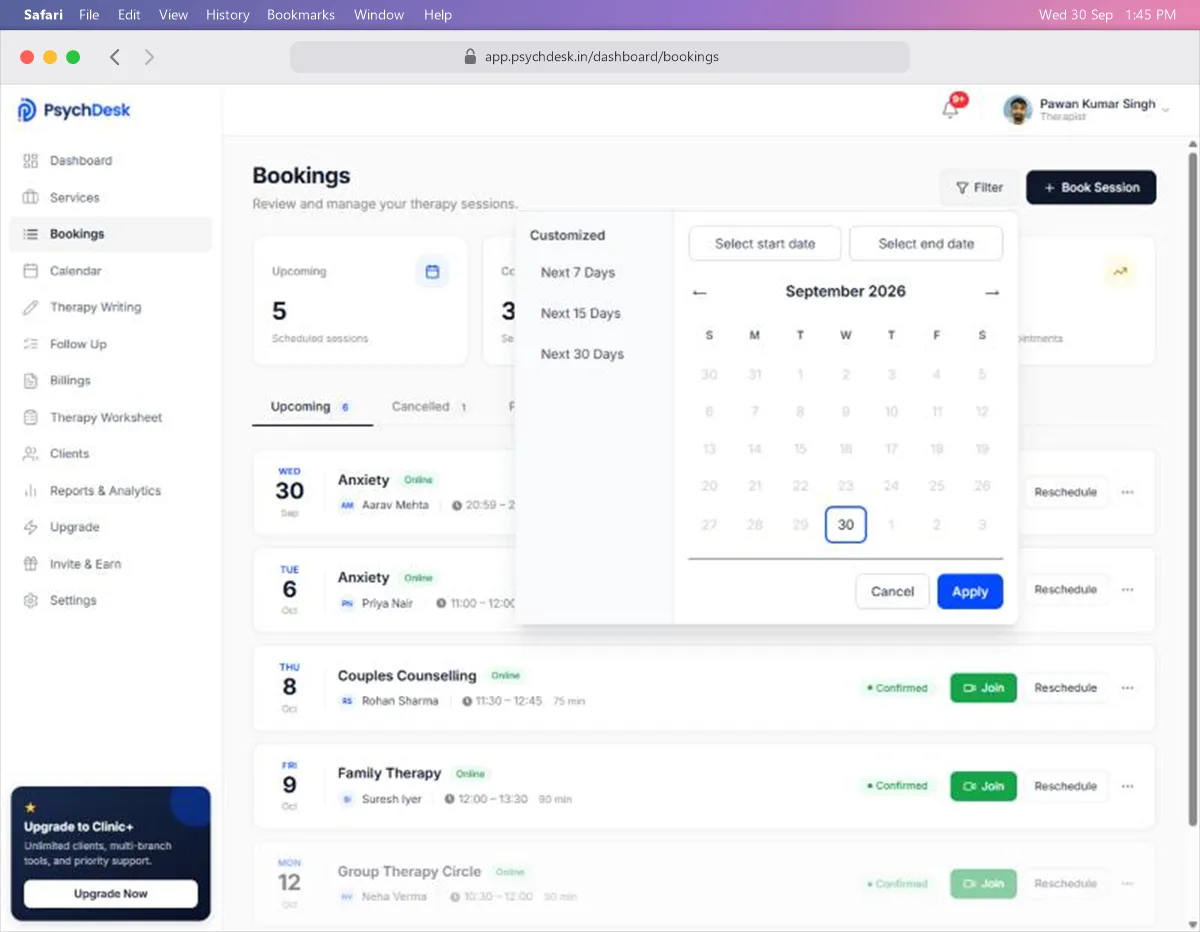
Click Cancel to close the panel without changing the list.
Book a session for a client
Use this when a client asks you directly, by phone or in person, instead of booking through your link.
1. Start the booking
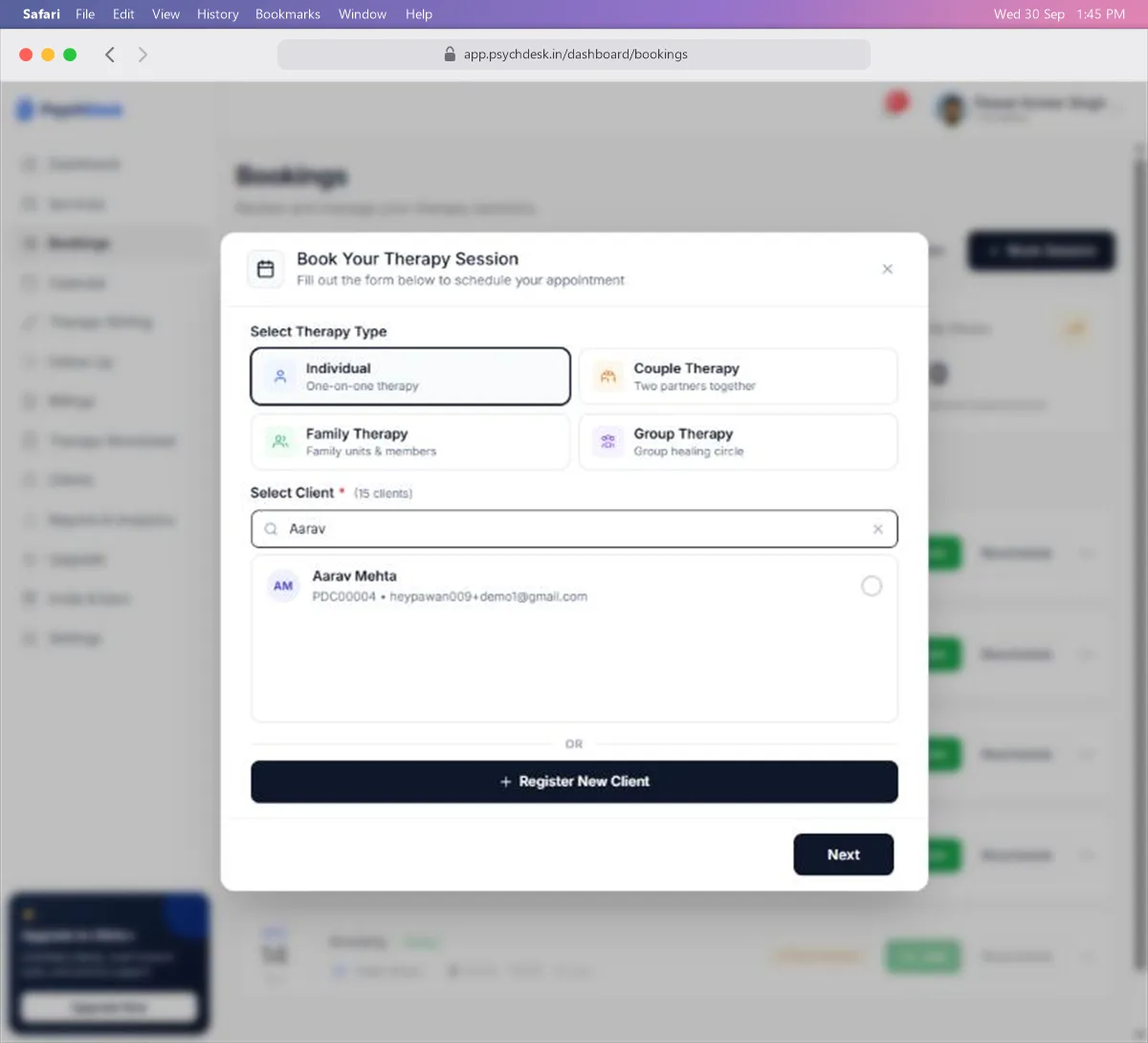
Click Book Session at the top right.
2. Choose the therapy type
Pick one: Individual, Couple Therapy, Family Therapy or Group Therapy.
The type you pick decides which of your services you can choose in the next step. Only services of that type are offered.
3. Choose the client
- Existing client: search by name, ID or email, select them, and click Next.
- New client: click Register New Client.
4. Register a new client (only if needed)
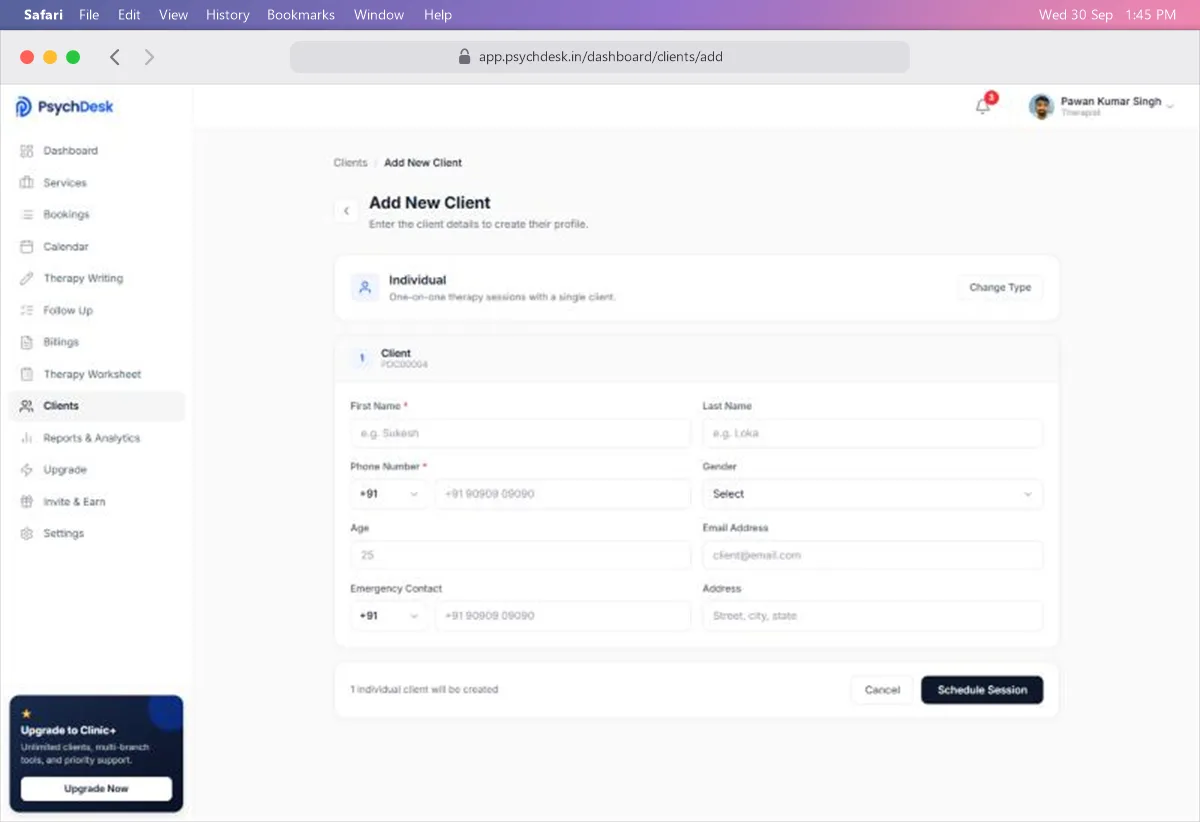
| Field | Rules |
|---|---|
| First Name | Required |
| Last Name | Optional |
| Phone Number | Required. Choose the country code first; +91 is selected by default |
| Gender | Optional. Male, Female, Non-binary, or Prefer not to say |
| Age | Optional. A number |
| Email Address | Optional, but the booking confirmation is sent by email, so add it if you can |
| Emergency Contact | Optional. A phone number with country code |
| Address | Optional |
The client is given an ID automatically, shown under Client. Click Schedule Session to continue. Change Type takes you back to pick a different therapy type.
For couple, family and group therapy, the form has one block per person:
| Therapy type | Members | Role / Relation options |
|---|---|---|
| Couple | Two members | Partner |
| Family | Two to start; click Add Another Member for more | Parent, Child, Spouse, Sibling, Grandparent, Other |
| Group | Two to start; click Add Another Member for more | Participant |
Each member is saved as a client in their own right and grouped under a shared ID (starting CPL, FAM or GRP). First name and phone number are required for every member. Several members can share one phone number, which helps when a parent is the contact for a child.
A new client is only saved when you finish the booking in the next step. On that screen the final button reads Create Client & Booking.
5. Fill in the session details
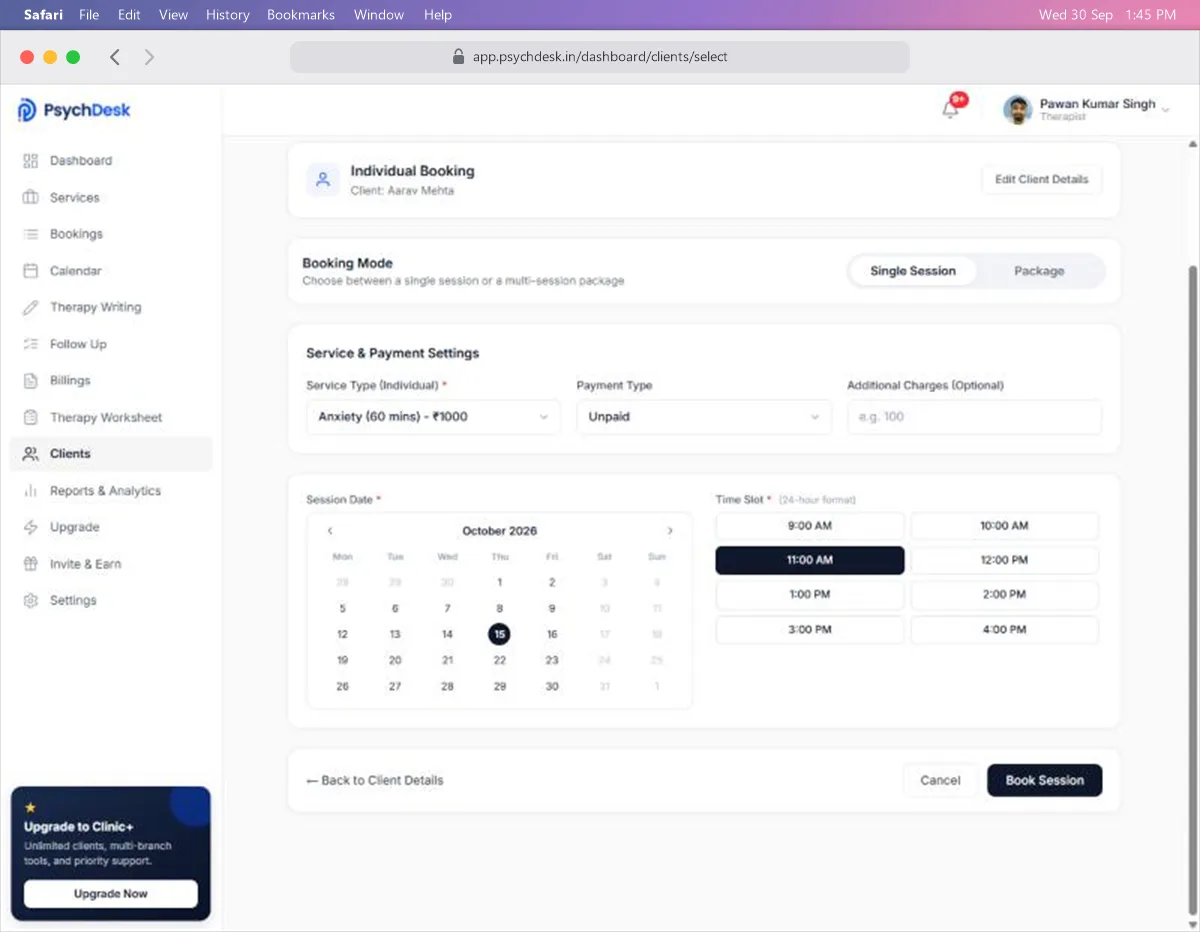
| Field | What to choose |
|---|---|
| Booking Mode | Single Session for one appointment. Package for a multi-session package |
| Service Type | The service to book. Each option shows its length and price |
| Payment Type | Unpaid, Paid, or Yet to Be Paid |
| Additional Charges | Optional. Any extra amount on top of the service price, 0 or more |
| Session Date | Click a date on the calendar |
| Time Slot | Click one of the open slots for that date |
Things to know:
- Dates in the past and days you do not work cannot be selected.
- Only free slots are shown. If a time is missing, it is either already booked, outside your schedule, or has already passed today.
- Set Payment Type to Paid only if you have actually received the money.
- Edit Client Details lets you correct the client's information without starting again.
6. Confirm
Check the client, service, date and time, then click Book Session.
Saving can take 10 to 20 seconds. Wait for the message "Client and session booking created successfully!" before you leave the page. An invoice for the session is created automatically under Billings.
Use Cancel to leave without booking, or Back to Client Details to go back a step.
Book a package for a client
Use this when a client commits to a set of sessions. You need at least one package first; the Services guide explains how to create one.
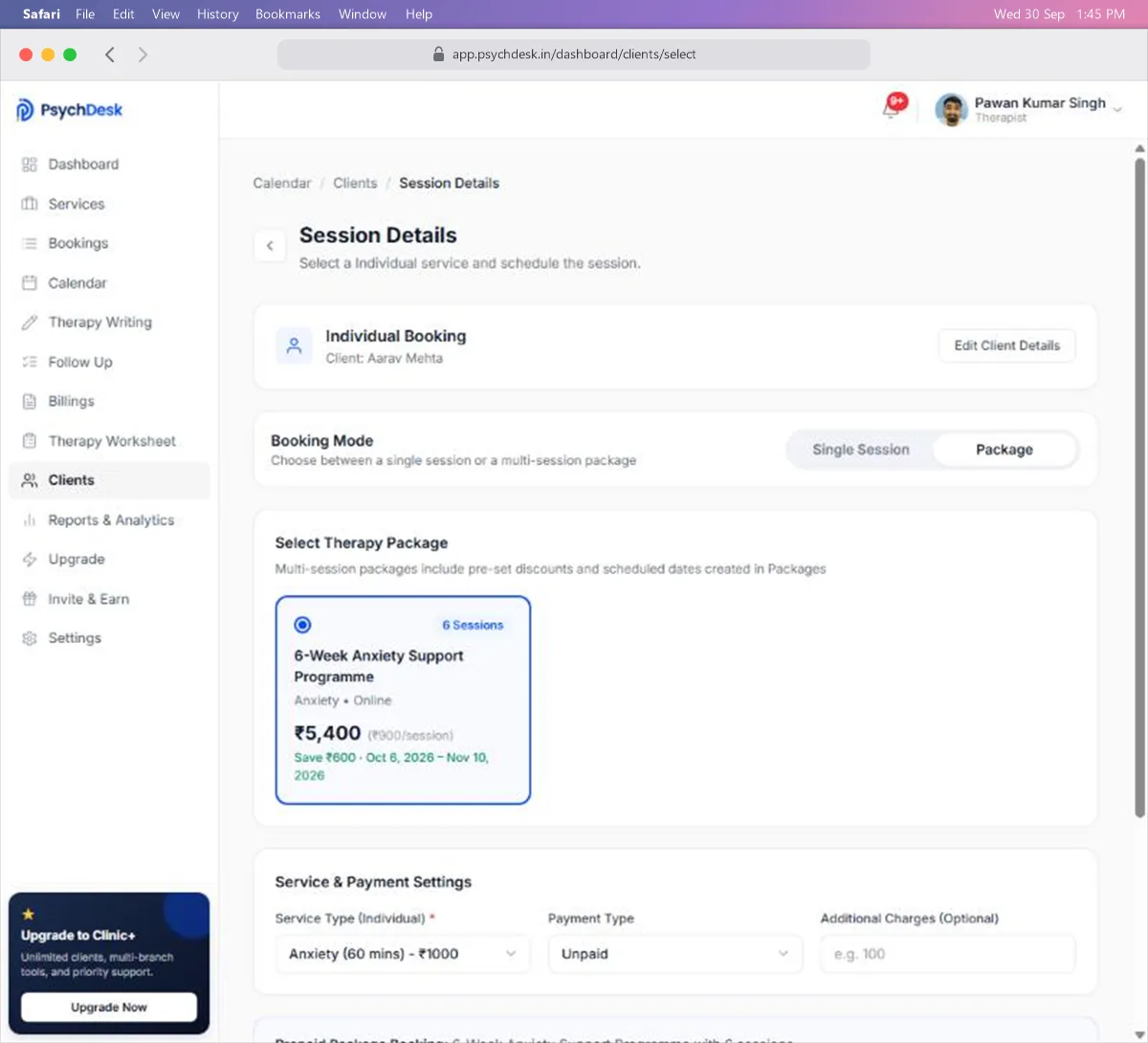
- 1Click Book Session, choose the therapy type and the client, and click Next.
- 2Under Booking Mode, click Package.
- 3Select the package. Each card shows the number of sessions, the total price, the per-session rate, the saving and the dates it is valid for.
- 4Set the Payment Type.
- 5Check the Total at the bottom, then click Book Package.
Things to know:
- Only packages built on a service of the matching therapy type are offered.
- Sessions in a package can be scheduled by you or the client at any point inside the package's valid dates.
Reschedule a session
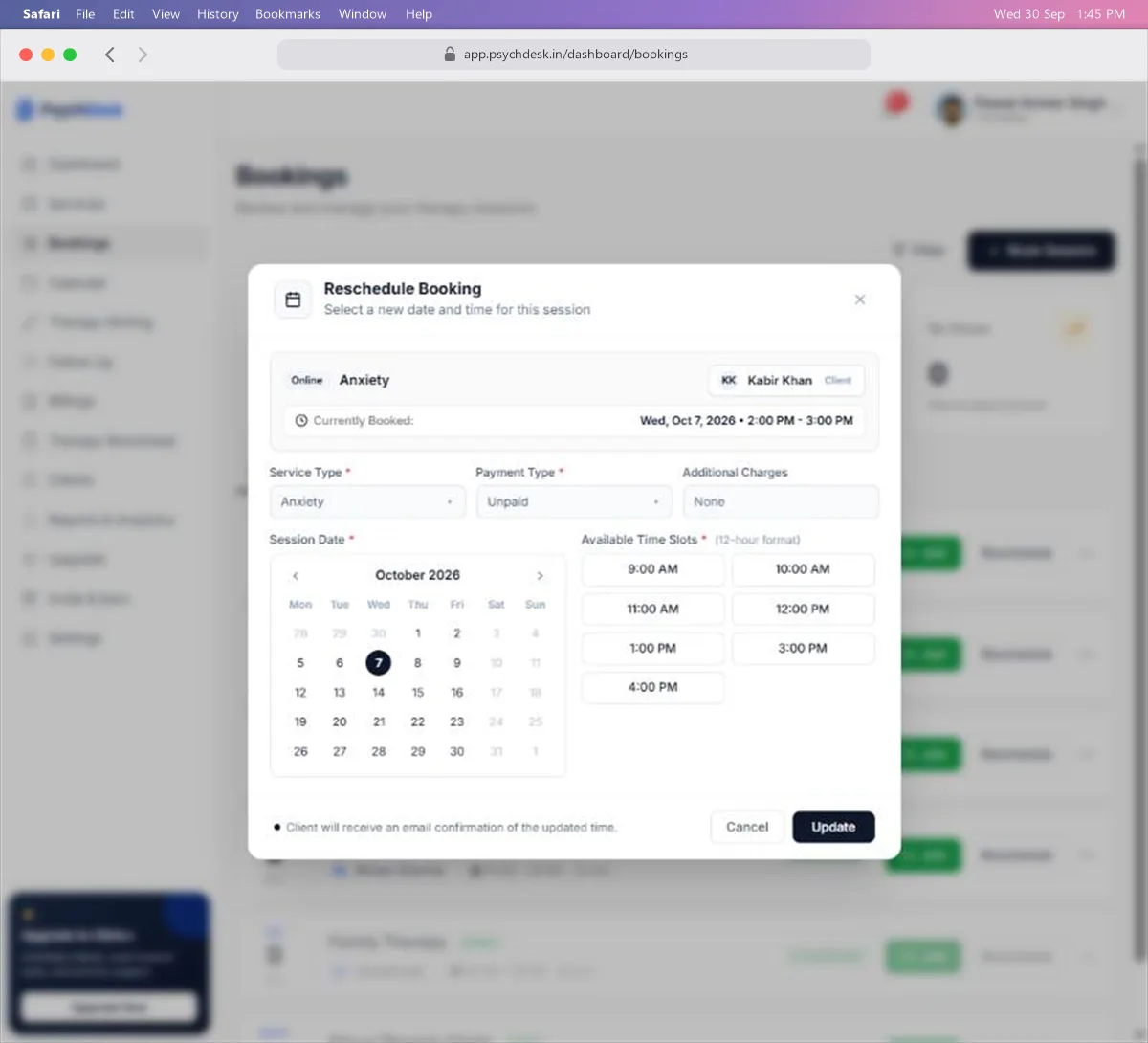
- 1On the Upcoming tab, click Reschedule on the session.
- 2Pick the new Session Date and one of the Available Time Slots. The current booking is shown at the top for reference.
- 3Click Update.
- 4Check the old and new times in the confirmation, then click Yes, Confirm.
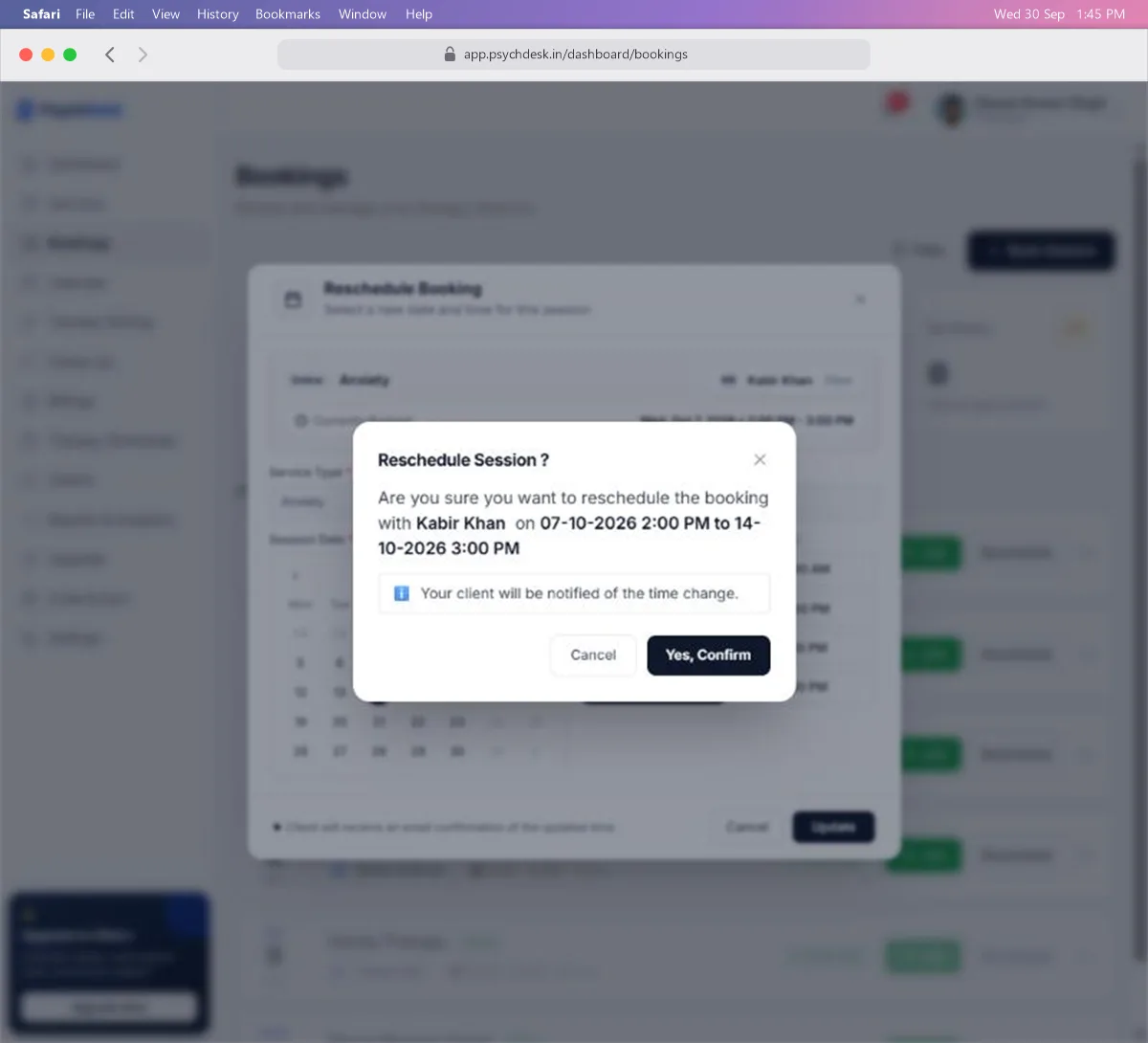
Things to know:
- The client is sent an email with the new time.
- The session's status changes from Confirmed to Rescheduled, and it moves to its new place in the list.
- The service and payment type are shown in this window but cannot be changed here.
Cancel a session
- 1On the Upcoming tab, click ⋯ on the session.
- 2Click Cancel Session.
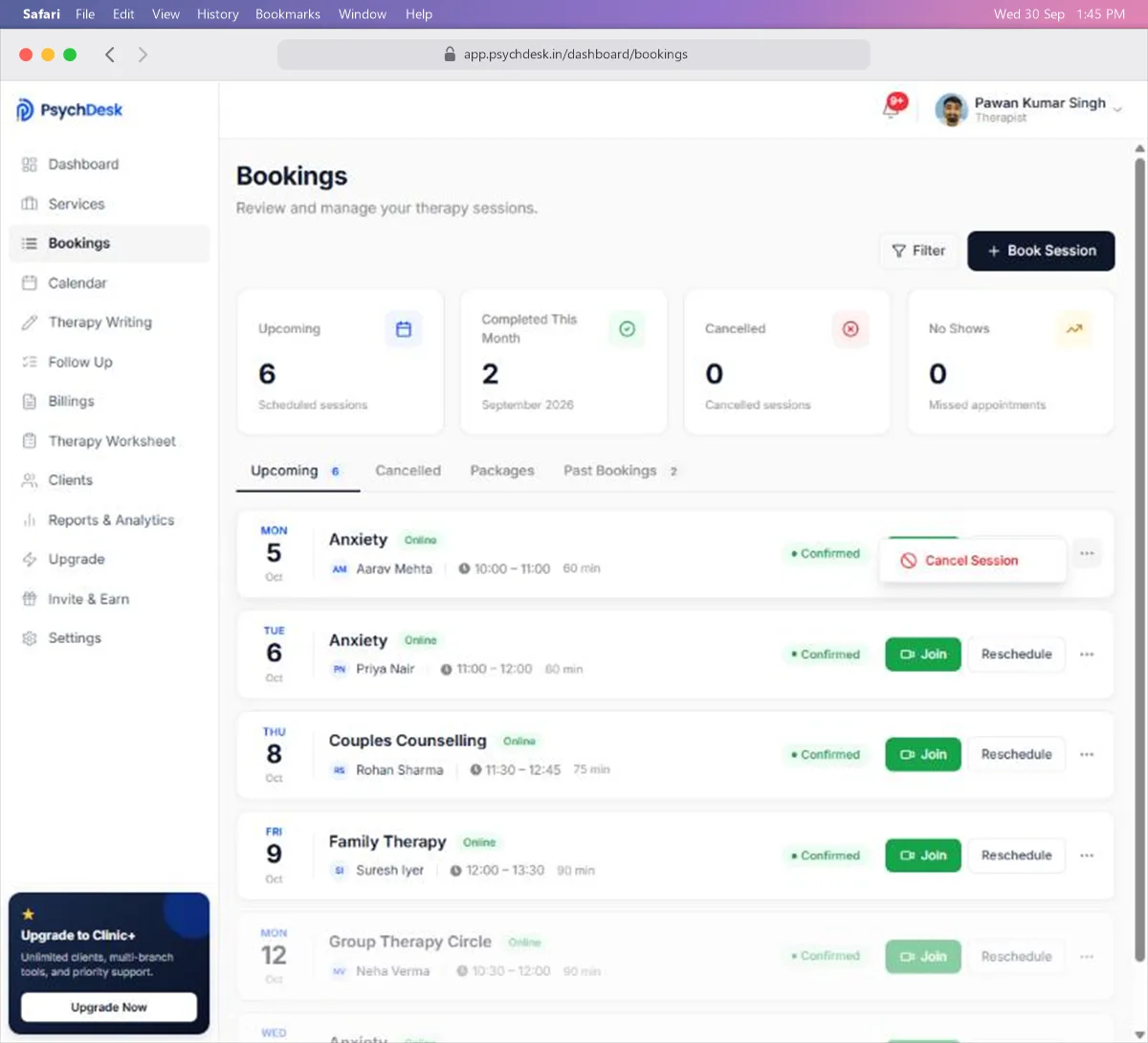
- 3Read the confirmation, then click Cancel Booking. Click Keep Booking if you opened it by mistake.
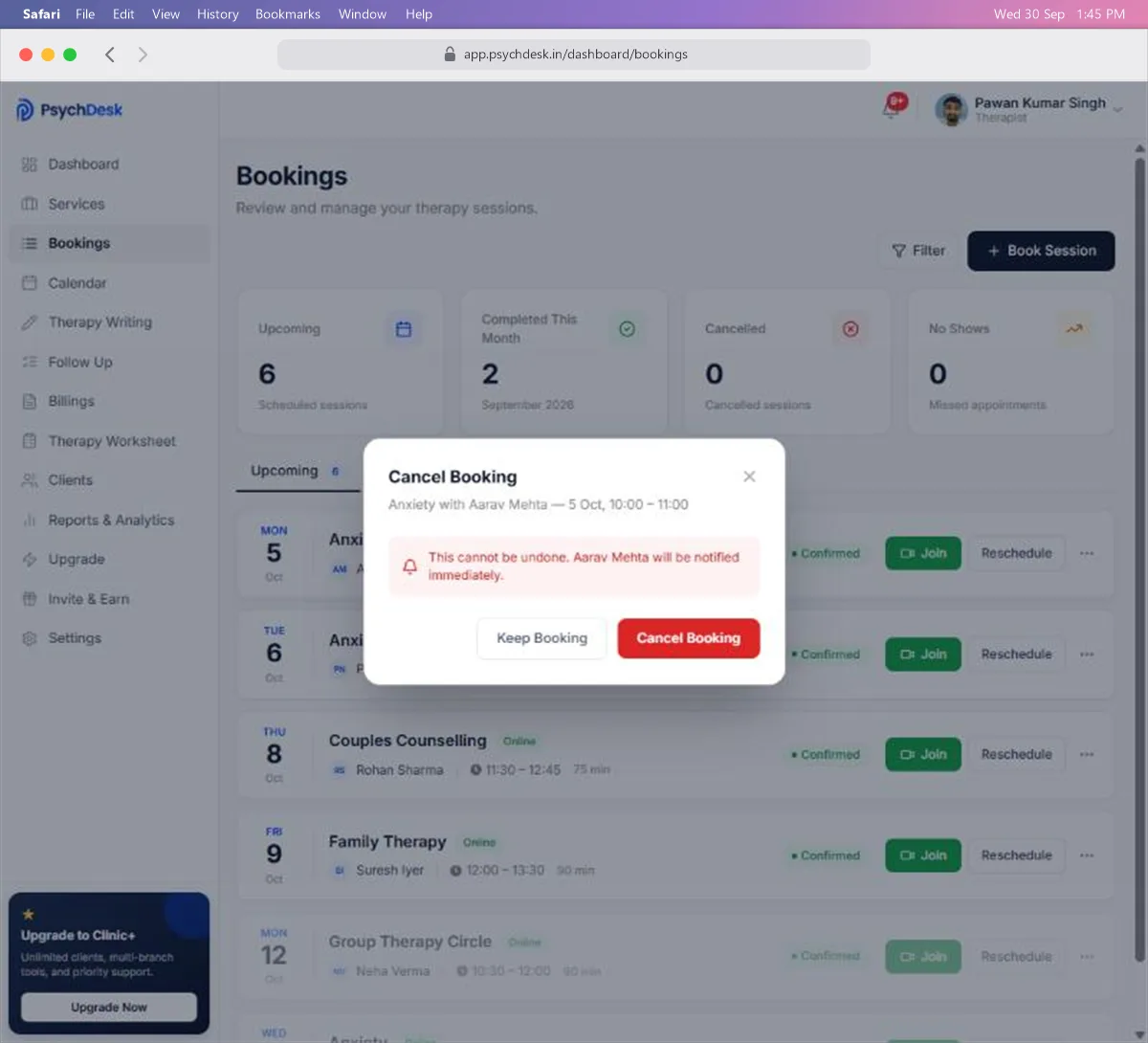
Things to know:
- Cancelling cannot be undone. To move a session rather than remove it, use Reschedule.
- The client is notified immediately.
- The session moves to the Cancelled tab and the Cancelled card goes up by one.
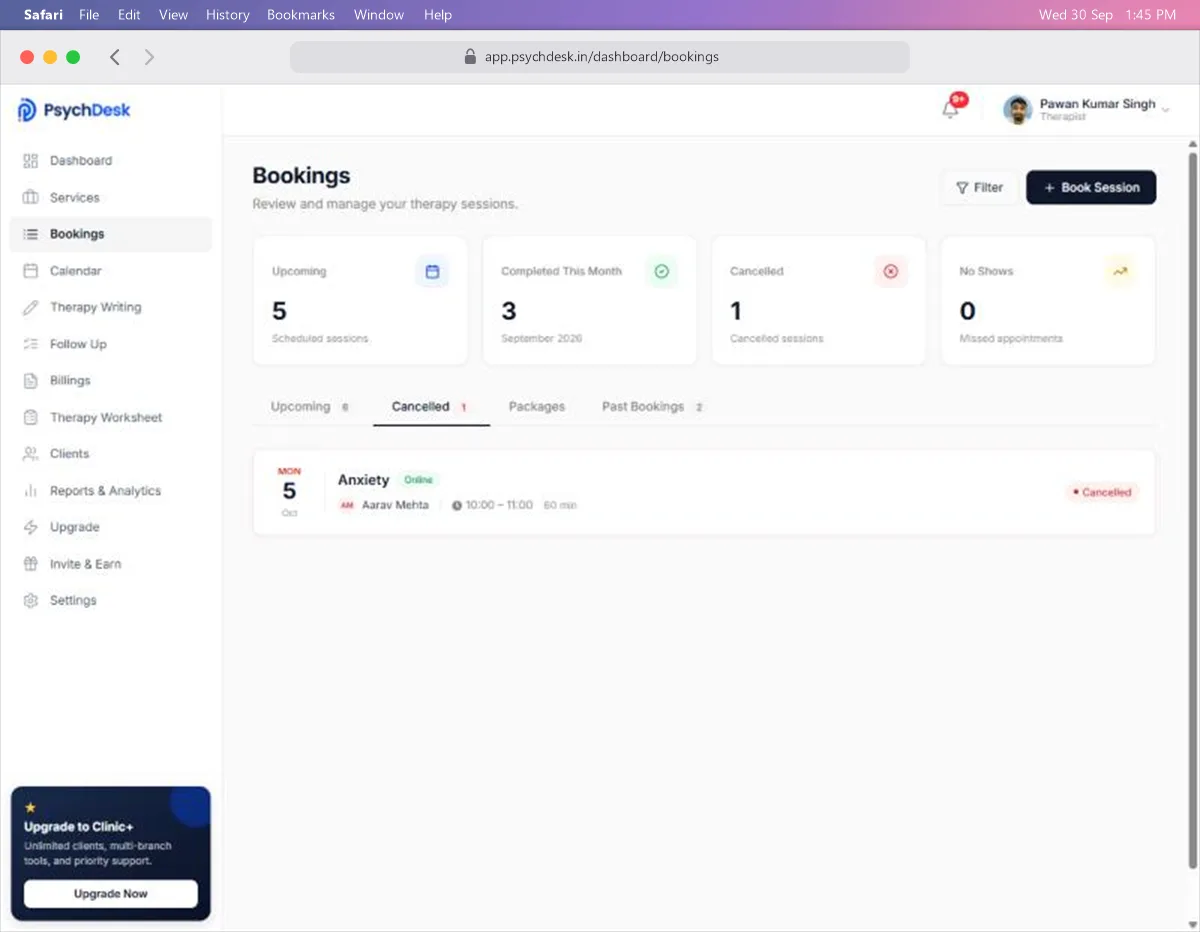
How clients book themselves
Most bookings will not need you at all. Clients open your public booking page, choose a service, pick a time slot, and receive a confirmation by email. Those bookings appear on this page automatically under Upcoming.
To get your link, go to Services and click Share Booking Page. The Services guide covers sharing in full.
Check it worked
After booking a session:
- 1Go to Bookings and open the Upcoming tab.
- 2Confirm the session is listed with the right client, service, date and time.
- 3Check the Upcoming card at the top has gone up by one.
Common problems
| Problem | Likely cause | Fix |
|---|---|---|
| The service you want is not in the list | It is a different therapy type from the one you picked | Go back and choose the matching therapy type, or edit the service's type |
| No time slots appear for a date | The date is a holiday, a non-working day, or fully booked | Check Settings > Availability, including the Daily Calendar |
| Only late slots appear for today | Earlier times have already passed | Pick a later slot or another day |
| Cannot find a client in the list | They are not registered yet, or are registered under another therapy type | Search by phone or email, or use Register New Client |
| A booking is missing from the list | A date filter is still applied | Click Filter and widen the range |
| The button stays on "Creating…" | Saving takes 10 to 20 seconds | Wait for the success message; do not click again or leave the page |
| No package appears in Package mode | No package exists for a service of that therapy type | Create one under Services > Packages |
What to set up next
- See your sessions laid out by day and week: see the Calendar guide.
- Write up a session once it is done: see the Therapy Writing guide.