
What this does for you
- See where your sessions fall across a day, week, month or year, rather than reading a list.
- Spot free time before you offer a slot to a client.
- Join an online session or send its link in two clicks.
Before you start
- Sessions are booked. The Calendar shows bookings; it does not create availability. Set your working hours in Settings > Availability (see Quick Setup, step 4).
- To add sessions, see the Bookings guide.
The Calendar page
Click Calendar in the left-hand menu.
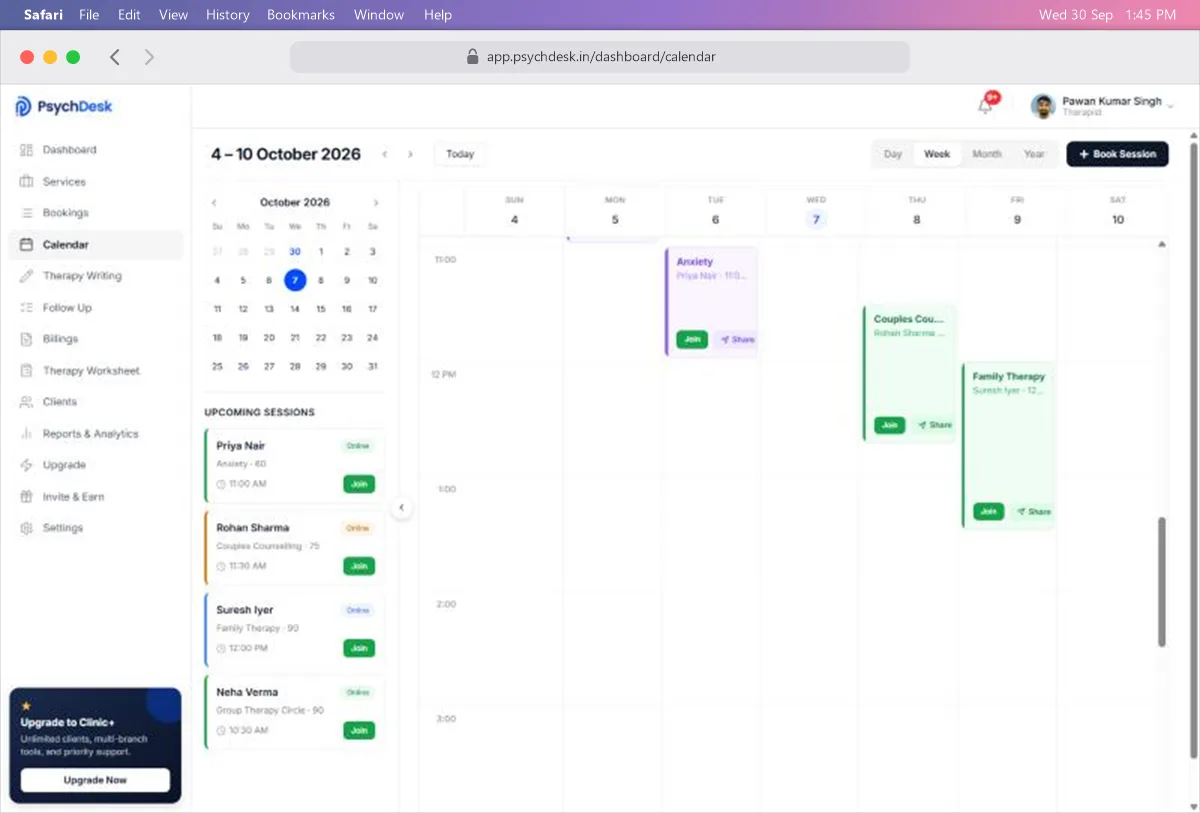
The page has three parts.
Top bar
- The date range you are looking at, with ‹ and › to move back or forward.
- Today jumps back to the current date.
- Day, Week, Month and Year switch the view.
- Book Session opens the same booking window as on the Bookings page.
Left panel
- A small month calendar. Click any date to jump to it. Use its arrows to change month.
- Upcoming Sessions lists your next sessions with the client, service, length and start time, and a Join button for each.
- The ‹ button on the panel's edge hides the panel to give the calendar more room.
The calendar itself shows each session as a coloured block at its time, with the service name and client.
Choose a view
| View | Best for | What you see |
|---|---|---|
| Day | Planning today | One day, hour by hour, with a count of sessions at the top |
| Week | Your working week | Seven days side by side, hour by hour. This is the view the page opens in |
| Month | Seeing how busy a month is | Every day of the month, each session as a short line with its start time |
| Year | Picking a date far ahead | Twelve small month calendars. Click a date to open it |
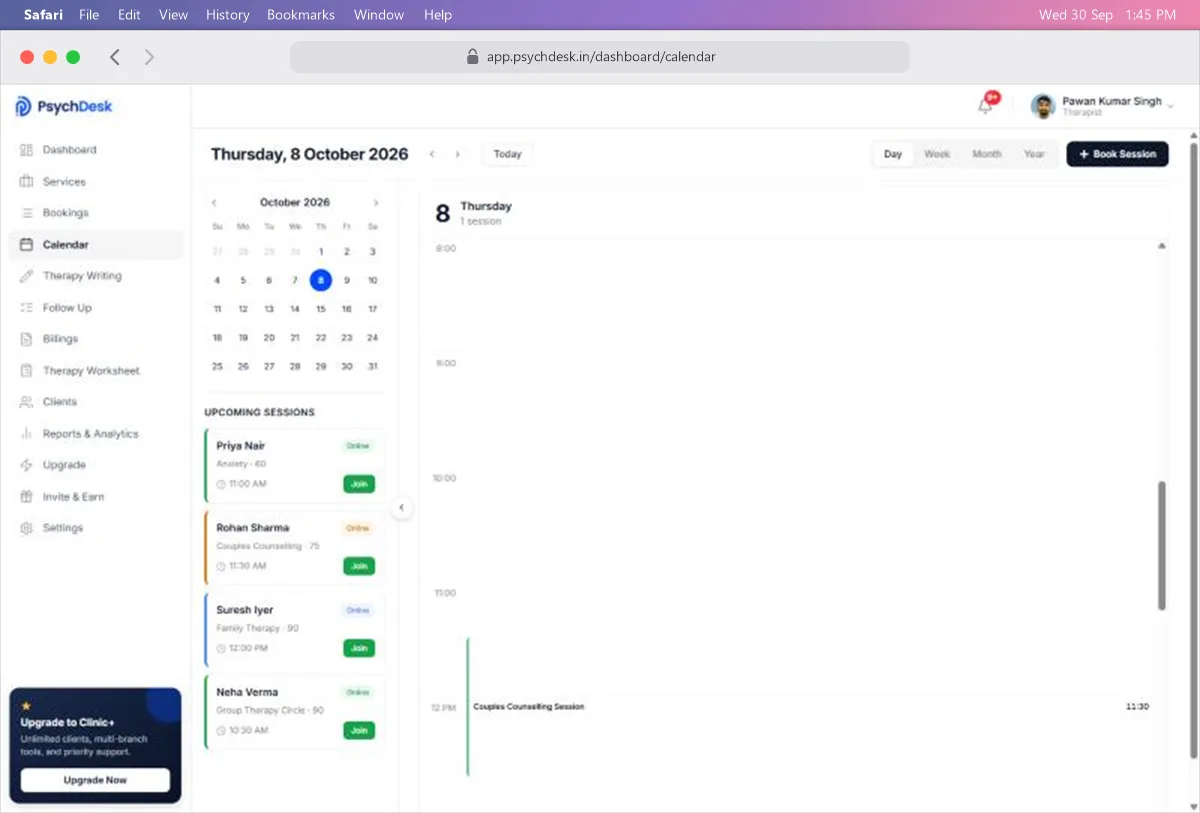
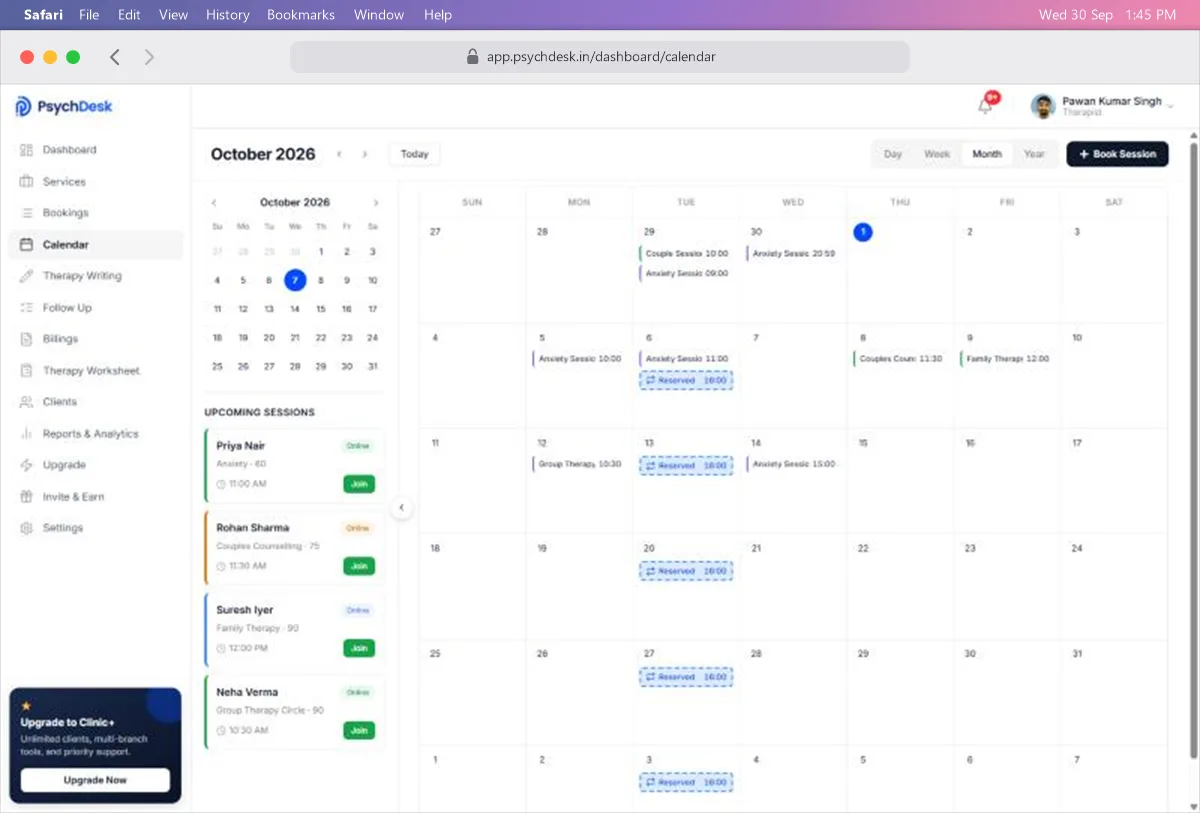
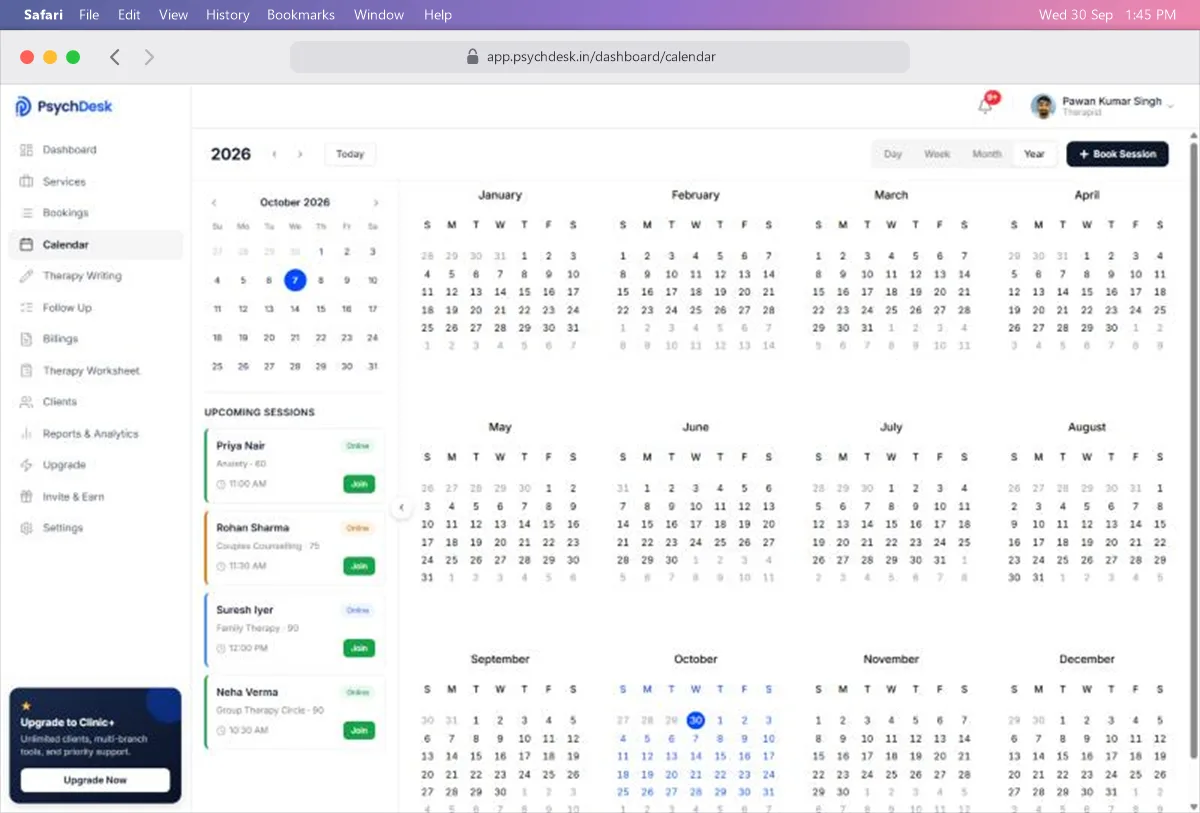
In Week and Day view, scroll inside the grid to see earlier or later hours.
Open a session
Click any session block to see its details.
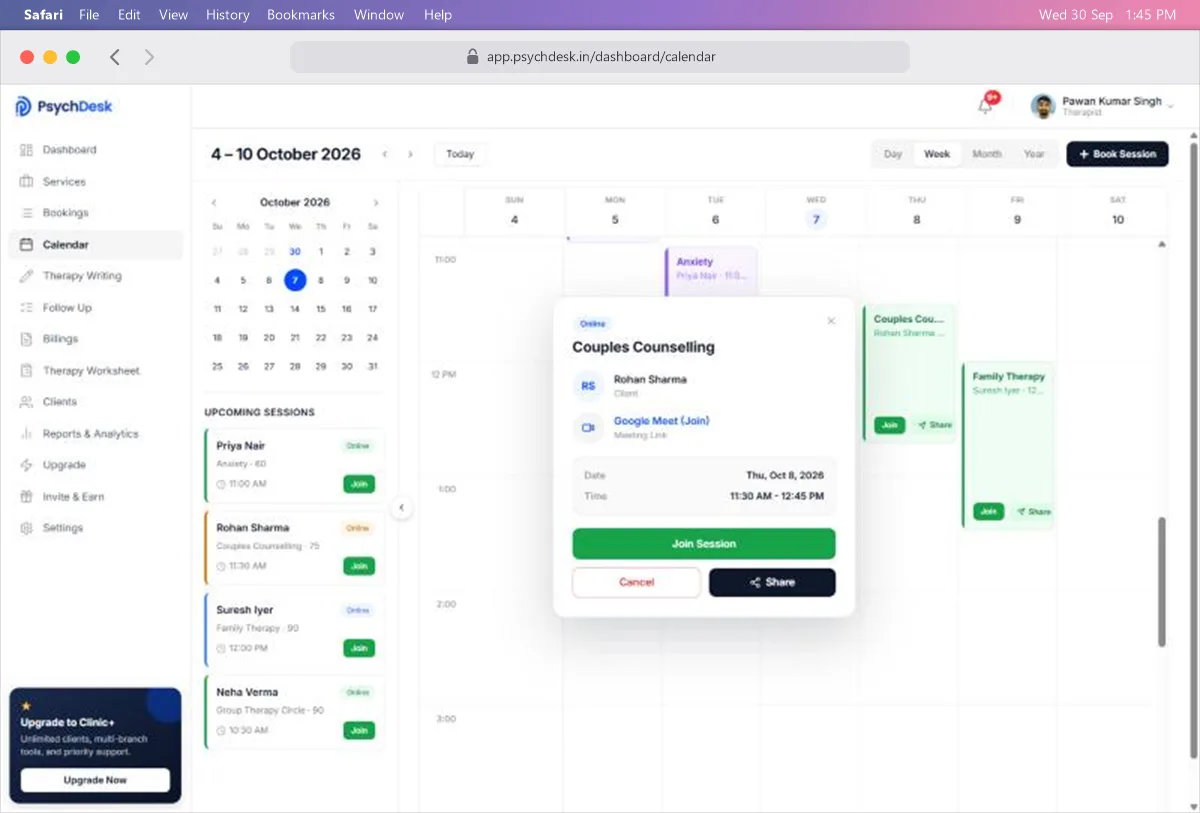
The window shows:
- The service and whether it is online or in person.
- The client's name.
- The Google Meet (Join) link for online sessions.
- The date and time.
From here you can:
- Click Join Session to open the online meeting.
- Click Share to send the session details to the client.
- Click Cancel to cancel the session. As on the Bookings page, the client is notified and this cannot be undone.
Close the window with ×.
Share session details with a client
- 1Open the session, or click Share on its block in Week view.
- 2Choose how to send it.
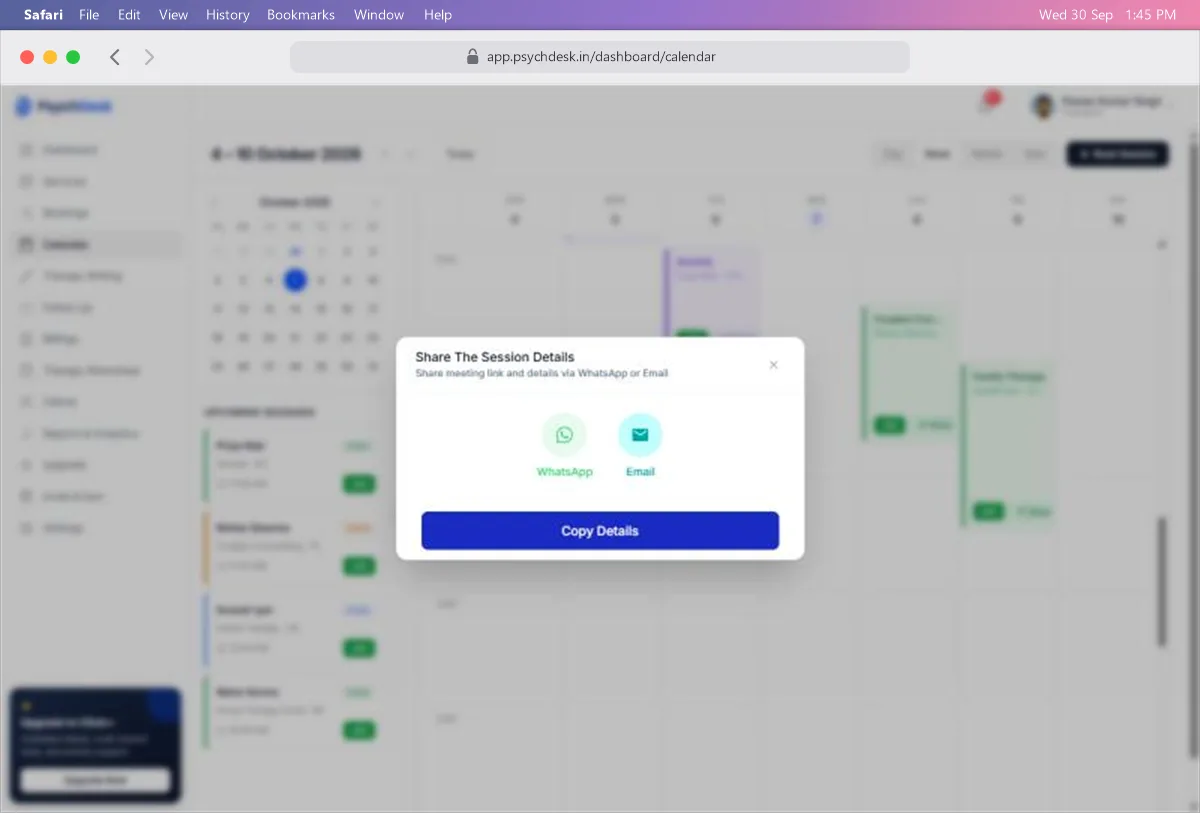
- WhatsApp opens WhatsApp with the meeting link and details ready to send.
- Email opens an email with the same details.
- Copy Details copies them so you can paste them anywhere.
This is useful when a client says they cannot find their confirmation.
Reading the labels
- A block marked Reserved is a planned session inside a package that has not been scheduled with the client yet. It appears on every date in the package's schedule.
- Blocks for sessions that have already ended stay on the calendar, so you can look back at past weeks.
Check it worked
- 1Book a test session from Bookings.
- 2Open Calendar and go to that date with the small calendar on the left.
- 3Confirm the block appears at the right time, with the right client and service.
- 4Click it and check the meeting link is there.
Common problems
| Problem | Likely cause | Fix |
|---|---|---|
| A session is not on the calendar | You are looking at a different week or month | Click the date in the small calendar, or use Today |
| A session block shows no client name | The block is too narrow for the text | Click the block to open its details, or switch to Day view |
| No meeting link in the session details | The session is in person | Only online sessions have a meeting link |
| The calendar looks cramped | The left panel is taking space | Click ‹ on the panel's edge to hide it |
What to set up next
- Write up a session once it is done: see the Therapy Writing guide.
- Track tasks for your clients: see the Follow Up guide.