Publish your booking page
Choose which services appear publicly. Intake consults can be open to everyone while ongoing therapy stays invite-only.
Self-scheduling removes the back-and-forth that eats your evenings. This walkthrough sets up a booking page you can put in your bio, and the rules that keep it from filling badly.
Choose which services appear publicly. Intake consults can be open to everyone while ongoing therapy stays invite-only.
Minimum notice, maximum sessions per day and buffers stop your week from becoming unworkable even when demand spikes.
Clients see the policy before confirming, and the system enforces the window automatically instead of leaving you to have that conversation.
Reminders go out over SMS, email and WhatsApp on your schedule. Practices that turn these on typically see no-shows drop sharply.
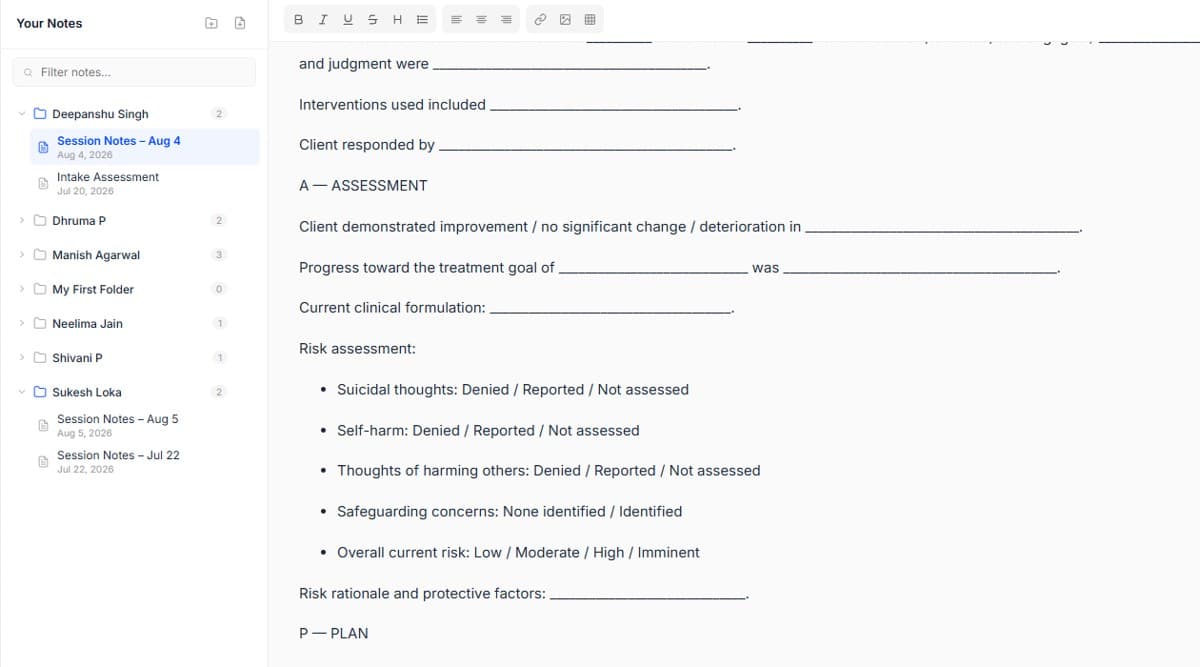
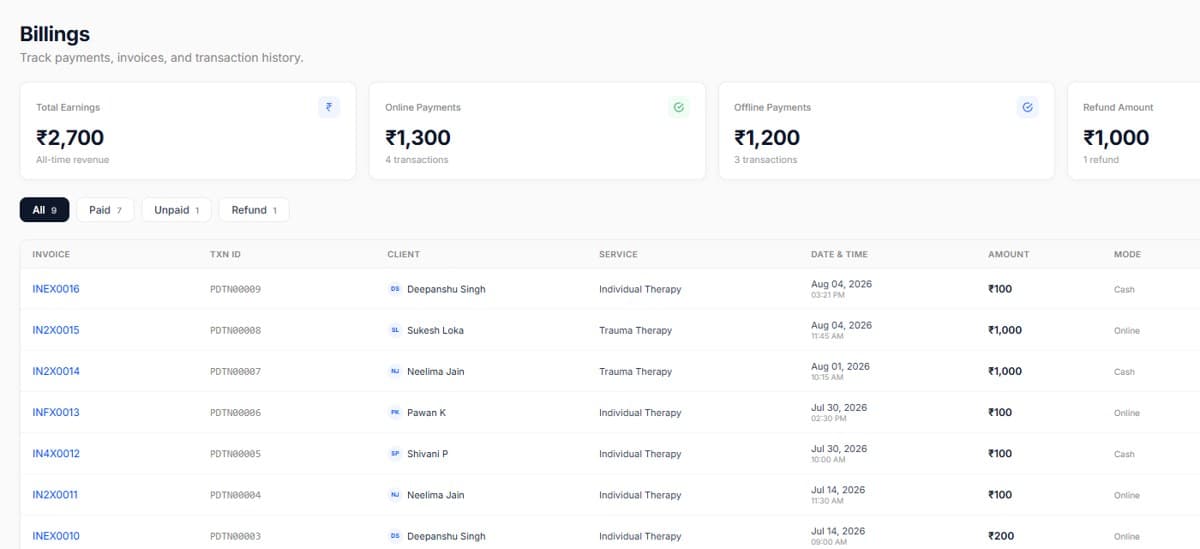
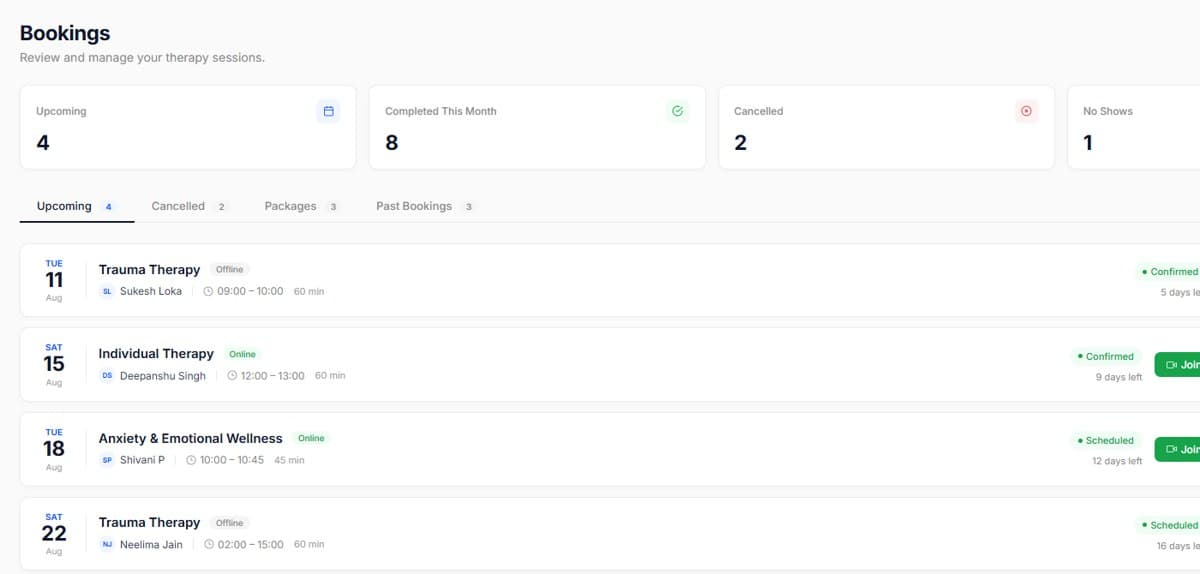
Real screens from the product, so you know exactly what to expect before you start.
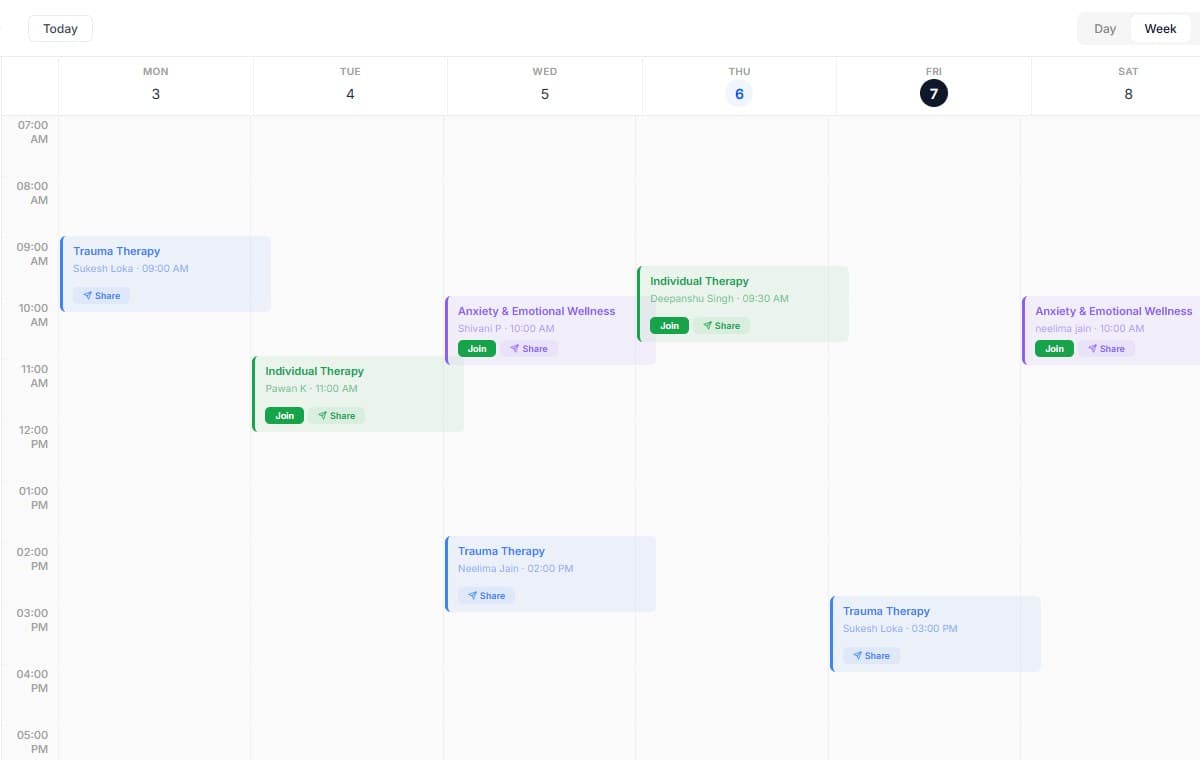
Send one reminder 24 hours ahead and one two hours ahead, more than that reads as spam.
Keep first-session slots on a couple of fixed days so intakes stay predictable.

Start your free trial today. No credit card required, set up your workspace in 10 minutes and see how PsychDesk simplifies your practice.
Want the detail first?
Read the product documentation